UI Test Recording
Record browser actions (clicks, fills, navigations) via the Mockarty Chrome extension and promote them into reusable TCM test cases. The recording captures Playwright-compatible locators; the runner replays them against a real Chromium browser.
Quick start
- Install the Chrome extension — download it with
mockarty-cli extension download(it extracts to~/.mockarty/extension/chrome/), then openchrome://extensions/→ Developer mode → Load unpacked → select~/.mockarty/extension/chrome/. - Pair with your admin — open the extension sidepanel, enter your admin URL (
http://127.0.0.1:5770), click Reconnect. - Start recording — on the Captures tab, find the Record card and press Record (scenario mode).
- Perform actions — navigate to your target site and perform actions. The sidepanel shows a live UI Steps list with every gesture captured.
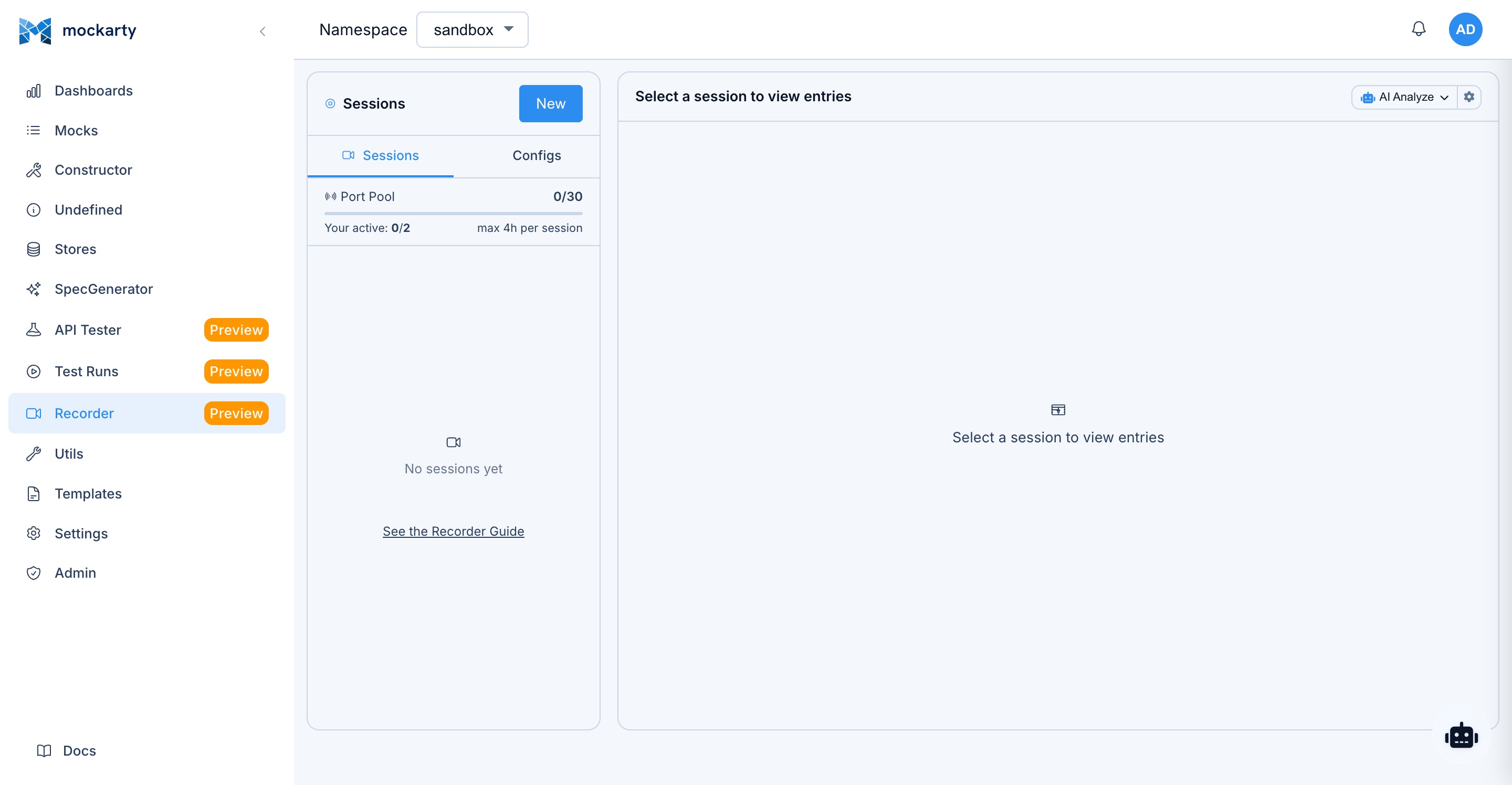
- Save as UI test — on the admin Recorder page, select the session → Save as UI Test → review the steps → Save.
- Promote to test case — open the UI test → Promote to test case → each recorded action becomes a TCM step.
How recording works
A content script listens for DOM events in every frame:
| Gesture | Recorded action | Playwright locator |
|---|---|---|
| Click a button | click |
role=button[name='Submit'] |
| Type in an input | fill (debounced 300ms) |
input[name='email'] |
| Navigate / SPA route | navigate |
url |
| Press Enter / Tab / Esc | press |
key name |
| Select an option | select |
value + selector |
| Check a checkbox | check |
selector |
Selector strategy: the recorder picks the most stable locator in order: data-testid → id → aria-label → role + accessible name → visible text → CSS path. Sensitive fields (passwords, credit-card autocomplete) are redacted client-side — their values are replaced with [redacted] and never leave the browser.
Live step display
The extension sidepanel shows recorded actions in real time under the UI Steps section:
- Each step is numbered and shows a short description with the key parameter.
- Examples:
→ https://example.com/login,Click button[type=submit],Fill input[name=email] ← user@test.com. - A Clear button discards all buffered steps.
- The counter shows how many steps are buffered before the next flush to the admin.
Saving as a UI test
On the admin Recorder page, select the active session and click Save as UI Test. The modal shows:
- A name field (pre-filled from the session name).
- A namespace selector.
- A step preview list with every recorded action shown in human-readable form.
- Click Save UI Test to persist the definition.
The UI test is stored server-side. Captured screenshots are stripped at save time — only the gestures (selectors, values) are kept, keeping the definition lean.
Promoting to a TCM test case
From the UI test detail page, click Promote to test case. Each recorded browser action becomes a UI-test TCM step carrying the action type, selector, and value. The runner replays these steps sequentially within a single browser context.
Step names are auto-generated:
Navigate to https://example.com/loginClick button[type='submit']Fill input[name='email']Press Enter
Replaying
The mockarty-runner binary replays saved UI tests on the lightweight engine (screenshots via the embedded render core; RUNNER_BROWSER_PROVIDER=local for real Chromium). See the runner setup section for configuration.
Security
- Sensitive fields (passwords, OTP, credit-card autocomplete, API keys) are redacted client-side by the content script. The redaction is based on
type,autocomplete,name,id,aria-label, andplaceholderheuristics — the value is replaced with[redacted]before it reaches the admin. - Screenshots are removed from recorded actions before the test is saved. The original screenshots remain in the recorder session and are cleaned up when that session is deleted.
- Admin frame exclusion — the recorder ignores gestures on the Mockarty admin UI itself, preventing feedback loops.
Companion scenario expiry
When creating a companion scenario through POST /api/v1/companion/scenarios, you can set its optional expiresAt timestamp. After that time, the scenario is no longer returned by the scenario list, direct lookup, or a public share link. The server closes expired scenarios in the background. Deleting a scenario also invalidates its share link.