MCP Marketplace — Integration Guide
What Is MCP and Why Should I Care?
MCP (Model Context Protocol) is an open standard that lets AI assistants use external tools. Think of it as “USB for AI” – just as USB lets you plug any peripheral into your computer, MCP lets you plug any tool into an AI agent.

Without MCP, an AI assistant can only read text and generate text. With MCP, it can browse websites, search code repositories, read files, query databases, and call APIs – all through a standard interface.
Why this matters for Mockarty: The MCP Marketplace is where you connect external tools to Mockarty’s built-in AI agent. Once connected, the AI can use these tools when generating mocks, running tests, or analyzing APIs. For example:
- Connect Playwright so the AI can take screenshots of your web app and create mocks that match the real UI.
- Connect your GitHub repo so the AI can look at your actual code when generating mocks.
- Connect a knowledge base with your API docs so the AI generates accurate responses.
No AI experience needed. You do not need to understand AI or LLMs to use the marketplace. Just connect a tool, enable it, and the AI will figure out when and how to use it.
About URLs in examples: All examples use
localhost:5770as the default Mockarty address. If your instance runs on a remote server, replacelocalhost:5770with its actual address (e.g.https://mockarty.company.comorhttp://192.168.1.50:5770). See Tips & Useful Features for details.
How It Works
The MCP Marketplace supports six source types for connecting external tools:
| Source Type | What It Connects | Examples |
|---|---|---|
| MCP Server | Purpose-built AI tool providers | Playwright, Filesystem, GitHub, Fetch |
| OpenAPI Spec | Any REST API with a Swagger/OpenAPI spec | Your internal APIs, third-party services |
| gRPC | gRPC services (via server reflection) | Microservices with proto definitions |
| WSDL | Legacy SOAP web services | Enterprise integrations |
| A2A Agent | Other AI agents (Agent-to-Agent protocol) | Specialized analysis agents |
| RAG | Knowledge bases | RAGFlow, AnythingLLM, Dify |
Each source type is described in detail below.
How to Add an Integration
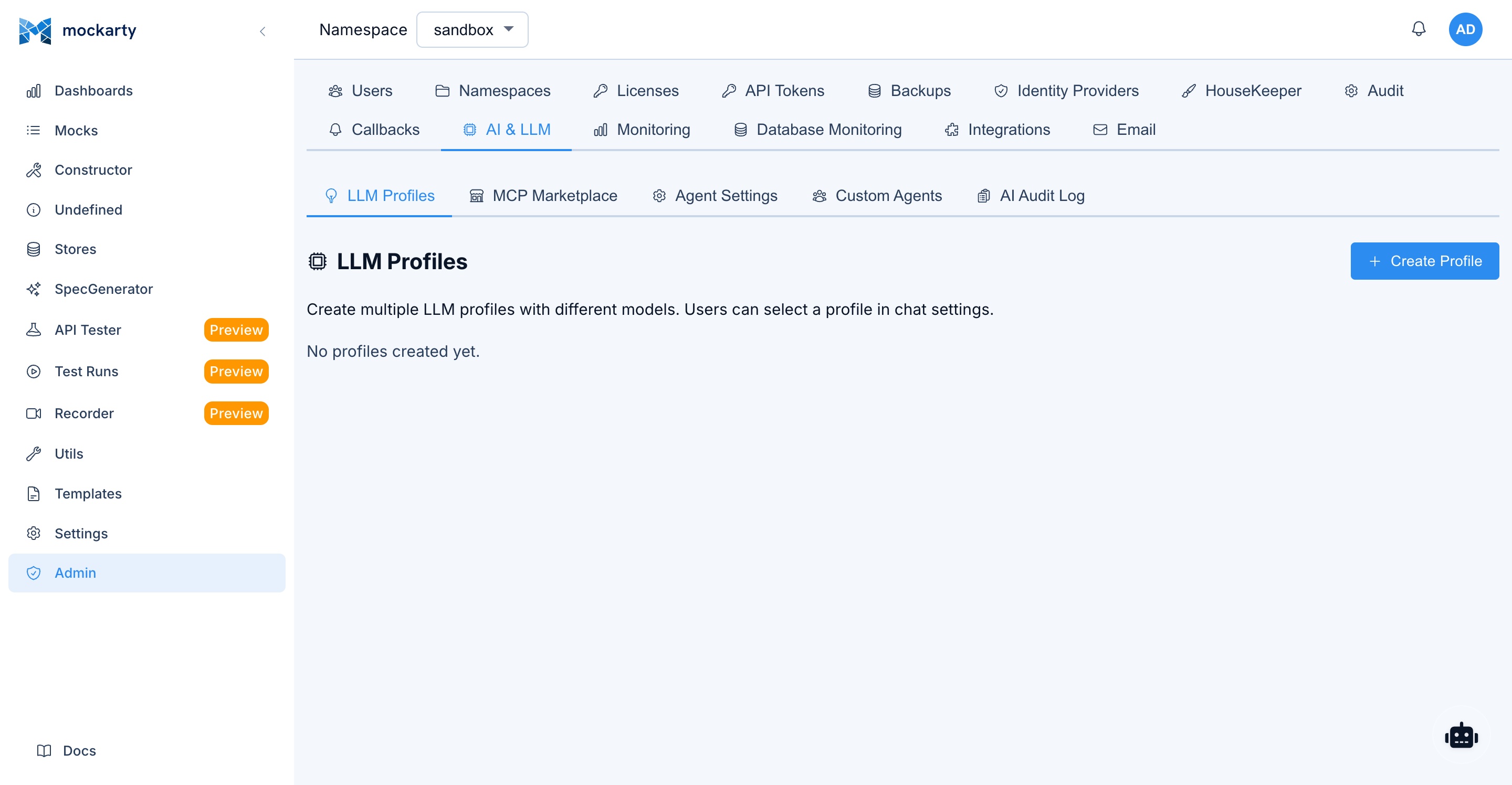
- Go to Admin → AI & LLM → MCP Marketplace
- Click Add Integration or use a Quick Setup Preset
- Choose the source type, enter the URL, configure authentication
- Click Save — tools are discovered automatically
- Open any AI feature (Constructor, API Tester, etc.), click the gear icon, and enable the tools you need
MCP Server Integrations
MCP (Model Context Protocol) servers are purpose-built tool providers. They communicate via JSON-RPC and can maintain stateful sessions — for example, a Playwright MCP server can keep a browser open across multiple tool calls within the same chat.
Playwright (Browser Automation)
Automate a real browser: take screenshots, click elements, fill forms, navigate pages. Ideal for UI testing workflows where the AI needs to interact with your web application.
Deploy:
# Using npx (requires Node.js)
npx @anthropic/mcp-playwright --port 8931

# Using Docker
docker run -d --name playwright-mcp -p 8931:8931 \
  mcr.microsoft.com/playwright:latest \
  npx @anthropic/mcp-playwright --port 8931
Connect in Mockarty:
- Source Type:
MCP Server - URL:
http://localhost:8931/mcp - Authentication: None
Discovered tools: browser_navigate, browser_screenshot, browser_click, browser_fill, browser_evaluate, etc.
Filesystem
Read and write files on the server. Useful for accessing logs, configs, report templates, or saving generated artifacts.
Deploy:
npx @anthropic/mcp-filesystem --port 8932 --root /path/to/allowed/directory
Connect in Mockarty:
- Source Type:
MCP Server - URL:
http://localhost:8932/mcp - Authentication: None
Discovered tools: read_file, write_file, list_directory, search_files, etc.
Security note: The filesystem MCP server restricts access to the configured root directory. Always set
--rootto a specific directory, not/.
GitHub
Search code, issues, pull requests, and files across your GitHub repositories. The AI agent can look up real implementation patterns to generate accurate mocks.
Deploy:
npx @anthropic/mcp-github --port 8933

# Or with Docker
docker run -d --name github-mcp -p 8933:8933 \
  -e GITHUB_TOKEN=ghp_your_token_here \
  node:20-slim \
  npx @anthropic/mcp-github --port 8933
Connect in Mockarty:
- Source Type:
MCP Server - URL:
http://localhost:8933/mcp - Authentication: Bearer Token → your GitHub personal access token
Discovered tools: search_code, get_file_contents, search_issues, list_repos, etc.
Fetch (Web Scraping)
Fetch web pages and convert them to Markdown. The AI can read documentation pages, API references, or any web content as context for its tasks.
Deploy:
npx @anthropic/mcp-fetch --port 8934
Connect in Mockarty:
- Source Type:
MCP Server - URL:
http://localhost:8934/mcp - Authentication: None
Discovered tools: fetch, fetch_raw_html
Connecting Any MCP Server
Any MCP server that supports the Streamable HTTP transport can be connected. The server must respond to:
POST /(or your configured path) with JSON-RPC 2.0 messagesinitializemethod for session setuptools/listfor tool discoverytools/callfor tool execution
General steps:
- Start your MCP server with an HTTP endpoint
- In Mockarty, choose Source Type:
MCP Server - Enter the URL (e.g.,
http://host:port/mcp) - Configure authentication if required
- Save — Mockarty will call
tools/listto discover available tools
OpenAPI / Swagger Integrations
Connect any REST API that has an OpenAPI (Swagger) specification. Each API endpoint becomes an individually callable tool.
How It Works
- Mockarty fetches and parses your OpenAPI spec (JSON or YAML)
- Each endpoint becomes a tool:
- Tool name = operationId or
method_path(e.g.,getUserById) - Description = endpoint summary from the spec
- Parameters = path params, query params, headers, body — all typed
- Tag = first OpenAPI tag (for grouping in the UI)
- Tool name = operationId or
- When the AI calls the tool, Mockarty makes the real HTTP request
Setup
Connect in Mockarty:
- Source Type:
OpenAPI Spec - URL: Direct link to your spec, e.g.:
http://your-api:8080/openapi.jsonhttp://your-api:8080/v3/api-docs(Spring Boot)http://your-api:8080/swagger/doc.json(Go Swagger)http://your-api:8080/swagger.yaml
- Authentication: Match what your API requires (Bearer, API Key, Basic, etc.)
Example: If your spec has GET /api/users/{id}, the AI gets a getUserById tool. It calls getUserById({"id": "42"}), Mockarty makes the HTTP request, and the AI sees the real response shape to generate an accurate mock.
Tips
- Use your staging environment URL — let the AI call real endpoints safely
- Auth passes through — the same token used for the spec is used for tool calls
- User-level header overrides — each user can provide their own token if needed (see Custom Headers below)
gRPC Integrations
Connect a gRPC service and expose its methods as agent tools via server reflection.
How It Works
- Mockarty connects to your gRPC server
- Uses gRPC server reflection to discover services and methods
- Each unary RPC method becomes a tool:
- Tool name =
grpc_ServiceName_MethodName - Parameters = protobuf message fields as JSON properties
- Tool name =
- Tool calls are proxied as real gRPC requests
Setup
Prerequisites: Your gRPC server must have server reflection enabled.
Connect in Mockarty:
- Source Type:
gRPC - URL:
your-grpc-server:50051(host:port, nohttp://prefix) - Authentication: None or Bearer token (added as
authorizationmetadata)
Example: A gRPC service UserService with method GetUser(GetUserRequest) becomes tool grpc_UserService_GetUser with input {"user_id": "42"}.
Enabling Reflection
// Go — add to your gRPC server setup
import "google.golang.org/grpc/reflection"
reflection.Register(grpcServer)
# Python
from grpc_reflection.v1alpha import reflection
reflection.enable_server_reflection(service_names, server)
// Java — add grpc-services dependency
Server server = ServerBuilder.forPort(50051)
    .addService(ProtoReflectionService.newInstance())
    .build();
WSDL / SOAP Integrations
Connect legacy SOAP web services. Mockarty parses the WSDL and converts SOAP operations into JSON-based tools — the AI never needs to deal with XML envelopes directly.
How It Works
- Mockarty fetches and parses the WSDL document
- Each SOAP operation becomes a tool with
soap_prefix - Tool inputs are JSON objects matching the operation’s message parts
- Mockarty builds the SOAP XML envelope and makes the HTTP call
Setup
Connect in Mockarty:
- Source Type:
WSDL - URL:
http://your-service/service?wsdlor direct link to.wsdlfile - Authentication: As required (Basic Auth is common for SOAP services)
Example: A WSDL with operation GetCustomerInfo becomes tool soap_GetCustomerInfo. The AI calls it with {"customerId": "C-123"}, Mockarty wraps it in a SOAP envelope, sends the request, and returns the parsed response.
A2A Agent Integrations
Connect external AI agents using the Agent-to-Agent (A2A) protocol. Your AI agent can delegate specialized tasks to other agents.
How It Works
- Mockarty fetches the agent card from
{url}/.well-known/agent.json - The agent’s declared skills become available tools
- Tool calls are proxied to the external agent as A2A task requests
Setup
Connect in Mockarty:
- Source Type:
A2A Agent - URL:
http://your-agent:8080(base URL, Mockarty appends/.well-known/agent.json) - Authentication: As required by the agent
Example agent card format:
{
  "name": "Code Review Agent",
  "description": "Specialized agent for code analysis",
  "skills": [
    {
      "name": "review_code",
      "description": "Analyze code for bugs, security issues, and best practices"
    }
  ]
}
RAG Knowledge Bases
Connect external knowledge bases to give your AI agents access to company documentation, API specs, coding standards, and other reference material.
Mockarty supports RAGFlow, AnythingLLM, Dify, R2R, and any custom RAG API.
For detailed setup guides, Docker deployment instructions, and provider-specific configuration:
→ Knowledge Base (RAG) — Full Guide
Custom Headers & Authentication
Server-Level Auth (Set by Admin)
| Auth Type | What It Sends |
|---|---|
| None | No auth headers |
| Bearer Token | Authorization: Bearer <token> |
| API Key | Custom header with key (e.g., X-API-Key: <key>) |
| Basic Auth | Authorization: Basic <base64> |
| Custom Headers | Any custom headers as JSON |
User-Level Overrides
Different users may need different credentials for the same service. In the AI settings (gear icon), users can add header overrides per integration:
- Click the gear icon in any AI feature
- Find MCP Tools section
- Click the key icon next to a tool
- Add custom headers (e.g., your personal API token)
These merge on top of the admin-configured auth — user overrides take precedence.
Tool Budget
Registering a server adds its discovered tools without clearing your earlier tool choices. Refreshing tools preserves disabled choices. If a refresh cannot be saved, it reports an error and keeps the previously saved catalogue. If you change the server settings during a refresh, the earlier result is refused; refresh again after saving the settings.
Each enabled tool adds to the token context sent to the LLM. The marketplace UI shows a budget indicator:
- Green: well within limits
- Yellow: approaching budget
- Red: over budget — some tools may be truncated
Tips:
- Only enable tools you actually need per feature
- Use tool grouping (enable/disable entire servers at once)
- Tools with shorter descriptions cost fewer tokens
Troubleshooting
Browser preferences could not be saved
If browser storage is blocked or full, the marketplace shows a warning and keeps your current choices available in the open page. An explicit tool-selection change still attempts to save on the server. A separate unsaved-change warning means that server save was not confirmed. Restore browser storage and make an explicit change to save local preferences; avoid closing the page while relying on its temporary choices.
Connection fails / status “offline”
- Verify the server is running:
curl http://your-server:port/health - Check network: ensure Mockarty can reach the server (no firewall, correct Docker network)
- For MCP servers: try
curl -X POST http://server:port/mcp -H "Content-Type: application/json" -d '{"jsonrpc":"2.0","id":1,"method":"tools/list","params":{}}'
Tools not discovered
- OpenAPI: Verify the spec URL returns valid JSON/YAML (
curlit directly) - gRPC: Ensure server reflection is enabled
- WSDL: Verify the URL returns valid XML
- Click Refresh Tools to retry discovery
Authentication errors
- Double-check the token/key in the server configuration
- For Bearer tokens, do not include the
Bearerprefix — Mockarty adds it - Test manually:
curl -H "Authorization: Bearer <token>" http://your-server/endpoint
SSRF protection blocking internal URLs
By default, Mockarty blocks requests to private IP ranges (10.x, 172.16-31.x, 192.168.x). To allow internal services, set the environment variable:
ALLOW_PROXY_TO_PRIVATE_IPS=true
High token usage
- Disable tools you don’t need for specific features
- Check the Tool Budget indicator in the marketplace
- Tools with large input schemas consume more tokens – consider using simpler endpoints
Common Mistakes
- Adding
Bearerprefix to the token field. Mockarty adds theBearerprefix automatically. If you enterBearer ghp_abc123, the actual header sent will beAuthorization: Bearer Bearer ghp_abc123(double prefix), which will fail. - Using
http://localhostwhen Mockarty runs in Docker. Inside a Docker container,localhostrefers to the container itself, not your host machine. Usehttp://host.docker.internalor the actual service hostname on the Docker network. - Enabling too many tools at once. Each tool’s description and parameters consume LLM context tokens. Start with 2-3 tools and add more as needed. Check the Tool Budget indicator.
- Expecting tools to work without enabling them. Adding an integration to the marketplace only discovers the tools. You must also enable specific tools in the AI settings (gear icon) of each feature where you want to use them.
Related Documentation
- AI Features – comprehensive guide to all AI capabilities, agent system, custom agents, and built-in tools
- Knowledge Base (RAG) – detailed setup for RAGFlow, AnythingLLM, Dify, R2R, and custom RAG providers