Test Case Management
A test case is a written description of something to check — a title, the steps to
perform, and the expected result. A TMS (test management system) is where a team keeps
all its test cases organised, runs them, and tracks what passed or failed. Mockarty’s Test
Case Management (TCM) is that TMS, built in: organise cases in folders, version every edit,
attach screenshots, link external trackers, submit for review, and trigger runs that feed
the same unified Allure report as every other test type — so manual and automated testing
live in one place instead of a separate tool.
About URLs in examples: all examples use
localhost:5770as the default Mockarty address. If your instance runs on a remote server, replacelocalhost:5770with its actual address (e.g.https://mockarty.company.com). See Tips & Useful Features for details.
Related pages: Test Case Steps · Runtime Flow View · Test Plans · Review Workflow · Test Case Attachments · Notification Channels · Webhooks & Callbacks · External Trackers
Core concepts
- Test case — a reusable document that describes what to verify. It owns metadata (name, priority, tags, execution mode), a rich-text description, a list of ordered steps, attachments, and optional external links (Jira, GitHub, Linear, GitLab). Each case lives in a folder and has a version history.
- Folder — nested container (depth ≤ 8). Folders can be moved with drag-and-drop; moving carries the whole subtree and fires a
tcm.folder.movedaudit entry. - Step — individual action inside a case. Each step has an action, expected result, optional attachments and executor config, and can depend on earlier steps (
dependsOn: [stepUID]) so runs parallelise independent branches. - Shared step — reusable step fragment. Insert by reference to keep cases in sync; pin to a specific version or follow
latest. The builder shows a usage counter on every shared step. - Version — snapshot of a case. Every save creates a new version (capped at 20 via FIFO pruning; rollback creates a new version instead of deleting old ones). Compare any two versions with unified text diff plus RFC 6902 JSON patch.
- Run — execution of a case. Runs can be triggered one-off, batched (synthetic Test Plan), or bound into a regular Test Plan via the
test_caseitem type.
Where to start
Open /ui/test-cases in the admin. The page splits into three areas:
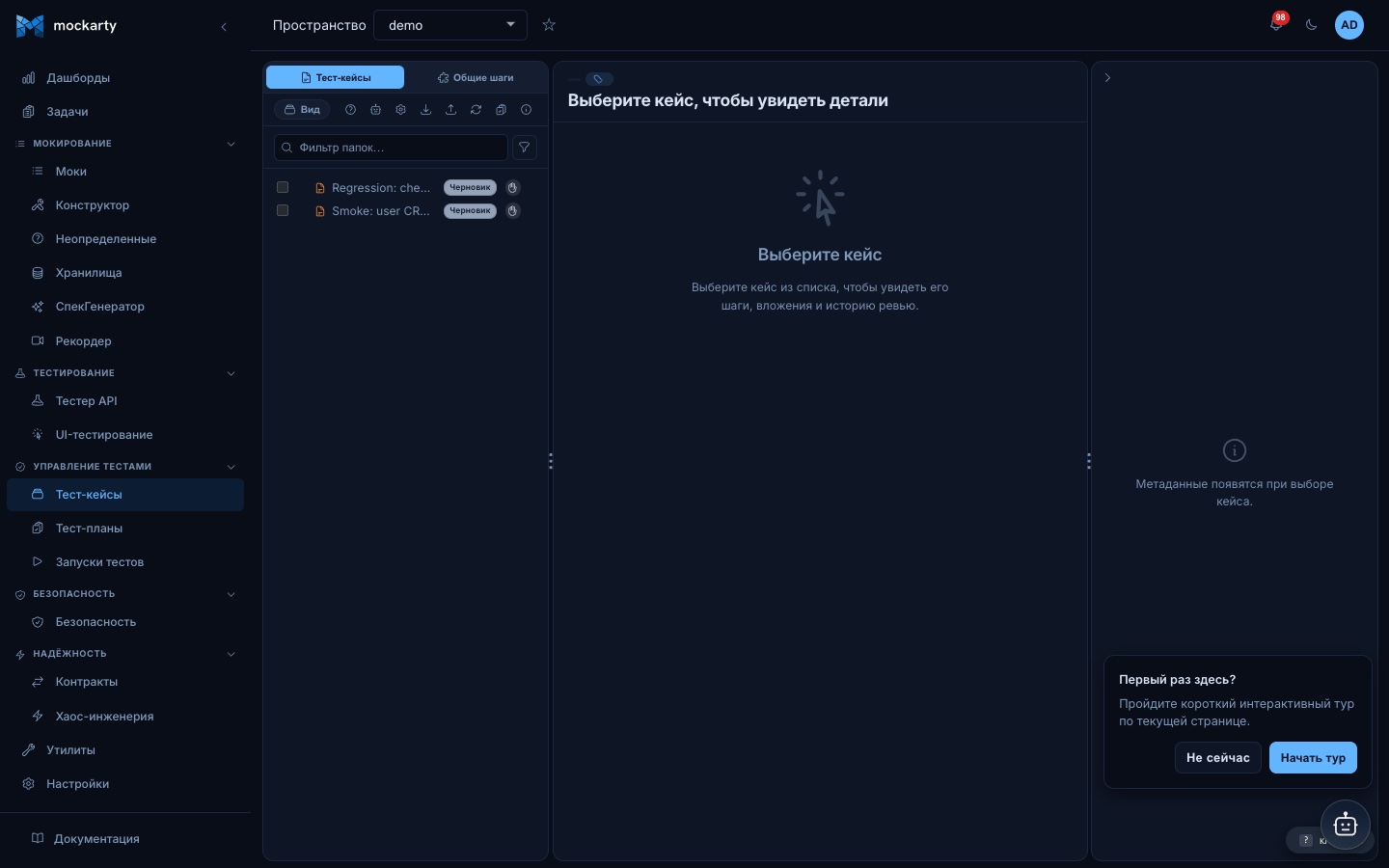
- Left — folder tree. Drag to reorder, right-click for context menu (new folder, rename, delete, move). Ctrl+Click multi-selects for bulk operations.
- Middle — the selected case editor. Its tabs are Steps, Data, Attachments, Review, Run, Runs and History. On a narrow screen, swipe the tab row sideways to reach the later tabs.
- Right — case metadata such as status, priority, owner and custom fields. You can collapse this pane on a wide screen.
The case sidebar shows a readable case number when one is available. Use
Copy case ID there when you need the internal ID for an API call.
Related and similar case labels use case names rather than internal IDs.
If a case, step or linked bot conversation has no name, review and run views
show a readable placeholder; the internal ID remains available to the system.
In a manual step’s Agents panel, an assignee stored only as an internal ID
gets a numbered label; the unassign button names the assignee it will remove.
Step controls for unlinking a request and closing an assertion or extraction
test use the selected interface language.
Version comparison also uses a readable label for an unnamed step. Run
comparison shows step statuses in the selected interface language.
The step’s environment, secret store and runner selectors also show a readable
placeholder for an unnamed item while retaining its binding for execution.
Review comments with older user references resolve authors to account names.
While those names load, the review panel shows a readable placeholder without
an internal ID in the label or hover text.
If a user cannot be found or the lookup fails, a readable label appears in the
comment, metadata and history views instead of a fragment of the internal ID.
An open view retries a temporarily failed lookup automatically with a pause
between attempts, so the account name appears when the service recovers.
The same author labels appear in run report comments and follow your selected
interface language when it changes.
When a picker offers mock routes, its folder tree uses readable folder names.
An API request label includes its collection name. If the folder list is
temporarily unavailable, the mock remains grouped under its folder name
without showing an internal ID as its label.
An unnamed item in the folder picker or its selected chip appears as
Unnamed item; its saved connection still points to the same item.
If secret stores fail to load, the picker shows Retry instead of an empty
store list. The environment search retries a failed read when focused again.
On narrow screens, open the case metadata with the slider icon in the case
header; close it with the X button, Escape, or by tapping outside.
Every button, input, and list item carries data-ai-action-id / data-ai-info so the built-in AI assistant can navigate and operate the page on your behalf.
You can save the current case-list filters under a name and load them later.
Click the funnel icon to reopen an active filter and change its selections.
To remove all selections, click Clear in the filter panel, then Apply.
On narrow screens, open the case tree first to reach the funnel icon.
Saving a filter with the same name again updates your existing filter. Personal
filters are visible only to you; public filters are visible in the namespace.
Deleting a saved filter removes it from the list, then clears it after the
configured retention period.
Creating a case
- Pick a folder in the tree (or stay at root).
- Click New test case. The builder opens empty.
- Fill in Name, optional Priority (low / medium / high / critical), Tags, Execution mode (auto / manual / semi-automatic). When you later link an autotest to a manual case (the Automation panel in the case sidebar), the case is reclassified to auto automatically — a case backed by a CI autotest is an automated case. An explicit semi-automatic choice is never changed, and unlinking does not change the mode back.
- Write a Description in the rich-text editor. Supported formats:
markdown(default),html,plain. The preview pane renders the sanitised HTML as the server will store it. - Add Steps one by one. Drag to reorder. Inside a step:
- Action and Expected result are rich-text.
- Depends on lets you pick one or more step UIDs that must pass before this one runs.
- Attach files by drag-and-drop or paste (screenshots from the clipboard work out of the box).
- Use Insert shared step to pick a reusable fragment; choose reference (auto-updates) or copy (snapshot).
- Optionally link external issues through the integration picker (
PROJ-123autocomplete pulls titles + statuses from the configured tracker). - Save. A new version is stored; the review panel moves from No review to Draft.
API surface
All endpoints are namespace-scoped under /api/v1/namespaces/:namespace/.
Folders
| Method | Path | Purpose |
|---|---|---|
GET |
/tcm/folders/tree |
Full namespace tree snapshot (nested JSON with per-folder case count). |
GET |
/tcm/folders |
Flat list for picker fallback. |
GET |
/tcm/folders/:id |
Single folder metadata. |
POST |
/tcm/folders |
Create ({parentId, name, description, icon, color, sortOrder}). |
PATCH |
/tcm/folders/:id |
Update (pointer fields — empty string explicitly clears). |
DELETE |
/tcm/folders/:id |
Soft-delete (cascade via the Recycle Bin). |
POST |
/tcm/folders/:id/move |
{toParentId} — reparent with depth + cycle guards. |
Cases
| Method | Path | Purpose |
|---|---|---|
GET |
/test-cases |
List with filters (folderId, status, tag, limit, offset). |
GET |
/test-cases/:id |
Full case + current version steps. |
POST |
/test-cases |
Create (body matches the builder form). |
PATCH |
/test-cases/:id |
Partial update with If-Match optimistic lock on the version counter. |
DELETE |
/test-cases/:id |
Soft-delete. |
GET |
/test-cases/:id/versions |
Version history (latest 20). |
GET |
/test-cases/:id/versions/:a/diff/:b |
Diff — {patch, textual}. |
POST |
/test-cases/:id/rollback |
{toVersion: N} — roll forward by creating a new version from the target snapshot. |
Step payload (POST /test-cases/:id/versions)
The version endpoint accepts a steps array. All keys are camelCase.
{
  "notes": "Login regression coverage",
  "steps": [
    {
      "stepUid": "open-login",
      "name": "Open login page",
      "action": "Navigate to /login.",
      "description": "Browser ships with a clean profile.",
      "expectedResult": "Login form is visible with email + password fields.",
      "mode": "manual",
      "executorType": "request",
      "orderIndex": 0,
      "estimatedDurationMs": 5000,
      "dependsOn": []
    },
    {
      "stepUid": "submit-creds",
      "name": "Submit valid credentials",
      "action": "Type the test user email + password and click Sign in.",
      "expectedResult": "Redirect to /dashboard within 2s.",
      "mode": "manual",
      "executorType": "request",
      "orderIndex": 1,
      "dependsOn": ["open-login"]
    }
  ]
}
Field reference:
stepUid— stable identifier within the case, preserved across versions. Generated server-side if you omit it.name(≤ 300 chars) — short display label. Required for runs that record human-readable history.action(≤ 4000 chars) — what the tester (or runner) does at this step.description(≤ 2000 chars) — optional context / rich-text body.expectedResult(≤ 4000 chars) — verifiable signal the step succeeded.mode—manual/semi_automatic/agent_controlled.executorType—mock/fuzz/load/collection/request/ui_test/bot/custom/manual.ui_testdispatches the step to a browser runner;botruns a conversation through the dialog engine (the same one Bot Testing uses), which is what makes a case of a conversational product executable at all — such a product has no endpoint to address;manualmarks a step with no engine executor — a human (or the agent) resolves it.executorConfig— engine-specific settings. For aui_teststep the useful keys areui_test_id(a saved recording) oractions(inline actions), plusstorage_state_id(a saved sign-in state from Sign in once),device_lease_id(a warm, already-logged-in device),snapshot_id(a captured device-state snapshot, restored before the run) andstorage_state_urifor a hand-built state. An id that cannot be honoured fails the step with a named error instead of silently starting logged out or on a cold device — omit the key when that is what you want. For abotstep the keys arescenario(the dialog, exactly the shapebot_dialog_runaccepts) orscenarioId(a saved scenario from Bot Testing — the platform then comes from that scenario), plussessionId(the bot stand the product’sapi_urlpoints at) and optionalplatform(defaulttelegram-botapi) andsuccessAny(the reply that means the whole conversation reached its goal). Atelegram-botapiorgenericbot step with nosessionIdfails by name instead of minting a stand nobody is polling.orderIndex— non-negative integer. Sort order within the version.estimatedDurationMs— UI hint; the runner can compare with actual duration.dependsOn— array ofstepUidstrings (≤ 32 entries). When any listed dependency ends infailed/cancelled, the runner marks this stepskippedwith reasondependency failed: <uid>.
Chaining steps: extract a value, reuse it downstream
A step can lift a value out of its response and hand it to later steps — so a login step captures the token, and every step after it sends that token. Two step fields drive this:
extract— an array of directives, each{ "kind": …, "from": …, "to": "plan.<name>" }:kind—jsonpath(default),regex,header, orstatus.from— the JSONPath (e.g.$.access_token), regex, or header name to read. Omit forstatus.to— the binding name, always prefixedplan.(e.g.plan.accessToken).
assertions— pass/fail checks evaluated against the response before the extract runs (a failed assertion fails the step and skips the extract).
Reference a captured value anywhere in a later step (URL, headers, body, expected result) with {{plan.<name>}}. Data-driven columns interpolate the same way with {{data.<column>}}.
{
  "stepUid": "login",
  "name": "Log in",
  "executorType": "request",
  "extract": [
    { "kind": "jsonpath", "from": "$.access_token", "to": "plan.accessToken" },
    { "kind": "header",   "from": "x-request-id",   "to": "plan.requestId" }
  ]
}
In the builder these are one-click, no hand-editing required:
- Run once — run a single step on its own and see the live response before you wire the rest of the chain. The panel also evaluates the step’s extract directives against that response and shows, per directive, the exact value it would capture — or why it missed (a JSONPath typo, a missing header) — so you debug an extractor without running the whole case.
- Suggest extracts — inspect that response and get a ready list of likely captures (auth tokens, ids, common headers), each shown next to the example value it would pull, so you know exactly what flows downstream. Tick the ones you want and add them.
- As-you-type binding — start typing
{{in any step field and a dropdown lists every{{plan.…}}/{{data.…}}available from earlier steps; pick one to insert it whole. The step prose editors (action, expected result, description) expose the same vocabulary behind the toolbar’s insert-token button, so data-driven values interpolate into manual instructions too.
Runs
| Method | Path | Purpose |
|---|---|---|
POST |
/test-cases/:id/run |
Single ephemeral run. Body: {mode, useAgent, datasetId?, iterationIndex?, allIterations?}. |
POST |
/test-cases/batch-run |
Run MANY cases in one call (per-case result list; a bad case is reported inline). |
GET |
/tcm/case-runs/:id |
Snapshot — step states, attempts, resolver metadata. |
GET |
/tcm/case-runs/:id/stream |
Server-Sent Events stream. |
POST |
/tcm/case-runs/:id/steps/:uid/resolve |
Pass / fail / skip + evidence upload. |
POST |
/tcm/case-runs/:id/pause · /resume · /cancel · /rerun |
State transitions. |
Data-driven runs (Test Data)
Every case can carry a table of parameter combinations — authored on the
Test Data tab of the case editor:
- Define parameters (name + candidate values) and pick a generation
technique:pairwise,boundary_values,equivalence_classes,
decision_table,state_transition, orcustom(hand-edited rows).
You can also upload a CSV (first row = column names, 1 MB max).
boundary_valuesandequivalence_classesvary one parameter at a time
(across its boundaries / class representatives) while holding the others
at a nominal value, so every generated row still carries a value for every
parameter and interpolates cleanly into a multi-token step. For
equivalence_classes, prefix values withvalid:/invalid:to class
them; the generated table shows a muted Class column noting which
partition each row exercises. - Reference a column in any step field — URL, body, headers, selectors,
assertions — with{{data.<column>}}(alias:{{param.<column>}}).
Click a token chip on the tab to copy it. - Run:
- the ▶ button on a table row launches that single combination, or
POST /test-cases/:id/runwith{"iterationIndex": <row>}; - Run all launches one run per combination in a single request:
POST /test-cases/:id/runwith{"allIterations": true}— the
response is{runs, total, started, iterationGroup, failures};
runs share aniterationGroupid and each carries its iteration
badge in the run history. Up to 200 combinations per launch.
- the ▶ button on a table row launches that single combination, or
allIterations cannot be combined with iterationIndex or ciTriggerId
(a CI trigger dispatches exactly one run) — the API rejects the conflict
with a self-explanatory error before anything is launched.
Test data persists with the case: GET/PUT /test-cases/:id/data, and
combination generation is available standalone at
POST /tcm/test-data/generate.
Attachments
See Test Case Attachments for the upload pipeline, quotas, and MIME whitelist.
Limits & quotas
- Folder depth: 8 levels. Enforced at the service layer and defended by a DB
CHECKconstraint. - Version history: 20 ordinary authored versions per case. FIFO pruning runs on every save; rollback always creates a new version instead of deleting. Retained Test IT source snapshots appear by their source version number in the history view and are kept separately from this limit. Comparing a source snapshot stays within the imported source history.
- Attachment: 25 MiB per file by default. Per-namespace storage and file-count quotas can be set by admins; both hard-enforced when
hard_limit_enforce=true. - Review: policy-driven — the default is one required approval; self-approval is blocked. See Review Workflow.
Importing cases from other tools
The Import button on the case-tree toolbar selects an importer for the file
format. Matching rules depend on the source: Test IT retains source IDs when
available; tabular case imports use names. Review the import summary before
repeating a migration.
- Mockarty bundle (
.json) — a previously exported namespace. - Excel (
.xlsx) — first worksheet, header row + one row per step. - CSV (
.csv) — exports from TestRail, Zephyr Scale / Squad,
Xray, or any tabular tool. - Test IT migration JSON — a prepared bundle with
projectandworkItems;
see Test IT integration for supported fields and matching. - Allure case JSON — an Allure TestOps case export.
- TestRail XML (
.xml) — TestRail’s own case export (Test Cases → Export →
XML). Keeps the section tree as folders, separated steps, the precondition,
priority, type, references and custom fields, and each case’s TestRail id
(C123).
For Excel and CSV the column headers are matched case-insensitively against a
broad alias table, so a raw export usually ingests without editing:
| Field | Recognised headers |
|---|---|
| Case name | Name, Case, Title, Test Case, Summary, Test Summary |
| Description | Description, Objective, Details |
| Priority / Severity | Priority, Severity (values like P1, Major, Blocker are normalised) |
| Tags | Tags, Labels, Component(s) |
| Folder | Folder, Section, Suite, Test Repository Folder (split on / or >) |
| Step | Step, Action, Steps (Step), Test Script (Step) |
| Expected result | Expected Result, Test Script (Expected Result) |
| Test data | Data, Test Data (folded into the step text) |
| Precondition | Precondition(s) |
A row with an empty name continues the previous case’s step list (multi-row
steps). Any header starting with cf: or custom: becomes a custom field
(e.g. cf:Component). The response reports {created, updated, placed, failed, errors}.
The same importers are available over the API:
curl -X POST "http://localhost:5770/api/v1/namespaces/<ns>/tcm/import/csv" \
  -H "Authorization: Bearer $TOKEN" -H "Content-Type: text/csv" \
  --data-binary @testrail-export.csv
/tcm/import/xlsx and /tcm/import/allure-cases work the same way; for a full
Test IT migration see Test IT Integration.
An Allure case export keeps its identity through the import: the case id (the
export’s id, or the AS_ID label an @AllureId(123) annotation writes) and
the fullName are stored on the imported case. Your CI keeps emitting the same
values, so the results it uploads afterwards resolve onto the imported case
instead of creating a second one — even after the test is renamed. Re-importing
a corrected export matches on that identity first and updates the same case.
Bringing in test results
Results arrive the same way cases do — through Import — and each one is
recorded as a run of its case:
- JUnit XML (
.xml, or a.zipof reports such as a zipped
target/surefire-reports) — written by Maven, Gradle, pytest--junitxml,
Jest, TestNG and most CI tools. Each<testcase>is matched by
classname.name; a test seen for the first time becomes a new automated case
in a folder named after its<testsuite>.failureis recorded as failed,
erroras broken,skippedas skipped. - Allure results (
.zipofallure-results) — see
External Runs. - Results of a TestRail run — enter the TestRail address, your email, an API
key (TestRail → My Settings → API Keys) and the run number. Each test’s latest
result lands on the case imported from TestRail with the sameCid. Passed →
passed, Failed and Retest → failed, Blocked → skipped; Untested tests are not
recorded. - Results of a Test IT run — enter the Test IT address, the PrivateToken and
the test run id. Results land on the cases migrated from Test IT, matched by
their autotest’s external id.
Uploading the same report twice lands on the same cases. The reply says how many
results were stored of how many were in the file; if some were rejected, it lists
why. The credentials for TestRail and Test IT are used for that one pull and are
never stored.
From CI, post the report directly:
curl -X POST "http://localhost:5770/api/v1/namespaces/<ns>/tcm/junit-results" \
  -H "Authorization: Bearer $TOKEN" -H "Content-Type: application/xml" \
  --data-binary @target/surefire-reports/TEST-com.shop.CartTest.xml
The status tells the pipeline what happened: 200 everything was stored, 207
some results were rejected, 422 nothing was stored. For an Allure results
archive, every file referenced by a result’s attachment must be present in the
archive. A result with a missing screenshot or other attachment is rejected and
named in errors; re-upload the complete allure-results directory.
Exporting case catalogues
Export on the case-tree toolbar offers three formats: the legacy case
metadata JSON, TestRail XML (import it in TestRail through Test Cases → Import →
XML — folders become sections, and a case that came from TestRail keeps its C
id, so TestRail updates it instead of adding a copy) and case exchange
JSON. The JSON keeps folders, steps and priority in a structure Mockarty’s
Test IT import endpoint can read. Test IT’s UI does not import this JSON file;
use its supported import formats when moving data in that direction.
The legacy case metadata JSON is limited to 20,000 cases and contains only
basic case metadata. It does not include steps, statuses, custom fields,
files, version history, plans or runs. Do not use it as a backup. Its importer asks before restoring
metadata only. If a page fails or the case count changes while downloading,
the export stops without producing a file. TestRail XML and case exchange
JSON also stop with an error above 20,000 cases; use the export API’s folderId
parameter to export a folder subtree. If the folder tree cannot be read or the
number of exported cases differs from the full catalogue, the API returns an
error instead of downloading a partial file; retry after the catalogue is
stable. These exchange formats do not include
custom fields, statuses/workflows, files, review/version history, plans or runs
and are not a full archive.
Authoring cases with AI
The case tree’s Draft with AI button opens the AI author. Describe what you
want to test in plain language, then:
- Generate draft authors ONE deeply-reasoned case (title, steps, priority,
a suggested folder) — review the preview and click Save draft as case. - Generate suite authors a whole batch (set the suite size, 1–50) — the
cases arrive as an editable preview, and Save all cases persists them
through the same path as a file import (idempotent by name, folders created
automatically).
Both need an enabled LLM profile (see AI Features); the
gear button next to the AI button picks the profile, model and custom prompt.
Milestones
Group your work toward a release. A milestone is a first-class entity with a
human key (e.g. REL-1.4), a due date, and a status (open / completed /
archived); you link tracker issues, test-plan runs, cases and requirements to
it, and the progress rollup answers “how ready is this release”.
Milestones live inside the tracker: open Tasks in the sidebar and switch to
the Milestones view (/ui/tasks?view=milestones):
- Create a milestone with a key (unique per namespace), name and due date.
Overdue dates are highlighted; every card carries a live progress bar. - Click a card to open the milestone: release readiness, the linked
entities (with their names, keys and statuses — each one is a link to the
entity itself), and the link picker. - Link entities by name: pick the entity type (issue / test-plan run / case
/ requirement) and start typing — the picker suggests matches as you type; a
click links the entity. No ids to copy around. Requirements are pages in the
Wiki (marked as requirements); linking them counts toward the requirements
verified readiness number. - Release readiness aggregates the linked test-plan runs (total /
completed / failed / passed items, finished-run count, percent complete and
pass rate) plus linked issue counts with how many of them are done. - Setting the status to
completedstamps the completion time automatically.
The API mirrors the view:
| Method | Path | Purpose |
|---|---|---|
GET |
/tcm/milestones |
List (?status=, ?search= by key/name). |
POST |
/tcm/milestones |
Create {key, name, description?, status?, dueAt?} (dueAt — RFC3339 or YYYY-MM-DD). |
GET/PUT/DELETE |
/tcm/milestones/:id |
Get / update / delete (links are removed with it). |
GET |
/tcm/milestones/:id/progress |
Release-readiness rollup. |
GET/POST/DELETE |
/tcm/milestones/:id/links |
List (each link carries displayName, entityKey, entityStatus) / add {entityType, entityId} / remove (?entityType=&entityId=). entityType is test_plan_run, case, wiki_requirement or issue. |
GET |
/tcm/milestones/entity-search |
Find a linkable entity by name: ?type=&q=&limit= → {items:[{id,key,title,status}]}. |
AI agents drive the same surface through the MCP tools tcm_milestones_list,
tcm_milestone_create, tcm_milestone_update, tcm_milestone_entity_search,
tcm_milestone_link, tcm_milestone_unlink and tcm_milestone_progress.
Requirements traceability
Track what your cases actually cover. A requirement is a Wiki page marked as a
requirement — a user story, a spec clause, a compliance item — that you link
test cases to; its traceability panel then answers “which cases verify this, and
are they passing”.
Requirements live in the Wiki, so a requirement carries its full specification
(rich text, tables, diagrams) and its coverage in one place:
- Make a requirement in the Wiki: open a page → Convert to requirement
(or drag a page onto the Requirements zone of the tree). It gets a human key
(e.g.REQ-42), a type (functional / non-functional) and a status. Converting
a parent page converts its child pages too. - Link cases to it from the requirement page’s Traceability panel: search
a case and link it in one click. Trashed cases stop counting as coverage
automatically (restoring the case brings the coverage back). - Verification rollup. The panel shows each covering case and a verified /
failing / not-run verdict using a worst-state rule: one covering case whose
latest run failed marks the whole requirement failing, even if others pass —
so a regression can’t hide behind a green bar. An uncovered requirement is a
visible gap. - Link from the case too. Open a test case → the Documentation section in
its detail sidebar: search the requirement page and link it. Requirement links
are badged with theirREQ-Nkey, so a case shows the requirements it verifies
at a glance; the requirement page’s Traceability panel is the reverse view.
Because a requirement is a Wiki page, its API and agent tools are the Wiki ones:
| Method | Path | Purpose |
|---|---|---|
POST |
/wiki/pages/:id/convert |
Turn a page into a requirement ({requirement: true, reqType?, reqStatus?, cascade?} — cascade also converts child pages). |
GET |
/namespaces/:ns/test-cases/:id/doc-links |
Documentation (incl. requirements) a case links; each entry carries pageKind and reqKey. |
POST/DELETE |
/namespaces/:ns/test-cases/:id/doc-links |
Link / unlink a page {pageId}. |
AI agents drive the same surface through the MCP tools wiki_search,
wiki_page_convert, wiki_requirement_link_case, wiki_requirement_unlink_case
and wiki_requirement_traceability (a requirement’s covering cases + verdict).
Working with Test Plans
A test case can be an item in a regular Test Plan:
{
  "name": "Nightly regression",
  "items": [
    { "type": "test_case", "refId": "<case-uuid>" },
    { "type": "functional", "refId": "<collection-uuid>" }
  ]
}
When the plan runs, the TCM runner coordinator executes the case step-by-step exactly as if you triggered /test-cases/:id/run directly, and the result lands in the plan’s merged Allure report.
Flaky cases
A test that passes and fails on the same code is worse than one that just
fails: teams learn to ignore it. Mockarty scores every case on how often its
result flips across a window of recent runs and flags the ones above the
threshold.
Tune the detector in Settings → TMS: the score threshold, how many recent
runs form the window, whether a flagged case is muted automatically and for how
long, and whether a new flag sends a notification. Run flaky scan re-scores
the catalogue on demand.
The 🗲 button in the test-case tree header opens the flaky lens — a flat
list of the flagged cases with their flip rate and how many of the window’s runs
flipped. From a row you can:
- open the case,
- Mute 24h — stop it from raising new flags while you fix it,
- Unmute — put it back under the detector.
Alt-click the 🗲 button (or open /ui/test-cases?flaky=muted) to narrow the list
to exactly what is currently muted — this is how you find a case that automatic
muting has silenced.
Muting only suppresses the flaky flag. It never hides the case, and it never
changes the pass/fail result of a run.
Integrations & automation
- External trackers — configure one or more Jira / GitHub / GitLab / Linear instances in Settings → Integrations. The builder’s external-link field autocompletes
PROJ-123references and renders live status chips showing the issue title and status. See External Trackers & Tools. - Webhooks — subscribe to case, folder, case run, and review events and deliver them to HTTP / Kafka / RabbitMQ sinks. Use the 🔔 button on any case to subscribe in one click.
- Notification channels — route the same events through Slack / Telegram / Teams / Discord / email / in-app bell via Settings → Notification Channels.
- AI assistant — the AI agent can draft new cases from a feature description and walk through a live run, resolving manual steps automatically. AI features require an enabled LLM profile (see AI Features).
Auditing
All case, folder, run, and attachment actions are recorded in the audit log. Admins can review the full audit trail in Admin → Audit.