AI Features
Mockarty can help you generate mocks, write test scripts, diagnose errors and analyze test results. Start with an AI action on the page where you work, or open Agent Chat for a longer task. Some AI actions have a settings button for choosing a model or adjusting the request.
A tracked Agent Chat continues when you refresh or leave the page; use the stop action to request cancellation. In a cluster, a leader change does not restart work still running on another node. The task remains owned until its result and execution history finish saving. If a node fails, inspect any external action with an unknown outcome before repeating it.
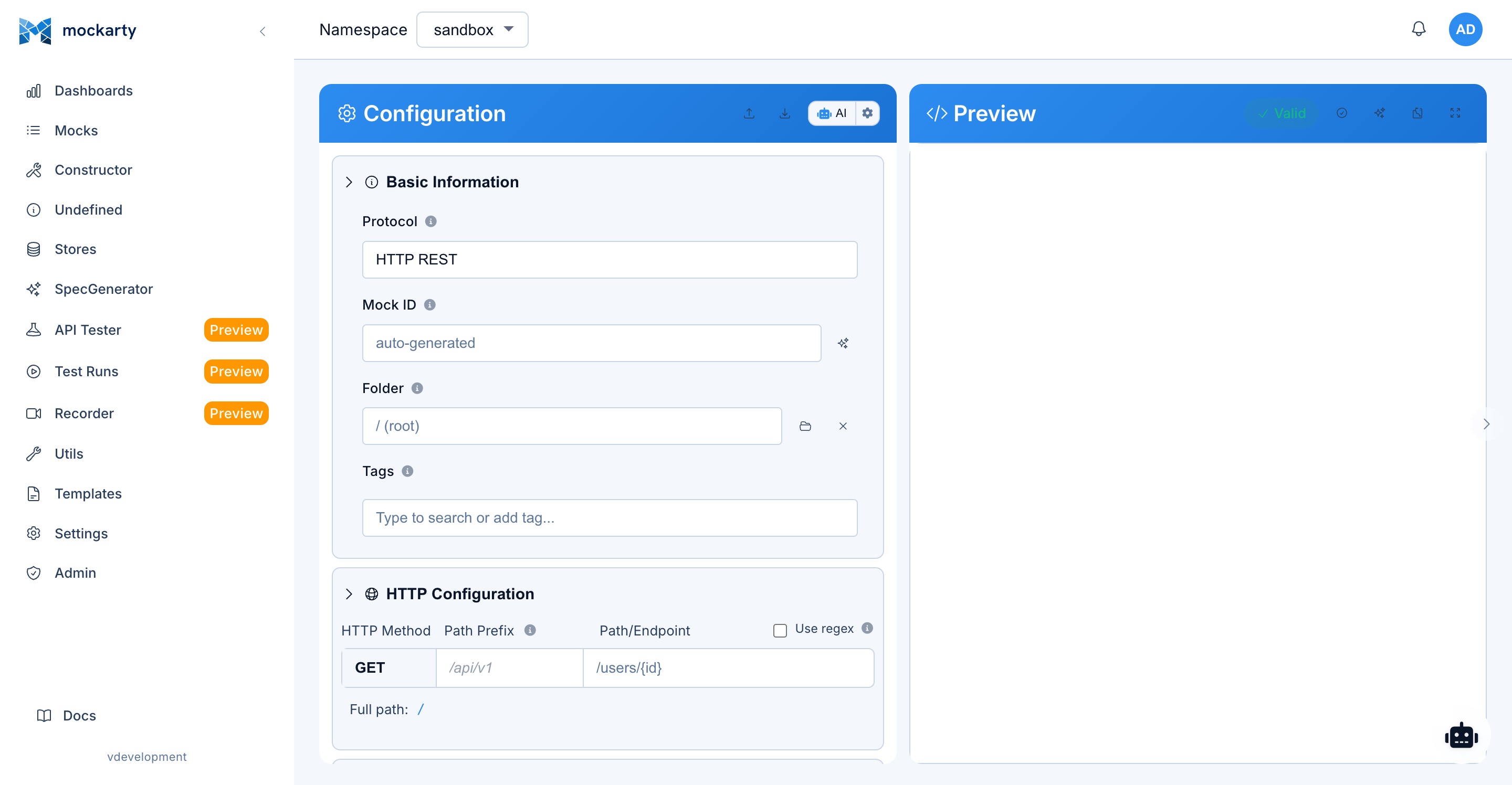
About URLs in examples: All examples use
localhost:5770as the default Mockarty address. If your instance runs on a remote server, replacelocalhost:5770with its actual address (e.g.https://mockarty.company.comorhttp://192.168.1.50:5770). See Tips & Useful Features for details.
What Is an AI Agent? Why Would I Need One for Testing?
An AI agent is a software assistant powered by a large language model (LLM) that can understand natural-language instructions and take actions on your behalf. Instead of clicking through menus and filling out forms, you describe what you need in plain English (or any language), and the agent figures out how to do it.
In the context of API testing and mocking, an AI agent can:
- Generate mocks from a description – “Create a mock for GET /api/users that returns 10 users with realistic names and emails” becomes a fully configured mock in seconds.
- Diagnose failures – paste an error response and the agent explains the root cause and suggests a fix.
- Write test scripts – the agent examines your request/response and writes assertions automatically.
- Run security scans – ask the agent to fuzz an endpoint and it configures and launches a security test.
- Query databases, call APIs, send notifications – the agent has access to 90+ built-in tools that let it interact with real systems on your behalf.
You do not need any AI or machine learning expertise. If you can describe what you want in a chat message, the agent can help.
Quickstart: Your First AI-Generated Mock
Follow these steps to create your first mock using AI. Total time: under 2 minutes.
Prerequisites: An admin must have configured at least one LLM profile (see Getting Started).
- Open the Mock Constructor – navigate to Mocks in the sidebar, then click Create Mock.
- Click the “Generate Mock” button – it is located in the toolbar above the mock editor.
- Describe what you need – for example:
Create a REST mock for GET /api/products that returns a JSON array of 5 products. Each product should have an id (integer), name (realistic product name), price (decimal between 10 and 500), and inStock (boolean).
- Review the generated mock – the AI fills in the route, HTTP method, response body with Faker functions, and a 200 status code.
- Click Save – your mock is live. Send a request to
http://localhost:5770/stubs/sandbox/api/productsto see it in action.
That is it. You can iterate by clicking Improve Mock to add error responses, edge cases, or additional conditions.
Table of Contents
- What Is an AI Agent?
- Quickstart: Your First AI-Generated Mock
- Getting Started
- LLM Profiles
- Model Selection
- AI Buttons Reference
- AI Settings (Gear Button)
- MCP Marketplace
- AI Agent System
- Custom Agents
- Marketplace Integration
- A2A Protocol (Agent-to-Agent)
- Administration Guide
- Notifications
- Tips for Better Results
- Troubleshooting
Getting Started
AI features require at least one enabled LLM profile. Navigate to Admin → AI & LLM → LLM Profiles to create one. Mockarty supports these LLM providers:
| Provider | Description | API Key Required |
|---|---|---|
| OpenAI | GPT-4o, GPT-4o-mini, and other OpenAI models | Yes |
| Anthropic | Claude Sonnet, Claude Haiku, and other Anthropic models | Yes |
| Gemini models via Google AI Studio | Yes | |
| OpenRouter | Access 200+ models through a single API key | Yes |
| Ollama | Run models locally (Qwen, Llama, Mistral, etc.) – no data leaves your machine | No |
| Mistral | Mistral AI models | Yes |
| Groq | Ultra-fast inference for supported models | Yes |
| Custom | Any OpenAI-compatible endpoint (e.g., vLLM, LocalAI, LiteLLM) | Depends |
Once a profile is configured, AI buttons appear throughout the platform.
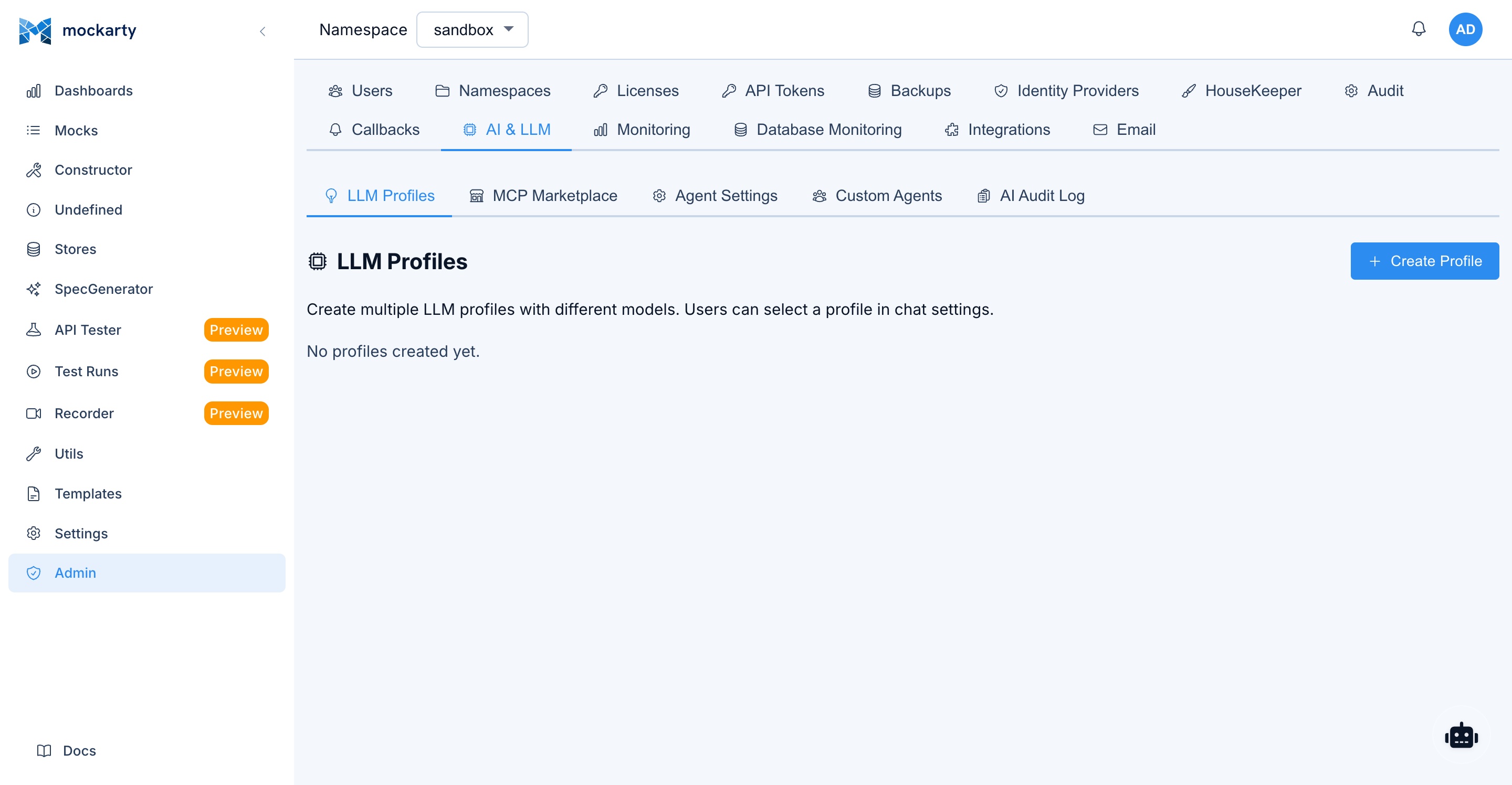
LLM Profiles
Each profile defines:
- Provider — which LLM service to use
- Model — the default model (e.g.,
gpt-4o,claude-sonnet-4-20250514,qwen3:8b) - API Key — credentials (not needed for Ollama)
- Base URL — override for self-hosted or custom endpoints
- Available Models — models users can choose from in this profile
- Enabled — toggle profile on/off
- Reasoning — how hard the model thinks before answering where a task needs
depth: planning a test strategy, judging a verdict, reviewing code, designing
tests, analysing a run. Auto (the default) lets each task use its own level;
Low / Medium / High fix the level for this profile; Off switches it
off. Chat and quick suggestions never wait on it. Models that cannot reason
simply answer as before. Reasoning is billed as output tokens.
If only one profile is enabled, it’s used automatically. When multiple profiles exist, users select which one to use per AI feature.
Namespace profiles. Besides the server-wide profiles the admin manages, a
namespace owner can add the team’s OWN profiles in Autonomous Missions →
Capacity — the team’s API key, its proxy, its custom headers, and its model choice.
Agents working in that namespace prefer these over the server pool (the
starred profile is tried first); other namespaces never see them, and API
keys, proxy credentials, and custom-header values are write-only and never
displayed back. When field encryption is enabled by the administrator, all
three are encrypted at rest.
Header names remain visible so owners can audit which integrations are set.
Delete the namespace
profiles and agents silently fall back to the server-wide ones.
Choosing the right profile:
- For quick operations (script generation, error diagnosis): use a fast model like
gpt-4o-miniorclaude-haiku - For complex analysis (performance analysis, security audit, report generation): use a powerful model like
gpt-4oorclaude-sonnet - For cost-sensitive environments: use Ollama with a local model
- For experimentation: OpenRouter provides access to many models through a single API key
Model Selection
You can choose which LLM model to use at two levels:
Per AI Feature
Every AI button (Generate Mock, Diagnose Error, etc.) has a gear icon that lets you select:
- LLM Profile — which provider and credentials to use
- Model — which specific model within that profile
Different features can use different models. For example, use a fast model for script generation but a powerful model for security analysis.
In Agent Chat
The agent chat widget has a model selector in the header. You can switch models mid-conversation — the new model applies to subsequent messages while the conversation context is preserved.
Custom Agent Model Binding
Admins can bind a specific LLM profile and model override to a custom agent. When a message is routed to that agent, its bound model is used automatically, regardless of the user’s default selection. See LLM Profile Binding.
AI Buttons Reference
Mock Constructor
| Button | What It Does | When to Use |
|---|---|---|
| Generate Mock | Describe what you need in natural language → AI creates a complete mock with routes, conditions, faker fields | Starting from scratch or prototyping quickly |
| Improve Mock | Send your current mock to AI → get suggestions for error responses, edge cases, faker enrichment | After creating a basic mock, to make it more realistic |
API Tester
| Button | What It Does | When to Use |
|---|---|---|
| Generate Script | AI writes a test script based on your request/response. Supports mk.* scripting API and Visual Script Builder format |
After executing a request, to add assertions |
| Generate Perf Script | AI writes a k6-compatible performance test with VU stages, checks, thresholds | Planning a load test for an endpoint |
| Diagnose Error | Send a failed request/response to AI → get root cause analysis and fix suggestions | When you get unexpected errors (4xx/5xx) |
| Analyze Report | AI analyzes test run results for release readiness: risk assessment, root causes, recommendations | After a test run completes, before deciding to release |
Fuzzing
| Button | What It Does | When to Use |
|---|---|---|
| Analyze Finding | AI reviews a single security finding: severity, impact, remediation | Understanding a specific finding |
| Batch Analyze | Select multiple findings → AI analyzes all with executive summary | Reviewing multiple findings at once |
| Batch Auto-Triage | Select findings → AI classifies each as confirmed / false_positive / fixed / accepted | Quickly triaging a large findings list |
Recorder
| Button | What It Does | When to Use |
|---|---|---|
| Analyze Traffic | AI reviews recorded API traffic for patterns, chains, anomalies | After recording a session, to understand traffic flow |
| Security Audit | AI performs security analysis on recorded traffic | Checking recorded traffic for vulnerabilities |
| Find Scenarios | AI identifies test scenarios from recorded request patterns | Creating test cases from real traffic |
Performance
| Button | What It Does | When to Use |
|---|---|---|
| Analyze Results | AI reviews load test metrics (latency, error rate, APDEX) with actionable recommendations | After a performance test completes |
AI Settings (Gear Button)
Every AI button has a gear icon that opens a settings panel with three controls:
1. AI Profile
Select which LLM profile to use for this specific operation. Different profiles may have different models (fast vs. smart) or different cost tiers.
Example: Use a fast model for script generation but a powerful model for security analysis.
2. Custom Prompt
Add additional instructions for the AI. This is appended to the system prompt and lets you customize the AI’s behavior without changing any code.
Practical examples:
| Use Case | Custom Prompt |
|---|---|
| Language | “Write the response in Russian” or “Respond in Japanese” |
| Focus area | “Focus specifically on SQL injection vulnerabilities” |
| Format | “Output the result as a numbered list with severity ratings” |
| Domain context | “This is a healthcare API, pay attention to HIPAA compliance” |
| SLA validation | “Compare against our SLA: p95 < 200ms, error rate < 0.1%” |
| Style | “Use our company’s coding style: camelCase, JSDoc comments” |
| Detail level | “Give a brief summary, no more than 3 paragraphs” |
The custom prompt is saved per feature — your “Generate Script” prompt won’t affect “Diagnose Error”.
3. MCP Tools
If your admin has configured MCP Marketplace tools, you can select which external tools the AI can use during this operation. When tools are selected:
- They are sent to the LLM alongside your request
- The LLM may call tools during generation (e.g., querying a live API, fetching real data)
- Tool results are fed back to the LLM for a more accurate response
- The final response incorporates real-time data from the tools
Example: You have an OpenAPI tool pointing at your staging server. When generating a mock, the AI can call the real API to understand response structure, then create a mock that matches the actual behavior.
Each feature stores its tool selections independently — tools enabled for “Generate Mock” don’t affect “Diagnose Error”.
MCP Marketplace
What Is the MCP Marketplace?
The MCP Marketplace is a tool integration system that lets your admin connect external APIs, services, and AI agents to Mockarty’s AI features. Once connected, their capabilities become tools that the AI can call during any operation.
The core idea: Instead of the AI only having its own knowledge, it gains the ability to call real APIs, query databases, interact with external services, and collaborate with other AI agents — all during a single AI operation.
Example workflow:
- Admin registers your staging API’s OpenAPI spec in the marketplace
- Each endpoint in the spec becomes an available tool (e.g.,
GET /api/users→getUserstool) - When you ask the AI to “generate a mock for the users API,” it can call the real
getUsersendpoint - The AI sees the actual response structure, field types, and realistic data
- It generates a mock that accurately mirrors your real API
Source Types
The marketplace supports six integration types, each converting a different protocol into AI-callable tools:
| Source Type | What It Connects | How Tools Are Created | Best For |
|---|---|---|---|
| MCP Server | Model Context Protocol server | Server reports its own tools via JSON-RPC | Purpose-built AI tool servers (e.g., Playwright, file system access, database tools) |
| OpenAPI | REST API (Swagger/OpenAPI spec) | Each endpoint becomes a tool automatically | Any HTTP API with documentation |
| WSDL | SOAP Web Service | Each SOAP operation becomes a tool | Legacy enterprise services |
| gRPC | gRPC service | Discovers methods via server reflection; tool calls proxied as real gRPC requests | Microservice APIs |
| A2A Agent | External AI agent | Agent’s capabilities become tools | Multi-agent AI workflows |
| RAG | Knowledge base (RAGFlow, AnythingLLM, Dify, R2R) | Adapter auto-discovers search/list tools | Company documentation, API specs, coding standards. See Knowledge Base (RAG) for a detailed setup guide. |
How Tools Are Created from APIs
OpenAPI (REST APIs)
When you register an OpenAPI/Swagger spec URL, Mockarty:
- Fetches and parses the spec (JSON or YAML)
- Converts each endpoint into a tool:
- Tool name = operation ID or method + path (e.g.,
getUserById) - Tool description = endpoint summary from the spec
- Tool inputs = path params, query params, headers, request body — all with types from the spec
- Tool tag = first OpenAPI tag (for grouping)
- Tool name = operation ID or method + path (e.g.,
- When the AI calls the tool, Mockarty constructs a real HTTP request and executes it
Example: An OpenAPI spec with GET /api/users/{id} becomes a tool named getUserById with an id parameter. The AI calls it with {"id": "123"}, and Mockarty makes the real HTTP request, returning the response to the AI.
WSDL (SOAP Services)
When you register a WSDL URL, Mockarty:
- Parses the WSDL document
- Extracts all operations from port types
- Creates tools with
soap_prefix (e.g.,soap_GetCustomerInfo) - Builds the SOAP XML envelope automatically when the AI calls the tool
This lets the AI interact with legacy SOAP services without knowing XML or SOAP protocols — it just passes JSON parameters.
MCP Server
MCP (Model Context Protocol) servers are purpose-built tool providers:
- Mockarty connects to the server via JSON-RPC
- Calls
tools/listto discover available tools - Each tool has a name, description, and JSON Schema input definition
- Tool calls go through
tools/callwith JSON-RPC
Stateful sessions: MCP servers can maintain state across tool calls within a single conversation. For example, a Playwright MCP server can open a browser in one tool call and navigate pages in subsequent calls — all within the same chat session.
A2A Agent
Agent-to-Agent integration connects to external AI agents:
- Mockarty fetches the agent card from
/.well-known/agent.json - The agent’s skills become available tools
- Tool calls are proxied to the external agent
Custom Headers and Credential Overrides
Many external APIs require authentication. Mockarty handles this at two levels:
Server-level authentication (set by admin):
| Auth Type | What It Sends |
|---|---|
| None | No auth headers |
| Bearer | Authorization: Bearer {token} |
| API Key | Custom header (e.g., X-API-Key: {key}) |
| Basic | Authorization: Basic base64(user:pass) |
| Custom Headers | Any set of headers (e.g., {"X-Tenant": "prod", "Authorization": "..."}) |
User-level header overrides:
Each user can override server authentication headers per feature. This is useful when:
- Different team members need different credentials (e.g., dev vs. staging)
- You want to test against different environments
- A tool needs per-user API keys
How to set custom headers:
- Open the AI settings gear for any feature
- In the MCP Tools section, expand a server’s “Custom Headers” area
- Add or override headers with key-value pairs
- Click Save
Your header overrides are merged on top of the server’s default headers at execution time. If you set Authorization: Bearer my-token, it replaces the server’s default auth for your requests only.
Tool Lifecycle
Once a server is registered in the marketplace:
- Discovery: A background worker refreshes tool lists periodically (default: every 2 hours, configurable per server)
- Health check: The worker also checks server connectivity and updates status (
online,offline,error) - Caching: Discovered tools are stored in the database for fast loading
- Selection: Users select which tools to enable per AI feature via the settings gear
- Execution: When the AI calls a tool, Mockarty routes the call through the appropriate adapter
- Result: Tool output is returned to the AI for incorporation into the final response
Admins can trigger manual health checks and tool refreshes from the marketplace admin page.
AI Agent System
Overview
Use Agent Chat when one AI action is not enough. Describe the outcome you want; the agent can take several steps and show you the tools it uses. It can:
- Route your request to a specialized sub-agent
- Execute multiple tool calls in parallel
- Maintain conversation context across messages
- Run background tasks asynchronously
- Use available tools for mocks, API tests, database queries, notifications and more
Agent Chat Widget
The floating chat widget in the bottom-right corner connects you to the AI agent system.
How it works:
- Type a message describing what you need
- The system routes your message to the most appropriate sub-agent
- The agent analyzes your request and may call tools (you’ll see tool calls in the chat)
- If tool calls require approval, you’ll be prompted to approve or decline
- The agent returns a response incorporating tool results
- The conversation context is preserved — follow-up messages build on previous context
Key features:
- Streaming responses — the answer appears as it is generated
- Tool call transparency — see which tools are called and their results
- Tool approval — when a tool requires approval, you can accept or decline the request
- Session persistence — close the chat and come back later, context is preserved
- Multiple sessions — start new conversations or continue existing ones
Sub-Agent Architecture
Some requests go to a specialist agent for a particular kind of work, such as testing or analysis. The chat selects a specialist and shows the tools it uses. You can keep talking in the same conversation without choosing an agent yourself.
How It Works
When you send a message, the orchestrator routes it to the most appropriate sub-agent based on keywords in your message. Each sub-agent has:
- A domain-specific system prompt that guides its behavior
- A filtered tool set containing only the tools it needs
- Routing keywords that determine when it is activated
If no sub-agent matches, the orchestrator handles the request directly with access to all utility, database, and notification tools.
Built-in specialists
| Sub-Agent | Domain | What It Does | Example Requests |
|---|---|---|---|
| mock_builder | Mock management | Creates, updates, and manages HTTP/gRPC/MCP/SOAP mocks. Generates mocks from OpenAPI specs. Uses Faker functions for dynamic data. Tests and validates mock configurations. | “Create a mock for GET /api/users that returns 10 users with email and role” |
| api_tester | API testing | Manages test collections and test suites. Runs tests and reports results. Imports Postman and OpenAPI collections. Supports test assertions and environments. | “Run my login test collection and show which tests failed” |
| recorder | Recording | Records and replays API traffic, manages proxy sessions, exports to HAR/collections/test scripts. Supports reverse proxy, forward proxy with MITM, WebSocket/SSE recording. | “Start recording traffic from my staging server on port 8080” |
| fuzzer | Security testing | Configures and runs security fuzzing campaigns against APIs. Finds vulnerabilities (SQL injection, XSS, etc.). Lists, triages, and classifies findings by severity. | “Start fuzzing my /api/search endpoint for SQL injection” |
| perf_tester | Performance testing | Runs load and stress tests with configurable virtual users. Generates k6-compatible test scripts. Compares performance metrics across runs (latency, throughput, error rate). | “Run a load test against /api/orders with 50 VUs for 2 minutes” |
| contract_tester | Contract testing | Validates mocks against API specifications, verifies provider compatibility, checks backward compatibility. Supports OpenAPI, gRPC proto, GraphQL schemas. | “Validate my mocks against the OpenAPI spec to check for breaking changes” |
| analyzer | Analysis | Read-only analysis of mocks, test results, logs, API specs, and fuzzing findings. Provides structured recommendations with markdown tables. Can query the database for insights. | “Analyze my last test run — what failed and why?” |
| code_generator | Code generation | Generates mock configurations from OpenAPI, gRPC (.proto), and WSDL specifications. Creates standalone mock servers. Previews generated output before applying. | “Generate mocks from this OpenAPI spec: https://api.example.com/swagger.json" |
| db_specialist | Database queries | Queries databases to support testing workflows. Supports PostgreSQL, MySQL, ClickHouse, MongoDB (via Atlas Data API), Elasticsearch, OpenSearch, Redis, and more. Lists tables, executes read-only queries. | “Show me all users in the staging database where status is active” |
| web_crawler | Web content | Fetches and parses web pages using a lightweight HTML parser (no headless browser). Extracts text, links, tables, and structured content. Supports CSS selectors for targeted extraction. | “Crawl the API docs at https://docs.example.com and list all endpoints” |
| api_client | API calling | Calls HTTP/REST, gRPC, GraphQL, Kafka, RabbitMQ, and MCP APIs. Discovers services via reflection/introspection. Publishes and consumes messages. Useful for testing real APIs from the chat. | “Call GET https://api.staging.example.com/health and show the response” |
| utility_belt | Data utilities | Data transformation and generation tools. Format/validate JSON and XML. Encode/decode Base64, URL, HTML. Decode JWT tokens. Convert timestamps. Generate UUIDs, hashes, passwords. Test regex patterns. Diff texts. | “Decode this JWT token: eyJhbGci…” |
| notifier | Notifications | Sends notifications and alerts to 12+ channels: email (SMTP), Slack, Microsoft Teams, Google Chat, Mattermost, Cisco Webex, Telegram, Discord, PagerDuty, Opsgenie, Jira, and generic webhooks. | “Send a Slack message to our #testing channel: all smoke tests passed” |
| orchestrator | General | Handles general questions, greetings, and requests that don’t match a specific sub-agent. Has access to all utility, database, notification, cache, and todo tools. Routes complex tasks to specialists. | “What can you help me with?” |
How agent routing works
Routing is automatic — just describe what you want in plain language and
the assistant hands the request to the specialist best suited for it. If
nothing specific fits, it answers directly with its general tools. Admins
can add custom agents; when a custom agent matches, it takes priority over
the built-in ones.
Built-in Tools Reference
The agent system includes 90+ built-in tools organized by category. Each sub-agent has access to a subset of these tools relevant to its domain.
Mock Management Tools (via MCP)
| Tool | What It Does |
|---|---|
| create_mock | Creates or updates a mock endpoint with routes, conditions, responses, and Faker functions |
| get_mock | Retrieves a complete mock configuration by ID |
| list_mocks | Lists all mock configurations with optional pagination |
| delete_mock | Deletes a mock by ID (recoverable from the Recycle Bin) |
| bulk_delete_mocks | Deletes many mocks in one call by their IDs |
| restore_mock | Restores a previously deleted mock; requires write access |
| test_mock | Sends a test request to a mock and returns the response |
Store Management Tools (via MCP)
| Tool | What It Does |
|---|---|
| get_global_store | Gets all key-value pairs from the Global Store |
| add_to_global_store | Adds key-value pairs to the Global Store |
| get_chain_store | Gets all key-value pairs from a Chain Store |
| add_to_chain_store | Adds key-value pairs to a Chain Store |
Code Generation Tools (via MCP)
| Tool | What It Does |
|---|---|
| generate_from_openapi | Creates mocks from an OpenAPI/Swagger spec (URL or inline JSON), one per operation |
| generate_from_asyncapi | Creates messaging mocks (Kafka, RabbitMQ, NATS) from an AsyncAPI spec |
| generate_from_mocks | Builds an OpenAPI 3.0 or AsyncAPI specification FROM your existing mocks (the reverse of generate_from_openapi): routes become paths, each mock’s response becomes the operation’s example and status code. Read-only; names the mocks it could not express instead of inventing them |
| post_generators_openapi_preview | Shows what an OpenAPI spec would generate, without creating anything |
| post_generators_asyncapi_preview | The same preview for an AsyncAPI spec |
| post_generators_graphql_preview | The same preview for a GraphQL schema |
Template and File Tools (via MCP)
| Tool | What It Does |
|---|---|
| upload_template | Uploads a Go template file for use in mock responses |
| get_template | Gets the content of an uploaded template file |
| delete_template | Deletes an uploaded template file |
| list_templates | Lists all uploaded template filenames |
| read_file | Reads your own temporary file uploaded during a chat session; available with read-only access |
API Testing Tools
| Tool | What It Does |
|---|---|
| list_collections | Lists API test collections |
| run_collection | Runs a test collection and returns results |
| list_test_runs | Lists completed test runs with pass/fail status |
| import_postman | Imports a Postman collection |
| import_openapi | Imports endpoints from an OpenAPI spec |
| import_insomnia | Imports an Insomnia export |
| import_curl | Turns cURL command lines into requests |
| build_api_collection | Creates a test collection with requests, headers, and assertions |
Fuzzing Tools
| Tool | What It Does |
|---|---|
| start_fuzzing | Starts a security fuzzing session against an API |
| stop_fuzzing | Stops a running fuzzing session |
| list_fuzz_results | Lists fuzzing session results |
| list_fuzz_findings | Lists security findings from fuzzing |
| triage_fuzz_finding | Classifies a finding (confirmed, false_positive, fixed, accepted) |
| configure_fuzzing | Generates fuzzing configuration with seed requests |
Performance Testing Tools
| Tool | What It Does |
|---|---|
| run_perf_test | Runs a load/performance test |
| list_perf_results | Lists performance test results |
| compare_perf_results | Compares metrics across multiple test runs |
Recorder Tools
| Tool | What It Does |
|---|---|
| start_recording | Starts a new recording session with proxy configuration (reverse/forward/MITM) |
| stop_recording | Stops an active recording session |
| list_recording_sessions | Lists all recording sessions with status and entry counts |
| get_recording_session | Gets details of a specific recording session |
| delete_recording | Deletes a recording session and its entries |
| list_recording_entries | Lists captured request/response entries for a session |
| create_mocks_from_recording | Generates mock configurations from recorded traffic |
| export_recording_har | Exports a recording session as HAR (HTTP Archive) format |
| export_recording_collection | Exports a recording session as an API test collection |
| export_recording_perf_script | Exports a recording session as a k6 performance test script |
Contract Testing Tools
| Tool | What It Does |
|---|---|
| contract_validate_mocks | Validates mock configurations against an API specification (OpenAPI, proto, GraphQL) |
| contract_verify_provider | Verifies that a real provider endpoint matches the contract |
| contract_check_compatibility | Checks backward compatibility between two versions of an API specification |
| contract_validate_payload | Validates a specific request/response payload against a schema |
CI Trigger Tools
| Tool | What It Does |
|---|---|
| list_ci_triggers | Lists saved CI Triggers (webhooks that fire when a Mockarty task launches — GitLab pipeline, GitHub workflow, Jenkins job, CircleCI, custom) |
| get_ci_run_status | Reads the live state of a CI run linked to a Mockarty task (queued, running, success, failed, cancelled, timeout) |
| cancel_ci_run | Marks a CI run as cancelled and fails the linked Mockarty task |
| test_ci_trigger | Dry-runs a saved CI Trigger against a synthetic task — exercises URL, auth, body template, and the upstream call without creating a real run. Useful to validate a trigger before referencing it in a launch. |
HTTP and API Client Tools
| Tool | What It Does |
|---|---|
| http_request | Sends HTTP requests (GET, POST, PUT, DELETE) with headers, body, query params |
| grpc_call | Calls gRPC services — list services, list methods, invoke unary RPCs |
| graphql_query | Introspects GraphQL schemas and executes queries/mutations |
| kafka_publish | Publishes messages to Kafka topics |
| kafka_consume | Consumes recent messages from Kafka topics |
| rabbitmq_publish | Publishes messages to RabbitMQ exchanges/queues |
| rabbitmq_consume | Peeks at messages in RabbitMQ queues |
| mcp_list_tools | Lists available tools on an MCP server |
| mcp_call_tool | Calls a specific tool on an MCP server |
Database Tools
| Tool | What It Does |
|---|---|
| sql_query | Executes read-only SQL queries against PostgreSQL, MySQL, or ClickHouse |
| mongodb_query | Queries MongoDB via Atlas Data API or HTTP interfaces |
| elasticsearch_query | Searches Elasticsearch/OpenSearch indices |
| redis_command | Executes read-only Redis commands (GET, HGETALL, KEYS, etc.) |
| db_list_tables | Lists tables/collections/indices in a database |
Web and Content Tools
| Tool | What It Does |
|---|---|
| browse_url | Fetches a public URL and extracts text content (HTML, JSON, XML). Blocks private IPs. |
| search_in_page | Searches for specific text within a fetched web page |
| analyze_content | Analyzes structured content (OpenAPI, Postman, HAR, JSON, YAML) |
Data Transformation Tools
| Tool | What It Does |
|---|---|
| json_format | Formats, validates, or minifies JSON |
| xml_format | Formats or validates XML |
| base64_convert | Encodes/decodes Base64 strings |
| url_encode | Encodes/decodes URL components |
| html_encode | Encodes/decodes HTML entities |
| jwt_decode | Decodes JWT tokens (header + payload, no signature verification) |
| json_xml_convert | Converts between JSON and XML formats |
| timestamp_convert | Converts between Unix, ISO 8601, and human-readable timestamps |
| diff_compare | Compares two texts or JSON structures, highlighting differences |
| generate_uuid | Generates UUID v4 identifiers |
| generate_hash | Generates SHA-256, MD5, or other hash digests |
| generate_text | Generates realistic fake data using Faker (names, emails, addresses, lorem ipsum) |
| generate_password | Generates secure random passwords with configurable complexity |
| regex_test | Tests regex patterns against text with match group extraction |
| color_convert | Converts between HEX, RGB, and HSL color formats |
| timestamp_now | Returns the current timestamp in various formats |
Notification Tools
| Tool | What It Does |
|---|---|
| send_email | Sends email via configured SMTP (plain text + HTML) |
| send_slack | Sends Slack messages via Incoming Webhook (supports Block Kit) |
| send_telegram | Sends Telegram messages via Bot API (MarkdownV2/HTML) |
| send_teams | Sends Microsoft Teams messages via Webhook (Adaptive Cards) |
| send_discord | Sends Discord messages via Webhook (supports embeds) |
| send_google_chat | Sends Google Chat messages via Webhook (Card v2) |
| send_mattermost | Sends Mattermost messages via Webhook (Slack-compatible API) |
| send_webex | Sends Cisco Webex messages via Bot API |
| send_pagerduty | Triggers/acknowledges/resolves PagerDuty incidents (Events API v2) |
| send_opsgenie | Creates Opsgenie alerts with priority P1-P5 |
| send_jira_comment | Adds comments to Jira issues via REST API v3 |
| send_webhook | Sends HTTP POST/PUT/PATCH to any webhook URL with JSON body |
| list_system_channels | Lists all configured notification channels with their types and status |
| send_via_channel | Sends a message through a pre-configured notification channel by name or ID |
Session Management Tools
| Tool | What It Does |
|---|---|
| current_time | Returns current date/time in any timezone |
| cache_set | Stores a key-value pair in temporary cache (1-hour TTL) |
| cache_get | Retrieves a cached value by key |
| cache_delete | Deletes a cached key |
| cache_list | Lists all cached keys |
| todo_add | Adds a task to the per-user todo list (5-day expiry) |
| todo_list | Lists all tasks in the user’s todo list |
| todo_update | Updates a task’s status or details |
| todo_remove | Removes a task from the todo list |
Parallel Tool Execution
The agent system executes multiple tool calls simultaneously when an LLM requests several tools in a single response turn. This significantly speeds up complex operations.
How it works:
- The LLM decides it needs to call multiple tools (e.g.,
list_mocks+list_collections+current_time) - Mockarty dispatches all tool calls in parallel using goroutines
- Results are collected concurrently and returned to the LLM together
- The LLM processes all results in the next turn
Example: When asked “Show me all mocks and test collections in the payments namespace,” the agent calls list_mocks and list_collections simultaneously rather than sequentially, halving the response time.
Inline tools (such as form_update and permission checks) are handled synchronously before parallel execution begins, ensuring security checks are never bypassed.
Credentials Store
The Credentials Store allows you to provide API keys, database connection strings, tokens, and other secrets to the agent without including them in your chat messages.
Key security property: Credentials are stored in your browser’s localStorage only. They are never sent to the Mockarty server for storage — they are included in the request payload only when the agent needs them for a specific tool call.
How to use:
- Click the key icon in the agent chat header to open the Credentials panel
- Add entries as key-value pairs (e.g.,
POSTGRES_DSN→postgres://user:pass@host:5432/db) - Close the panel — credentials are saved in your browser immediately
- When chatting, reference credentials by name: “Query the database using my POSTGRES_DSN credential”
- The agent automatically passes matching credentials to tools like
sql_query,http_request,send_slack, etc.
Common credential names:
| Key | Used By | Example Value |
|---|---|---|
POSTGRES_DSN |
sql_query | postgres://user:pass@host:5432/dbname |
MYSQL_DSN |
sql_query | mysql://user:pass@host:3306/dbname |
MONGO_URL |
mongodb_query | https://data.mongodb-api.com/... |
ELASTICSEARCH_URL |
elasticsearch_query | http://localhost:9200 |
REDIS_URL |
redis_command | redis://:password@host:6379/0 |
SLACK_WEBHOOK |
send_slack | https://hooks.slack.com/services/... |
TELEGRAM_TOKEN |
send_telegram | 123456:ABC-DEF... |
TELEGRAM_CHAT_ID |
send_telegram | -1001234567890 |
PAGERDUTY_KEY |
send_pagerduty | your-routing-key |
JIRA_URL |
send_jira_comment | https://yourcompany.atlassian.net |
JIRA_EMAIL |
send_jira_comment | user@company.com |
JIRA_TOKEN |
send_jira_comment | your-api-token |
Privacy note: Since credentials are in localStorage, they are per-browser and per-device. Clearing your browser data will remove them. Other users cannot see your credentials.
Sessions and Context
Agent chat sessions are persisted to the database:
- Session creation: A new session starts when you open the chat or click “New Chat”
- Message history: Up to 100 previous messages are loaded when you reopen a session
- Context window: Active conversations are trimmed to 200 messages to prevent memory issues
- Session expiry: Sessions expire after 24 hours of inactivity (configurable)
- MCP session isolation: Each chat session gets its own MCP session — stateful MCP tools (like Playwright) maintain state per conversation
Agent Tasks (Background Operations)
Some operations are too long for a chat response. Agent tasks run in the background:
- Created via: Agent chat, AI buttons (when operation is complex), or the A2A protocol
- Progress tracking: Real-time step-by-step execution log with SSE streaming
- Tool call visibility: See which tools were called and their results
- Cancellation: Cancel running tasks at any time
- Edit & Rerun: Edit any step in the flow and re-execute from that point
- Export: Download the full task flow as JSON for debugging or sharing
- Completion notifications: Get notified via bell icon and (if configured) email
- Concurrency limit: Configurable max concurrent tasks (default: 3)
Tasks are managed entirely within the Agent Chat Widget. Click the Tasks tab (clipboard icon) in the floating chat to see all your tasks. A badge appears when tasks complete while you’re working on other pages.
Flow Overlay: Click View Flow on any task to see the full step-by-step execution trace:
- Steps are grouped by parent-child relationships (tool calls paired with their results)
- Parallel tool call batches are visually grouped
- Each step shows duration, token count, model, and agent name in micro-chips
- LLM-generated text (thoughts, decisions, answers) is rendered as Markdown
- Error steps show the full error description
Edit & Rerun: Click the pencil icon on any step to edit its content, then click Rerun from step N to re-execute the task from that point with your modifications applied.
Using Marketplace Tools in Agent Chat
When marketplace tools are configured, they become available in the agent chat:
- Open the agent chat settings gear
- Select which marketplace tools to enable
- Start chatting — the agent can now use both built-in and marketplace tools
Example: With a staging API registered as an OpenAPI source, you can ask:
“Call the getUsers endpoint on staging, then create a mock that returns the same response structure”
The agent will:
- Call the
getUsersmarketplace tool (real HTTP request to staging) - Analyze the response structure
- Use built-in tools to create a mock with matching fields
Custom Agents
What Are Custom Agents?
Custom agents are admin-created specialists that extend the agent system. While Mockarty comes with 13 built-in sub-agents plus an orchestrator, your organization may need domain-specific agents with:
- Custom system prompts tailored to your domain
- Specific tool whitelists (only the tools this agent should use)
- Routing keywords that match your team’s vocabulary
- Bound LLM profiles and model overrides
- Feature key mapping to customize AI button behavior
Namespace Agents
Besides the server-wide custom agents the admin manages, a namespace owner can define the team’s own agents in Settings → AI & Meetings → Namespace agents. A namespace agent:
- acts only inside its namespace — its keywords route only that namespace’s chats and tasks, and it is invisible everywhere else;
- runs with exactly the tools you whitelist (at least one is required) — nothing extra is added, and each user’s own permissions and licence still apply on every call;
- may shadow a same-named server agent inside the namespace (your
triagewins over the servertriagefor your team), but can never replace a built-in specialist; - can bind one of the namespace’s own LLM profiles (or a server one) so its runs use the team’s key and model;
- has its instruction screened on save — text that tries to override system rules is rejected with an explanation.
Creating, editing and deleting namespace agents requires the namespace owner role; every change is written to the audit log with its author. Administrators see all namespace agents in the admin panel with an ns: badge and can disable or delete one at any time.
The same management is available to AI agents over MCP: custom_agents_list, custom_agent_save, custom_agent_delete.
Creating a Custom Agent
Admins create custom agents from Admin → AI & LLM → Agent Settings.
Each custom agent requires:
| Field | Required | Description |
|---|---|---|
| Name | Yes | Unique identifier (e.g., payment_specialist) |
| Description | Yes | Short description shown when the agent is selected |
| System Prompt | Yes | Instructions that guide the agent’s behavior (appended to the base system prompt) |
| Available Tools | No | List of tools this agent can use (empty = all tools available) |
| Routing Keywords | No | Keywords that trigger routing to this agent |
| LLM Profile | No | Bound LLM profile for this agent (empty = use user’s selection) |
| Model Override | No | Override the model within the bound LLM profile |
| Feature Key | No | Maps to an AI button feature (e.g., generate-mock) |
| Enabled | Yes | Toggle the agent on/off |
LLM Profile Binding
Custom agents can be bound to a specific LLM profile and model. When a message is routed to this agent:
- The bound LLM profile is used instead of the user’s default selection
- If a model override is set, that specific model is used within the profile
- This ensures the agent always uses the optimal model for its domain
Use cases:
- Bind a security review agent to a powerful model (e.g.,
claude-sonnet) for thorough analysis - Bind a simple FAQ agent to a fast model (e.g.,
gpt-4o-mini) to reduce cost - Bind a code generation agent to a code-optimized model
Routing Keywords
Keywords determine when the system routes a chat message to your custom agent. Custom agent keywords are checked before built-in agents, giving admin-defined agents priority.
Example: A payment_specialist agent with keywords ["payment", "checkout", "billing", "invoice"] will handle any chat message containing those words — even if built-in agents would otherwise match.
Tips for keywords:
- Use domain-specific terms your team actually uses
- Include synonyms (e.g., both “payment” and “billing”)
- Avoid overly generic words (e.g., “test” would capture too many requests)
- Keywords are case-insensitive
Tool Whitelists
By default, agents can use all available tools. A tool whitelist restricts an agent to only specific tools — useful for:
- Security: An analysis-only agent shouldn’t modify mocks
- Focus: A mock specialist doesn’t need fuzzing tools
- Compliance: Limit which tools can access production data
Select tools from the list of built-in tools and any registered marketplace tools.
Feature Key Mapping
A custom agent can be mapped to an AI button feature key. When mapped, the agent’s system prompt is appended to the button’s default prompt, and the agent’s tool whitelist is applied.
Available feature keys:
| Feature Key | AI Button |
|---|---|
generate-mock |
Generate Mock |
improve-mock |
Improve Mock |
generate-script |
Generate Script |
generate-perf |
Generate Perf Script |
diagnose |
Diagnose Error |
analyze-test |
Analyze Test Results |
recorder-ai |
Analyze Traffic |
recorder-scenarios |
Find Scenarios |
Example: Map payment_specialist to generate-mock → whenever anyone clicks “Generate Mock”, the payment specialist’s system prompt is added, giving the AI extra context about payment APIs.
Custom Agent Examples
Domain-Specific Mock Expert
Name: healthcare_mock_expert
Description: Creates HIPAA-compliant healthcare API mocks
System Prompt: |
  You are a healthcare API specialist. When creating mocks:
  - Never use real patient data — always use Faker functions
  - Follow HL7 FHIR resource structure for healthcare endpoints
  - Include proper error responses for auth failures (401, 403)
  - Add X-Request-ID and X-Correlation-ID headers to all responses
  - Use ICD-10 codes from the valid range for diagnosis fields
Keywords: [healthcare, patient, fhir, hl7, medical, hipaa, diagnosis]
Feature Key: generate-mock
Security Review Agent
Name: security_reviewer
Description: Reviews API configurations for security issues
System Prompt: |
  You are a security specialist. When analyzing:
  - Check for missing authentication on sensitive endpoints
  - Verify rate limiting is configured
  - Look for PII exposure in response payloads
  - Check CORS configuration
  - Verify TLS/HTTPS usage
  - Flag any hardcoded credentials or tokens
Keywords: [security review, audit, compliance, pentest, owasp]
Tools: [browse_url, analyze_content, sql_query]
LLM Profile: claude-sonnet-profile
CI/CD Integration Agent
Name: cicd_agent
Description: Generates test configurations for CI/CD pipelines
System Prompt: |
  You are a CI/CD integration specialist. Help users:
  - Create test collections suitable for pipeline execution
  - Generate performance test scripts with CI-friendly thresholds
  - Configure fuzzing with time-bounded durations
  - Format results for JUnit/TAP output parsers
Keywords: [ci, cd, pipeline, jenkins, github actions, gitlab ci, deploy]
Tools: [build_api_collection, export_recording_perf_script, configure_fuzzing]
Notification Router Agent
Name: alert_manager
Description: Routes test results and alerts to the right channels
System Prompt: |
  You are an alert routing specialist. Based on the severity and type of event:
  - Critical failures → PagerDuty incident + Slack #incidents
  - Test suite failures → Teams channel + email to QA lead
  - Performance degradation → Slack #performance + Opsgenie alert
  - Successful deployments → Slack #releases + Jira comment
  Always include: timestamp, environment, summary, and link to results.
Keywords: [alert, incident, notify team, send report, broadcast]
Tools: [send_slack, send_teams, send_pagerduty, send_opsgenie, send_email, send_jira_comment, current_time]
Marketplace Integration
The MCP Marketplace connects external services to the agent system, giving agents access to tools beyond the built-in set. This section explains how marketplace tools and agents work together.
Connecting External MCP Servers
MCP (Model Context Protocol) servers are the most powerful integration type. They provide custom tools that the agent can call during conversations.
Popular MCP servers:
- Playwright — browser automation (navigate, click, screenshot, fill forms)
- File System — read/write files on a server
- Database — query external databases
- GitHub — manage repositories, issues, PRs
- Custom — build your own MCP server for any API
Stateful sessions: Each agent chat conversation gets its own MCP session. This means a Playwright MCP server can open a browser in one tool call, navigate in the next, and screenshot in the third — all within the same chat.
Connecting OpenAPI/gRPC/WSDL Services
Register your existing API documentation and the agent gains the ability to call your real APIs:
- OpenAPI — each endpoint becomes a callable tool. The agent can test real APIs, fetch data, and verify behavior.
- gRPC — discovers service methods via gRPC server reflection. Tool calls are proxied as real gRPC requests to the target server.
- WSDL — each SOAP operation becomes a tool with automatic XML envelope construction.
Connecting A2A Agents
Connect external AI agents that follow the Agent-to-Agent protocol:
- Register the agent’s base URL in the marketplace
- Mockarty fetches the agent card from
/.well-known/agent.json - The external agent’s skills become tools available in Mockarty’s agent chat
This enables multi-agent workflows where Mockarty delegates tasks to specialized external agents.
Tool Selection Per Feature
Each AI feature (and each agent chat session) maintains its own selection of marketplace tools. This prevents tool overload — the LLM only sees tools relevant to the current task.
Configure tool selection:
- AI buttons: Click the gear icon → MCP Tools section
- Agent chat: Click the gear icon in the chat header
A2A Protocol (Agent-to-Agent)
External AI agents can interact with Mockarty using the Agent-to-Agent protocol:
| Endpoint | Method | Purpose |
|---|---|---|
/.well-known/agent.json |
GET | Agent card discovery — returns capabilities, skills, and supported protocols |
/a2a/tasks/send |
POST | Submit a task for execution |
/a2a/tasks/:id |
GET | Check task status and retrieve results |
/a2a/tasks/:id/cancel |
POST | Durably cancel a Mission or a legacy A2A task |
Use cases:
- An external orchestrator agent delegates mock creation to Mockarty
- A CI/CD agent asks Mockarty to run tests and report results
- A multi-agent system coordinates testing across services
Want the agent to run the whole testing job itself? See the Autonomous Tester — hand it a goal in plain language and it plans, optionally waits for your approval, runs the testing, and reports back.
Worked example — discover, submit, poll:
# 1. Discover the skills this Mockarty advertises
curl -s http://localhost:5770/.well-known/agent.json | jq '.skills[].id'
# → "mock_management", "api_testing", "fuzzing", "analysis", ... (16 skills)

# 2. Submit a task. skillId is OPTIONAL — pass any skill the card advertises to
#    route the task to the matching specialist, or omit it for a free-form task.
#    namespace is OPTIONAL — omit it to run in your default namespace.
curl -s -X POST http://localhost:5770/a2a/tasks/send \
  -H "Authorization: Bearer $MOCKARTY_API_TOKEN" \
  -H 'Content-Type: application/json' \
  -d '{"description":"How many mocks exist? Reply with the number.",
       "skillId":"analysis"}'
# → {"id":"6e333787-...","status":"submitted"}

# 3. Poll for the result
curl -s http://localhost:5770/a2a/tasks/6e333787-... \
  -H "Authorization: Bearer $MOCKARTY_API_TOKEN"
# → {"id":"6e333787-...","status":"completed","result":{"content":"There are 171 mocks."}}

# 4. Cancel stale or mistakenly submitted work. Reuse the same key if the
#    response is lost; Mockarty will not create a second cancellation command.
curl -s -X POST 'http://localhost:5770/a2a/tasks/6e333787-.../cancel' \
  -H "Authorization: Bearer $MOCKARTY_API_TOKEN" \
  -H 'Idempotency-Key: cancel-6e333787'
# → {"status":"canceled"}
Cancellation resolves a canonical autonomous Mission first and then falls back
to a legacy A2A task with the same external ID. For a token that is not pinned
to one namespace, add ?namespace=<name>; Mockarty applies the same membership
check as task submission. A successful response means the cancellation is
durably recorded. Running child executors are then stopped through their exact
generation bindings; an unavailable or uncertain cancellation is returned as a
retryable error rather than a false success.
Any skill listed on the agent card is accepted. A skill with a dedicated
specialist (for example fuzzing, security_scanning, api_testing) is routed
straight to it; the rest are handled by the general orchestrator. Submitting an
unknown skill returns 400 so you can catch typos against the card.
The A2A protocol follows the Google Agent-to-Agent standard, making Mockarty compatible with any A2A-compliant agent platform.
Administration Guide
Setting Up AI Features
Step 1: Create an LLM Profile
- Navigate to Admin → AI & LLM → LLM Profiles
- Click Add Profile
- Select a provider (OpenAI, Anthropic, etc.)
- Enter your API key and select a model
- Click Save and ensure the profile is Enabled
Step 2: (Optional) Register Marketplace Tools
- Navigate to Admin → AI & LLM → MCP Marketplace
- Click Add Integration
- Choose source type and enter the URL
- Configure authentication if needed
- Click Save — tools are auto-discovered within 30 minutes
Step 3: (Optional) Create Custom Agents
- Navigate to Admin → AI & LLM → Agent Settings
- Click Create Agent
- Fill in name, description, system prompt, and optional keywords/tools
- Optionally bind an LLM profile and model override
- Click Save
Configuring the MCP Marketplace
Adding an OpenAPI Source
- Click Add Integration → Source Type: OpenAPI
- Enter the URL to your OpenAPI/Swagger spec (JSON or YAML)
- Example:
https://api.staging.example.com/swagger.json
- Example:
- If the API requires auth, set the Auth Type:
- Bearer: paste your access token
- API Key: enter the key and header name (e.g.,
X-API-Key) - Basic: enter username and password
- Click Save
- Click the plug icon to verify connection — you should see “online” status
- Click the list icon to view discovered tools
Adding an MCP Server
- Click Add Integration → Source Type: MCP Server
- Enter the MCP server endpoint (e.g.,
http://localhost:3000/mcp) - Set auth if required
- Click Save
MCP servers support stateful sessions — each agent chat conversation gets its own session, allowing tools like Playwright to maintain browser state across calls.
Adding a WSDL (SOAP) Source
- Click Add Integration → Source Type: WSDL
- Enter the WSDL URL (e.g.,
https://legacy.example.com/service?wsdl) - Set auth (many SOAP services use Basic auth)
- Click Save
Each SOAP operation becomes a tool with a soap_ prefix.
Refresh and Health
- Auto-refresh: A background worker checks servers every 30 minutes. Each server has its own refresh interval (default: 2 hours).
- Manual check: Click the plug icon on any server to trigger an immediate health check.
- Status indicators: Green = online, Red = error (hover for details), Gray = unknown.
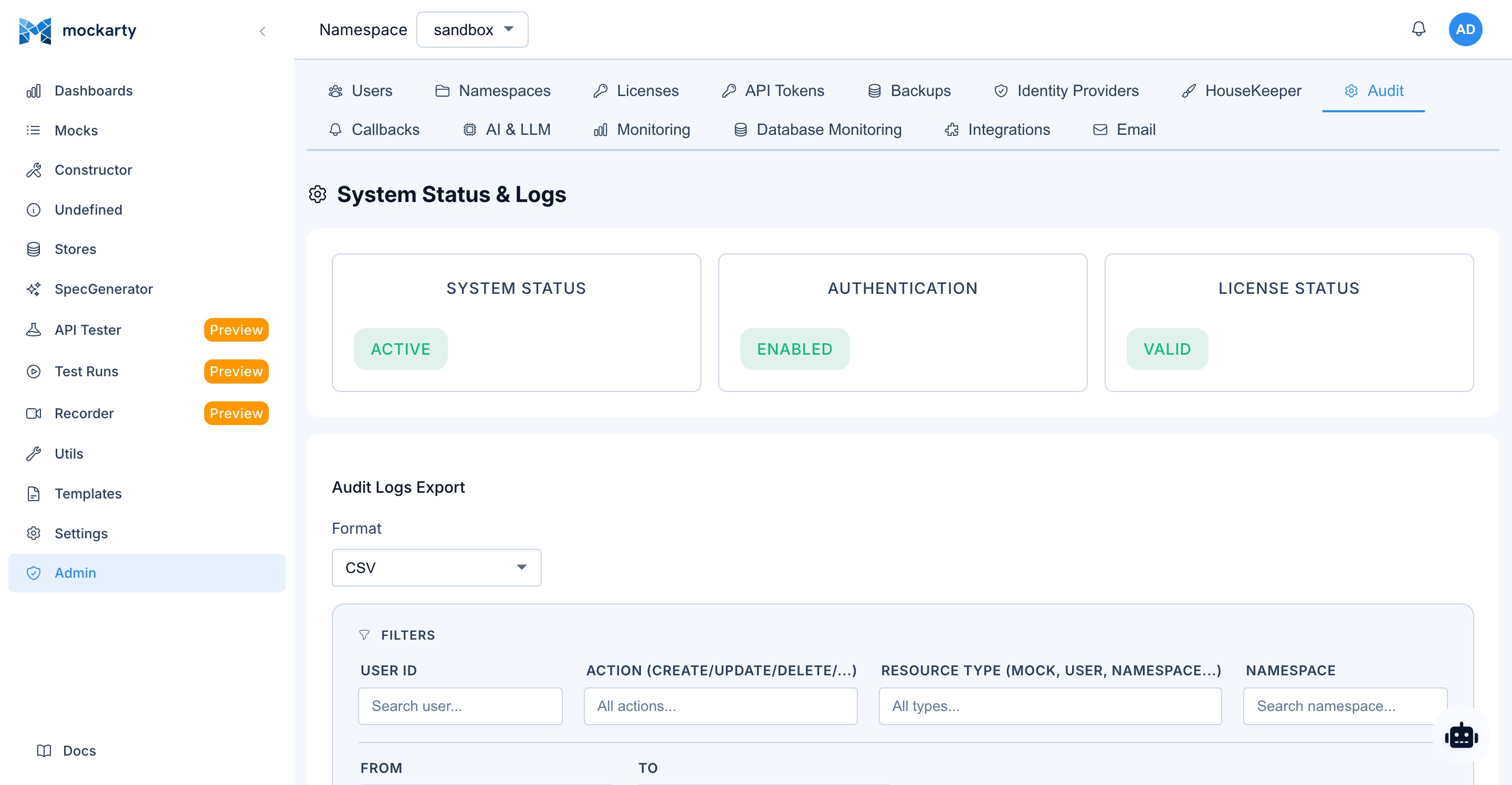
Monitoring with AI Audit Log
Navigate to Admin → AI & LLM → AI Audit Log.
Every AI operation is logged:
- Timestamp — when the operation ran
- User — who initiated it
- Action — which AI feature (generate_mock, diagnose_error, etc.)
- Profile — which LLM profile was used
- Duration — LLM call duration in milliseconds
- Status — success, error, or rate_limited
- Tokens — token usage (if reported by provider)
Filter by user, action type, status, and date range. Export to CSV for compliance reporting.
Rate Limiting and Security
AI rate limits:
- Each user has a daily AI call limit (configurable by admin)
- When the limit is reached, AI buttons show a rate limit error
- The audit log tracks all calls for monitoring
Security measures:
browse_urltool blocks private/internal IP addresses (SSRF protection)sql_querytool is read-only (SELECT/WITH only) and blocks sensitive tablesdb_list_tablesis read-only — no schema modificationredis_commandis limited to read-only commands- Tool calls to marketplace servers validate URLs against SSRF
- User header overrides are isolated per user — one user’s credentials don’t leak to others
- MCP sessions are isolated per conversation
- Credentials Store data stays in browser localStorage, never stored on server
- All AI requests are logged in the audit log
- Custom agent tool whitelists enforce least-privilege access
Notifications
AI operations generate notifications:
| Event | Where You See It |
|---|---|
| Test run completed | Bell icon + email (if configured) |
| Performance test completed | Bell icon + email |
| Fuzzing completed | Bell icon + email |
| New fuzzing finding | Bell icon + email |
| Agent task completed | Bell icon + agent chat |
| Agent task failed | Bell icon + agent chat |
The bell icon in the top navigation shows unread notification count. Click it to view, dismiss, or follow notification links.
Tips for Better Results
- Be specific: “Generate a mock for GET /api/users that returns 10 users with name, email, and role fields” is better than “create a user mock”
- Provide context: Use the custom prompt to tell the AI about your domain, SLAs, or coding standards
- Choose the right model: Fast models for simple tasks, powerful models for analysis
- Iterate: If the first result isn’t perfect, use “Improve Mock” or adjust your custom prompt
- Use MCP tools: When available, enable relevant tools so the AI can access real data from your APIs
- Review AI triage carefully: Auto-triage is a starting point — always verify critical findings manually
- Leverage custom headers: If tools need your credentials, set them in the settings gear rather than including them in prompts
- Use the Credentials Store: For database connections, API keys, and webhook URLs — store them once in the Credentials panel and reference by name
- Use agent chat for complex tasks: Multi-step operations work better through the chat interface where the agent can iterate
- Scope your custom agents: Give custom agents specific keywords and tool whitelists to keep them focused
- Bind models to agents: Use LLM profile binding to ensure each custom agent uses the optimal model for its task
- Ask your admin to add integrations: If the AI lacks context about your APIs, ask your admin to register them in the MCP Marketplace
Troubleshooting
“LLM not configured”
No enabled LLM profiles exist. Ask your admin to create one in Admin → AI & LLM → LLM Profiles.
“LLM profile not found”
The selected profile was deleted or disabled. Click the gear button and select a different profile.
“AI provider unavailable”
The configured model server cannot be reached. Check the profile address and network access; for a local model, also check that its server is running. Recorder analysis and the built-in mock, test-case, and script generation actions return 503 with code unavailable for this failure, rather than reporting an internal platform error.
Chat shows a provider error
The chat summarizes provider failures and rate limits without displaying the provider’s raw response, which may contain private request details. Retry after a rate limit; for a recurring failure, ask your administrator to check the LLM profile and provider connection.
“Too few AI credits”
On a hosted Space, an AI request is refused before the model runs when the Space lacks credits. Add AI credits in the Cloud cabinet or choose a smaller task. A non-streaming chat request returns 402 with code llm_budget_blocked and reason credits_exhausted; the streaming chat displays the same actionable refusal. No credits are debited for a refused request.
AI response is slow
- Try a faster model (switch from GPT-4o to GPT-4o-mini)
- Reduce custom prompt length
- Disable unnecessary MCP tools (each tool call adds latency)
- For agent chat: reduce the number of enabled marketplace tools
MCP tools not working
- Check that the marketplace server is online (Admin → AI & LLM → MCP Marketplace)
- Verify the tool is enabled on the server
- Check that you’ve selected the tool in the feature’s settings gear
- If using custom headers, verify your credentials are correct
- Check the server logs for auth errors
Agent chat not routing correctly
- The routing is keyword-based — try rephrasing your request with clearer keywords
- Custom agent keywords take priority over built-in agents
- Check Admin → AI & LLM → Agent Settings to see which custom agents and keywords are active
- Use explicit phrases like “create a mock for…” to target the mock_builder agent
Database tools returning errors
- Verify the connection string in your Credentials Store is correct
- Check that the database is accessible from the Mockarty server
- SQL tools only support SELECT and WITH queries — UPDATE/INSERT/DELETE are blocked
- Check for network/firewall issues between Mockarty and the database
Notification tools failing
- For email: verify SMTP is configured in Admin → Email Settings
- For Slack/Teams/Discord: verify the webhook URL is valid and not expired
- For Telegram: verify bot token and chat_id are correct
- For PagerDuty/Opsgenie: verify the API key or routing key
- Check the Credentials Store for typos in keys or values
Tool calls are being declined
- Some tools require approval — you’ll see an approve/decline prompt
- Read-only tools (browse, analyze, query) are auto-approved
- Data-modifying tools (create, update, delete) may require approval depending on your admin’s configuration
AI analysis not saved
For features that persist analysis (test reports, fuzzing findings, perf results), the analysis is saved automatically. Refresh the page to see it in the report.
Custom headers not applied
- Header overrides are per-feature — check that you set them for the correct feature
- Overrides replace server defaults — if you set
Authorization, it overrides the server’s auth - Clear your overrides if you want to fall back to server defaults
Portable skill bundles
In Settings → Agent Skills & Tools, choose Import skill. Paste a JSON text bundle, select Preview, review the instructions and declared prerequisites, then import it into the current namespace. An owner can import; other callers can use enabled skills they can access.
The bundle contains a SKILL.md with YAML name and description, supporting UTF-8 text files, and the pinned source, revision and license. Files are retained exactly. Import does not download dependencies or execute scripts. This supports portable text skills from community catalogues; it does not run Hermes/OpenClaw plugins or guarantee that their tool names match Mockarty.
{"files":{"SKILL.md":"---\nname: ci-review\ndescription: Review CI evidence\n---\nRead references/ci.md and summarize the failure.","references/ci.md":"CI evidence to inspect"},"origin":{"Source":"local:ci-review","Revision":"v1","License":"MIT"}}
Limits: 128 files, 256 KiB per file, 1 MiB of text per bundle, 64 KiB of skill instructions. Only exact relative paths are accepted. Unsupported declared prerequisites disable the imported skill; adapt the bundle explicitly before using it. An empty missing-prerequisites report does not replace reviewing instructions and tool compatibility.
For automation, POST /api/v1/agent-skills/import?namespace=<namespace> accepts this object; add "preview":true to inspect without saving. To replace an imported bundle, send the current digest as expectedDigest. A conflicting or locally edited skill returns 409. If the namespace changes while an import is being processed, reload before importing again. Permanently deleting a namespace removes its imported skills and resources.
External MCP clients use import_skill_bundle, run_skill and read_skill_resource. The native agent receives the same resource reader. run_skill returns instructions and bundle metadata with digest, paths and provenance. Read one supporting file with GET /api/v1/agent-skills/resource?namespace=<namespace>&name=<name>&digest=<digest>&path=<encoded-relative-path>. A disabled, deleted, edited or replaced skill refuses old resources. Imported text and supporting files remain untrusted instructions and never grant tools or credentials.
Agent advisor and vision profiles
Open the namespace settings and the AI & Meetings section. Enter the profile ID in Agent advisor profile or Agent vision profile, then save. The profile must be enabled and available in this namespace; a server profile is also allowed. The vision profile must have image support enabled. Empty fields disable the corresponding role. The main model remains the model selected for the agent chat.
The agent can call ask_advisor for a recommendation and inspect_image for an image attached by the user. The auxiliary model receives the supplied question or selected image and returns a recommendation. It cannot call tools itself. Auxiliary calls consume the agent’s token allowance and are limited to four calls per chat turn, with at most 2,048 output tokens per call. If the selected profile changes or becomes unavailable during a turn, the call is refused; start a new turn after correcting the settings. Profile names are not accepted for these two roles.
Connect a personal Telegram assistant
An administrator first configures and enables a Telegram notification channel with the bot’s token and real username. Then select the namespace you want to work in, open your notification channel settings, and choose Personal assistant on the Telegram channel. Scan the QR code or open the link, and press Start in a private chat with the configured bot.
The link is single-use and expires after ten minutes. Closing its window cancels the pending link; issuing another link for the same bot replaces the previous one. The QR contains a pairing code, not the bot’s credential. This connects to an existing bot; it does not create a Telegram bot or log into your personal Telegram account.
Send /do <task> to submit a task to Mockarty’s native agent. The assistant uses the namespace selected during pairing and your current permissions; changing the header selection afterwards does not change the binding. Pair again to select a different namespace. Disabling the channel or your binding stops assistant dispatch. Permanently deleting its namespace removes the assistant connection and pending links; creating a new namespace with the same name requires a new connection. Task results arrive through the existing messenger task delivery. Scheduled missions continue to use Mockarty’s existing mission scheduling configuration.
For API-driven UI clients, POST /api/v1/channels/telegram/assistant/connect?namespace=<name> accepts {"channelId":"<id>"} and returns the link, QR and expiry. POST /api/v1/channels/telegram/assistant/cancel accepts {"token":"<pairing-code>"}. Both require authentication; connection also requires access to the selected namespace. These account-pairing operations are intentionally outside the SDK, CLI and MCP tool catalogue.
If you rename an imported skill in the editor, resource access stops. To import the original name again, restore the original name or delete the renamed skill first; this prevents an old bundle alias from attaching to another skill.