Mockarty Administration Guide
This guide covers everything an administrator needs to configure after the first launch of Mockarty. It assumes you have already installed and deployed Mockarty following the Installation & Deployment guide.
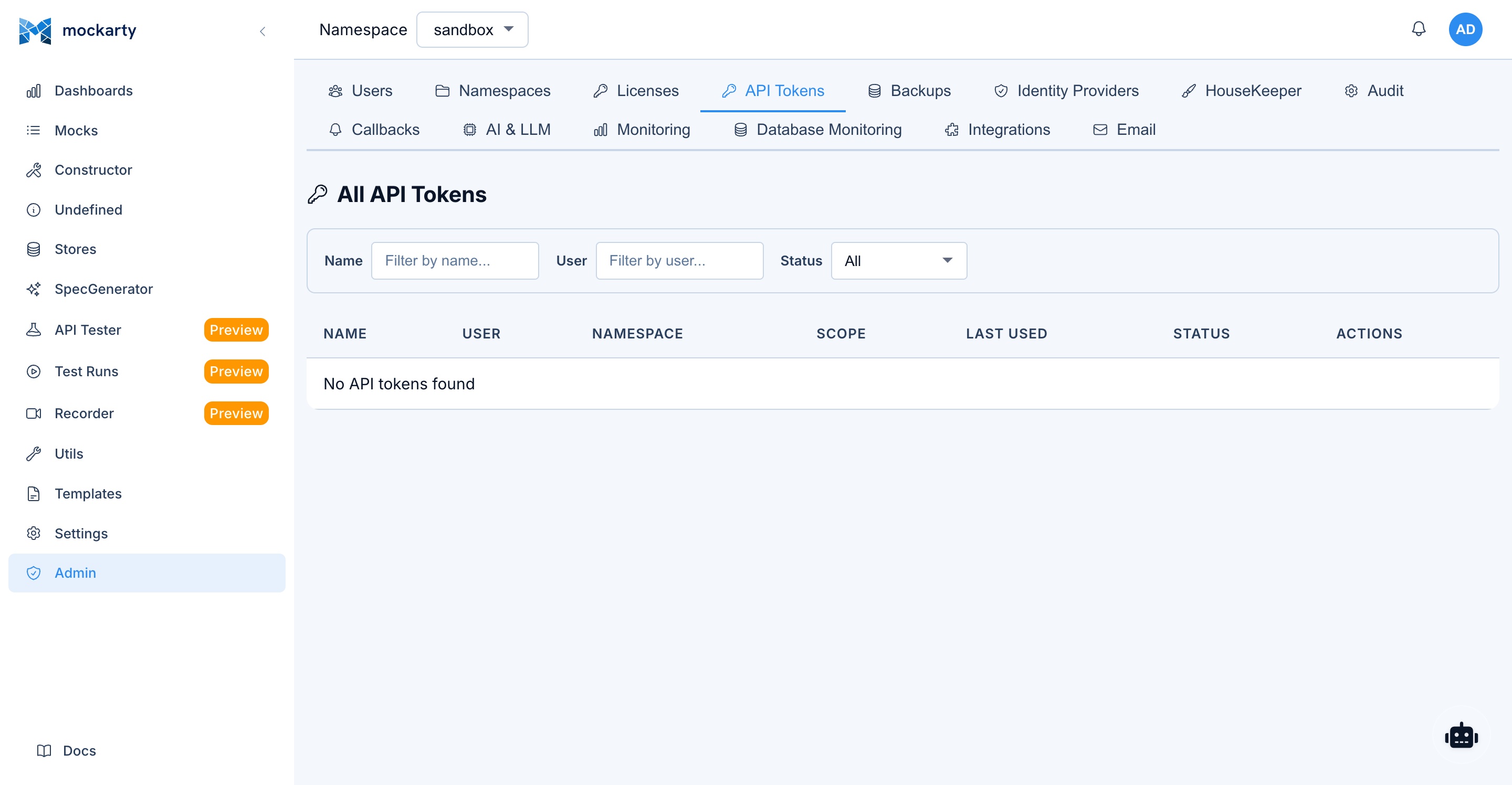
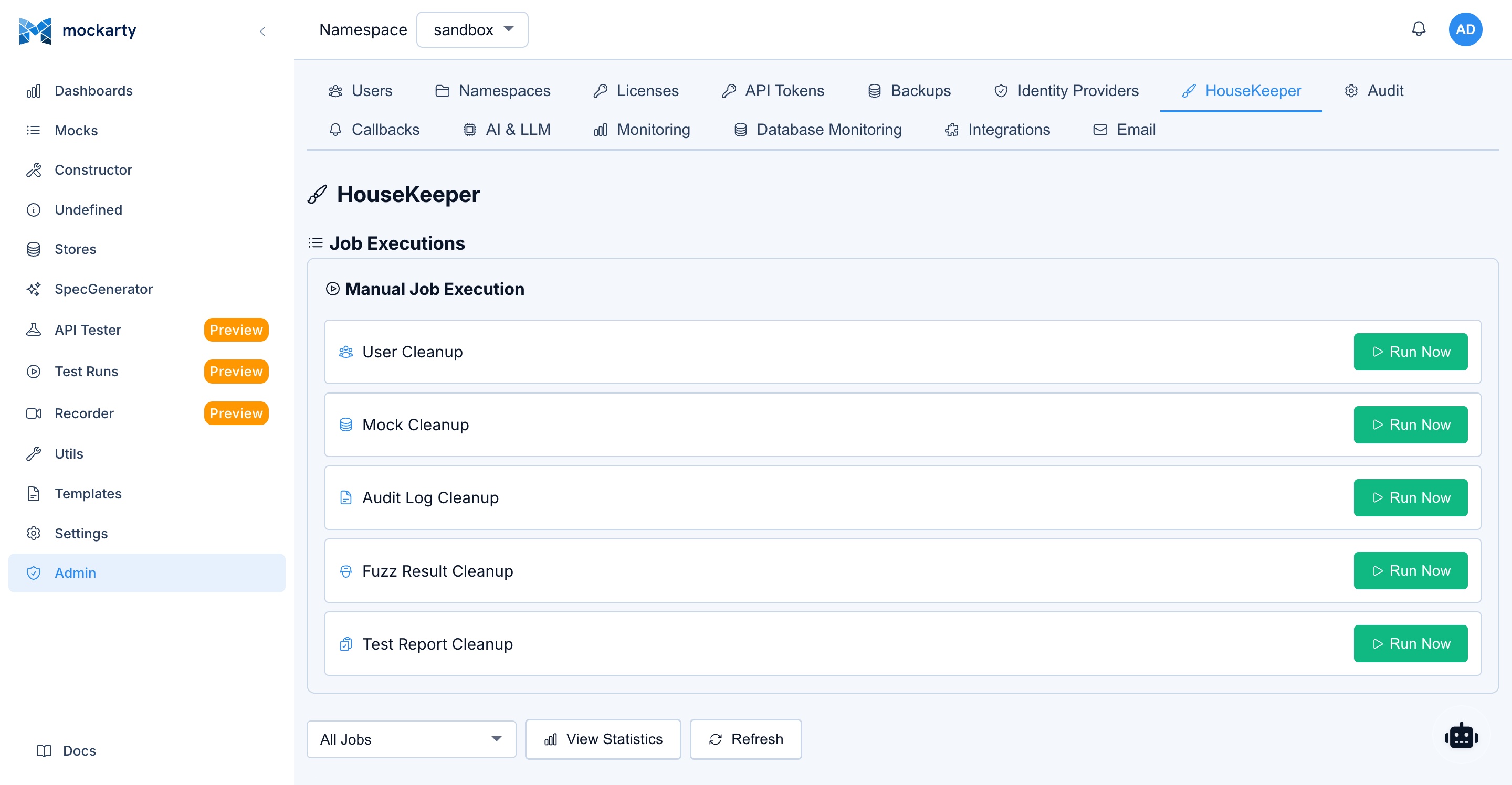
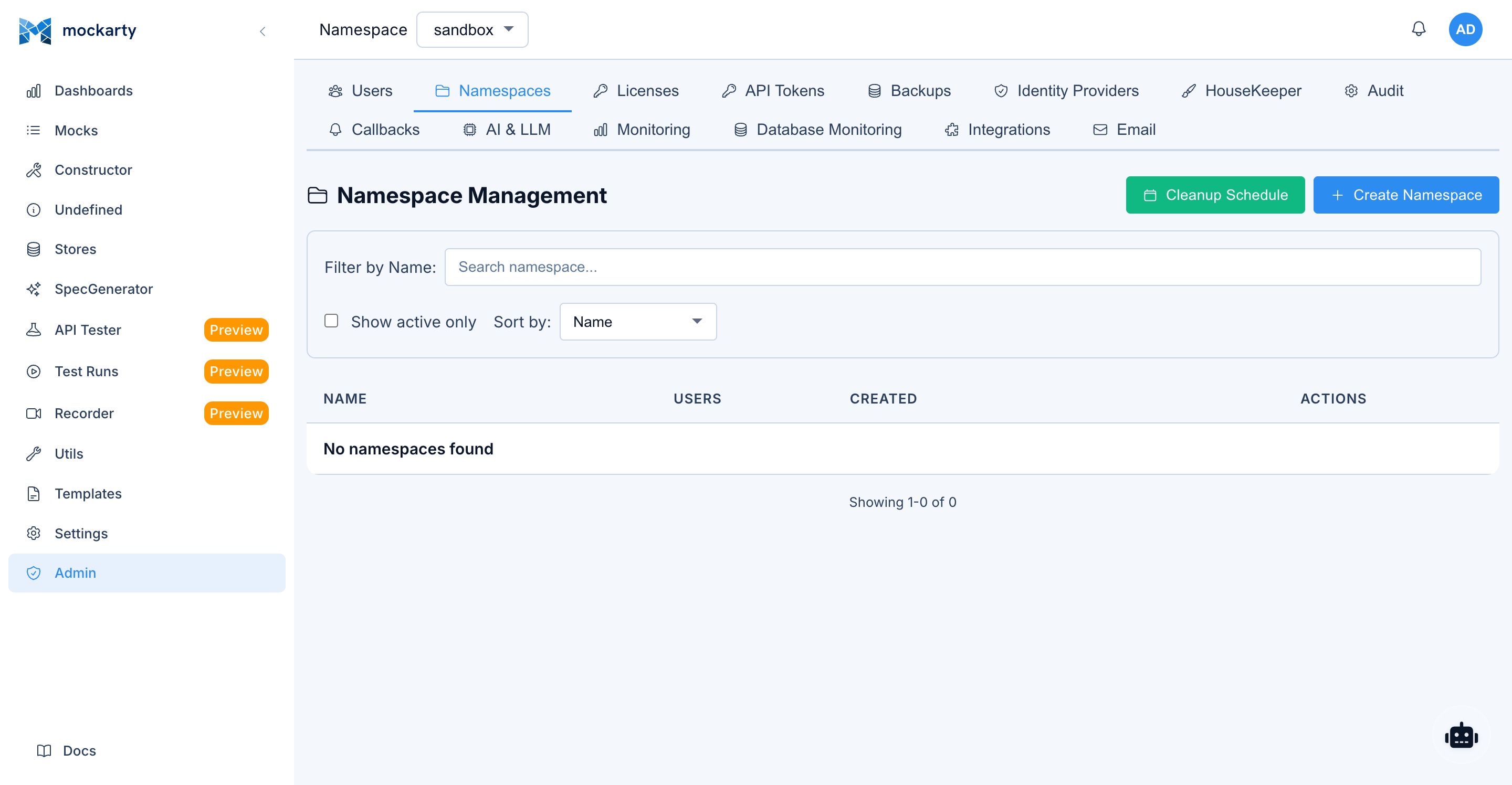
About URLs in examples: All examples use
localhost:5770as the default Mockarty address. If your instance runs on a remote server, replacelocalhost:5770with its actual address (e.g.https://mockarty.company.comorhttp://192.168.1.50:5770). See Tips & Useful Features for details.
Table of Contents
- First Launch
- Public URL for external links
- Authentication Configuration
- User Management
- System Roles
- Namespace Management
- Namespace Roles
- Assigning Users to Namespaces
- Email Notifications Setup
- Backup and Restore
- Cleanup Policies
- Audit Logs
- Support Bundle
- LLM / AI Assistant Configuration
- Security Best Practices
First Launch
When you start Mockarty for the first time, the following happens automatically:
- Database migrations are applied, creating all required tables and indexes.
- A default namespace called
sandboxis created. - A built-in admin account is created with default credentials.
If a setting is invalid — for example a port outside 1–65535, DB_USE other than pg or sqlite, CACHE_TYPE=redis without REPO_REDIS_HOST, or CLUSTER_MODE=true together with SQLite — Mockarty does not start. The message in the startup output names the variable and the values it accepts; fix that line and start again.
Default Credentials
| Field | Value |
|---|---|
| Username | admin |
| Password | admin |
Warning: Change the default password immediately after your first login. Using default credentials in production is a critical security risk.
Trial License: On first launch, Mockarty starts with a 7-day trial license. Trial limits: a small per-feature seat pool (3 seats for core features such as mocking and API testing, fewer for advanced ones) and the
sandboxnamespace only. To unlock full capabilities, apply a license key in Administration → License.
Accessing the Web UI
Open your browser and navigate to:
http://localhost:5770/ui/
You will see the login page. Enter the default credentials to log in.
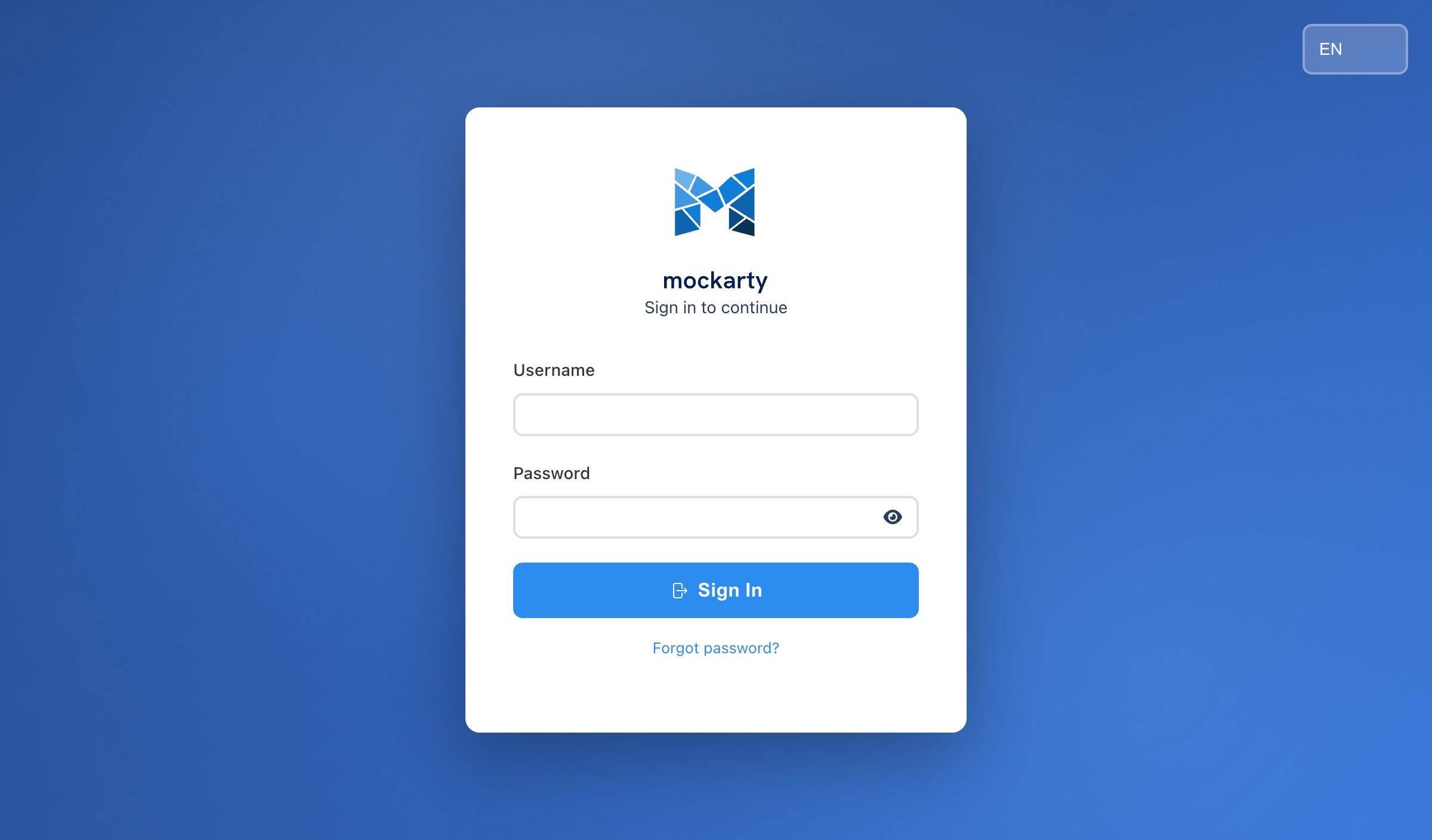
Sign-in and account changes are protected against request bursts. If a request
returns 429, wait for the interval in its Retry-After header before trying
again. After sign-in, normal page navigation and session checks do not consume
the anonymous sign-in quota. API token quotas still apply.
Changing the Default Password
- Log in with
admin/admin. - Navigate to Settings (gear icon in the sidebar).
- Go to the Profile section.
- Click Change Password.
- Enter a new strong password (minimum 8 characters).
- Click Save.
Public URL for external links (MOCKARTY_PUBLIC_URL)
Mockarty generates absolute links that are opened by someone other than the person clicking inside the app — and those links must point at a host that person can actually reach:
- notification links in e-mails and messenger channels,
- agent-room invite links you hand to a teammate,
- meeting calendar (
.ics) join links added to someone’s calendar, - companion device pairing (QR / signal) for phones,
- mobile-app and browser-extension download links.
Behind a reverse proxy, an Ingress, or in Kubernetes, the server’s own request host is an internal address (for example 127.0.0.1:5770 or an in-cluster pod IP) — a link built from it is unreachable from outside. Set MOCKARTY_PUBLIC_URL to the URL your users type in their browser and every generated link uses it.
| Variable | Default | Description |
|---|---|---|
MOCKARTY_PUBLIC_URL |
(empty) | Externally-reachable base URL of this instance, e.g. https://mockarty.example.com. Used for every external link above. |
MOCKARTY_PUBLIC_URL=https://mockarty.example.com
Notes:
- When unset, Mockarty falls back to the incoming request’s host and honours a reverse proxy’s
X-Forwarded-Host/X-Forwarded-Protoheaders — so a correctly-configured proxy that forwards those can work without this variable. In Kubernetes, where the request host is an in-cluster address and no forwarded host is present, setting this variable is the only reliable way to get correct links. MOCKARTY_ADVERTISE_URLandPUBLIC_BASE_URLare accepted as aliases (the first non-empty of the three wins).- On startup Mockarty logs a warning when no public base URL is configured, because notification links will not be reachable for recipients.
Authentication Configuration
Mockarty supports multiple authentication methods. The core auth settings are controlled by environment variables, while external identity providers (OAuth, LDAP) are configured through the Admin Panel UI with hot-reload support — no restart required.
Key Concepts
If you are new to authentication terminology, here is a quick reference:
- OAuth 2.0 — A standard protocol that lets users log in to Mockarty using their existing account from another service (Google, GitHub, etc.) instead of creating a separate password. You have probably seen “Sign in with Google” buttons — that is OAuth.
- LDAP / Active Directory — A directory service commonly used in corporate environments to store user accounts centrally. If your company uses Windows domain logins, it likely runs Active Directory, which speaks the LDAP protocol.
- SAML — An enterprise Single Sign-On (SSO) protocol used by services like Okta, Azure AD, and OneLogin. It allows users to log in once and access multiple applications without re-entering credentials.
- RBAC — Role-Based Access Control. Instead of granting permissions to individual users, you assign them roles (e.g., Owner, User, Viewer), and each role has a predefined set of permissions.
- 2FA / MFA — Two-Factor (or Multi-Factor) Authentication. After entering your password, you must provide a second proof of identity, such as a code from an authenticator app or email.
Authentication Mode (AUTH_MODE)
The AUTH_MODE environment variable controls the overall authentication strategy:
| Value | Description |
|---|---|
full |
(Default) Standard multi-user mode with database-backed authentication, OAuth, LDAP, SAML, and 2FA support. Use this for server deployments. |
local |
Single-user mode. All external auth providers are disabled. A local admin user is created automatically with a random password, and login is bypassed. Use this for local development or single-user deployments. |
Set it in your environment or .env file:
AUTH_MODE=full   # default, multi-user server deployment
AUTH_MODE=local  # single-user mode (no login screen)
Base URL for OAuth Redirects (AUTH_BASE_URL)
When using OAuth providers, Mockarty needs to know its own public URL so it can construct correct redirect URIs (the URL the provider sends the user back to after login).
AUTH_BASE_URL=https://mockarty.yourcompany.com
| Variable | Default | Description |
|---|---|---|
AUTH_BASE_URL |
http://localhost:5770 |
The public base URL of your Mockarty instance. Must match exactly what you register as the redirect URI in each OAuth provider’s developer console. |
Important: If
AUTH_BASE_URLdoes not match the redirect URI registered with the OAuth provider, login will fail with a “redirect_uri_mismatch” error.
First Admin Account
On first startup, Mockarty creates an admin user using these environment variables:
| Variable | Default | Description |
|---|---|---|
FIRST_ADMIN_LOGIN |
admin |
Username for the initial admin account |
FIRST_ADMIN_PASSWORD |
admin |
Password for the initial admin account |
FIRST_ADMIN_EMAIL |
(empty) | Email for the admin account (defaults to <login>@localhost) |
SHARED_NODE |
false |
This node is Mockarty Cloud’s shared node (a namespace per cloud Space): the CLI licence proof is withheld and cloud identities get no shared sandbox |
CLOUD_NODE_URL |
— | Attach the node to a Mockarty Cloud (its API origin). Requires the three settings below; a half-set contract refuses to boot |
CLOUD_NODE_HANDOFF_PUBLIC_KEY |
— | Base64 Ed25519 public key the cloud signs sign-in handoffs with |
CLOUD_NODE_TENANT_HMAC_KEY_ID |
— | Identifier of the shared secret below |
CLOUD_NODE_TENANT_HMAC |
— | Base64 shared secret (32+ bytes) the cloud signs tenant requests with |
If the default admin/admin credentials are used, the system will force a password change on the first login.
Tip: For automated deployments, set custom values to avoid the password-change prompt:
FIRST_ADMIN_LOGIN=myadmin
FIRST_ADMIN_PASSWORD=MyStr0ngP@ssword!
FIRST_ADMIN_EMAIL=admin@yourcompany.com
Session Expiration (AUTH_SESSION_EXPIRATION)
Controls how long a user session lasts before requiring re-authentication:
| Variable | Default | Description |
|---|---|---|
AUTH_SESSION_EXPIRATION |
24 |
Session lifetime in hours |
AUTH_SESSION_SLIDING |
false |
When true, an active session is renewed on use, so a user working continuously is not logged out at the fixed lifetime mark. Off by default — the expiry stays fixed at login + AUTH_SESSION_EXPIRATION. |
AUTH_SESSION_ABSOLUTE_MAX_HOURS |
0 |
With sliding enabled, the hard ceiling (hours from login) past which a session can no longer be renewed and re-authentication is required. 0 = no ceiling. Set this to keep a maximum re-login interval. |
AUTH_SESSION_EXPIRATION=48          # sessions last 2 days
AUTH_SESSION_SLIDING=true           # keep active users logged in
AUTH_SESSION_ABSOLUTE_MAX_HOURS=168 # ...but force re-login after 7 days
Local Authentication (Default)
When no external identity provider is configured, Mockarty uses its built-in local authentication system. Users log in with a username and password stored in the Mockarty database.
Password requirements:
- Minimum 8 characters
OAuth 2.0 Setup
OAuth 2.0 allows users to log in with their existing accounts from external services instead of creating a separate Mockarty password. Mockarty supports the following OAuth providers:
- Yandex
- VK
- GitHub
- GitLab
- Generic / Custom OAuth — any OAuth 2.0 compatible provider
Configuring OAuth Providers via Admin Panel
All OAuth providers are configured through the Admin Panel UI. No environment variables are needed for individual providers.
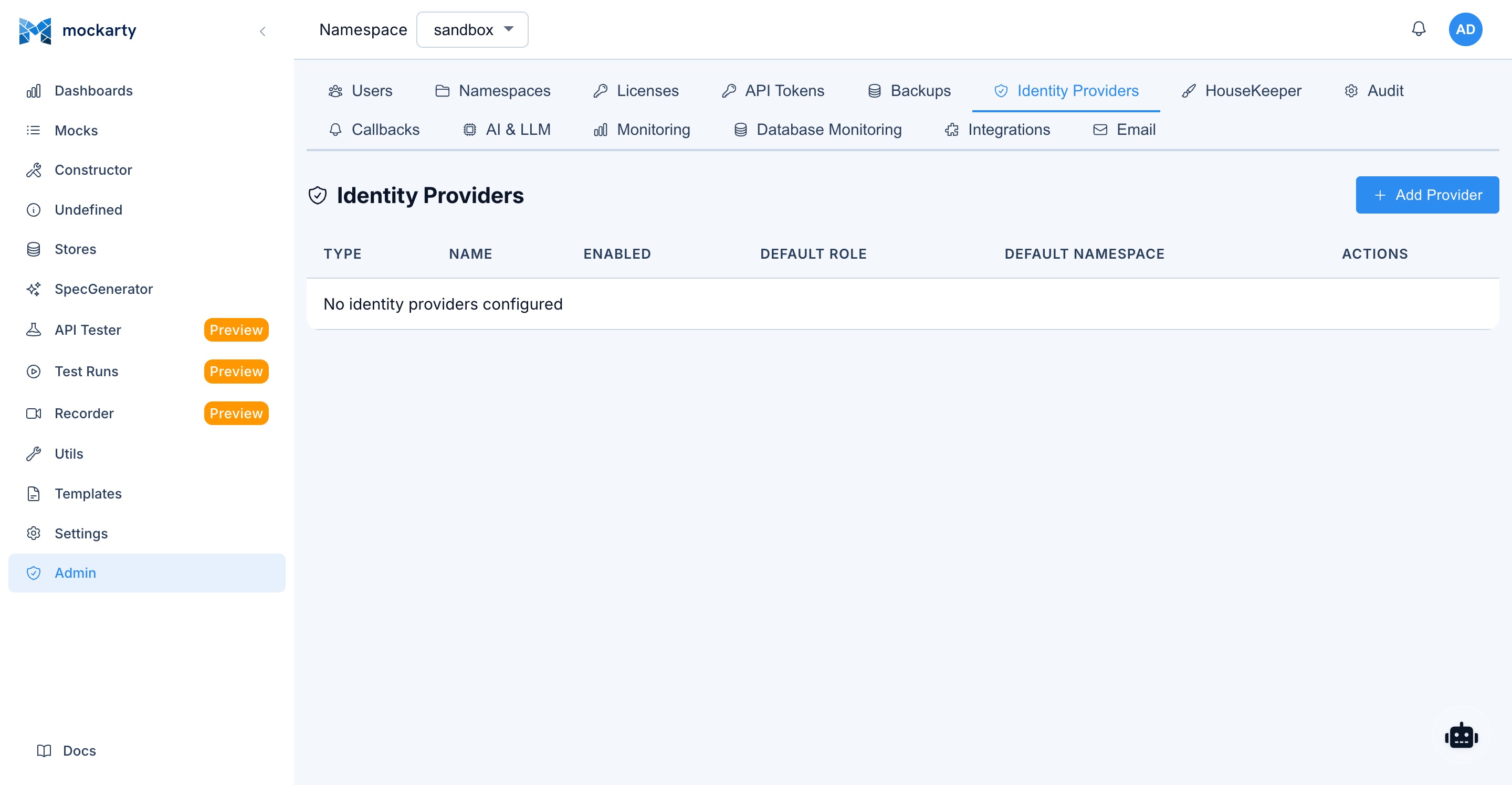
- Navigate to Admin Panel > Identity Providers.
- Click Add Identity Provider.
- Select the provider type (e.g., Google, GitHub, GitLab, Generic).
- Fill in the required fields:
- Client ID — Obtained from the provider’s developer console.
- Client Secret — Obtained from the provider’s developer console.
- For Generic/Custom providers, you will also need to fill in: Authorization URL, Token URL, UserInfo URL, and Scopes.
- Toggle Enabled to activate the provider.
- Click Save.
Hot-reload: Changes take effect immediately. You do not need to restart Mockarty after adding, editing, or removing an identity provider.
Redirect URI: When registering your application in the provider’s developer console, use the following redirect URI:
{AUTH_BASE_URL}/api/v1/auth/oauth/callbackFor example:
https://mockarty.yourcompany.com/api/v1/auth/oauth/callback
When OAuth providers are enabled, the login page automatically displays “Sign in with…” buttons for each active provider.
LDAP / Active Directory
LDAP (Lightweight Directory Access Protocol) allows Mockarty to authenticate users against your organization’s existing user directory, such as Microsoft Active Directory. This means users can log in with the same credentials they use for their corporate network.
Configuring LDAP via Admin Panel
LDAP is configured through the Admin Panel UI, just like OAuth providers.
- Navigate to Admin Panel > Identity Providers.
- Click Add Identity Provider.
- Select LDAP / Active Directory as the type.
- Fill in the connection details:
- LDAP URL — Your directory server address (e.g.,
ldap://ldap.example.com:389orldaps://ldap.example.com:636for TLS). - Base DN — The starting point for user searches (e.g.,
dc=example,dc=com). - Bind DN — The account used to connect and search the directory (e.g.,
cn=admin,dc=example,dc=com). - Bind Password — Password for the bind account.
- User Filter — LDAP filter to locate users. Use
%sas a placeholder for the username (e.g.,(sAMAccountName=%s)for Active Directory,(uid=%s)for OpenLDAP).
- LDAP URL — Your directory server address (e.g.,
- Click Test Connection to verify that Mockarty can reach your directory server and authenticate with the bind credentials.
- Toggle Enabled and click Save.
Hot-reload: Like OAuth, LDAP configuration changes take effect immediately without restarting Mockarty.
When LDAP is enabled, users can log in with their directory credentials. On first login, a Mockarty account is created automatically with the User system role. The administrator can then assign namespace roles as needed.
SAML SSO
Mockarty supports SAML 2.0 for Single Sign-On integration with enterprise identity providers (Okta, Azure AD, OneLogin, etc.).
Configuration is done through the Admin Panel:
- Navigate to Admin Panel > Authentication > SAML.
- Upload or paste the Identity Provider (IdP) metadata XML.
- Copy the Mockarty Service Provider (SP) metadata URL and register it with your IdP.
- Configure attribute mapping (email, display name, groups).
- Enable SAML authentication.
Two-Factor Authentication (2FA)
Mockarty supports two types of two-factor authentication:
TOTP (Time-based One-Time Passwords):
- Works with any authenticator app (Google Authenticator, Authy, Microsoft Authenticator, etc.)
- Users enable it from Settings > Security > Two-Factor Authentication.
- A QR code is displayed for scanning with the authenticator app.
- Recovery codes are provided for backup access.
Email codes:
- One-time codes sent to the user’s registered email address.
- Requires email notifications to be configured (see Email Notifications Setup).
- Users enable it from Settings > Security > Two-Factor Authentication.
Managing 2FA for users:
Administrators can manage 2FA on a per-user basis:
- Disable 2FA for a user: Navigate to Admin Panel > Users, select the user, and click Disable 2FA. This removes both TOTP and email 2FA for that user.
- Recommendation: Strongly recommend (or require through organizational policy) that all Admin and Support role users enable 2FA for their accounts.
Note: 2FA is enabled by individual users in their own Settings > Security > Two-Factor Authentication page. There is no global enforcement toggle — 2FA adoption is managed through organizational policy.
User Management
Creating Users
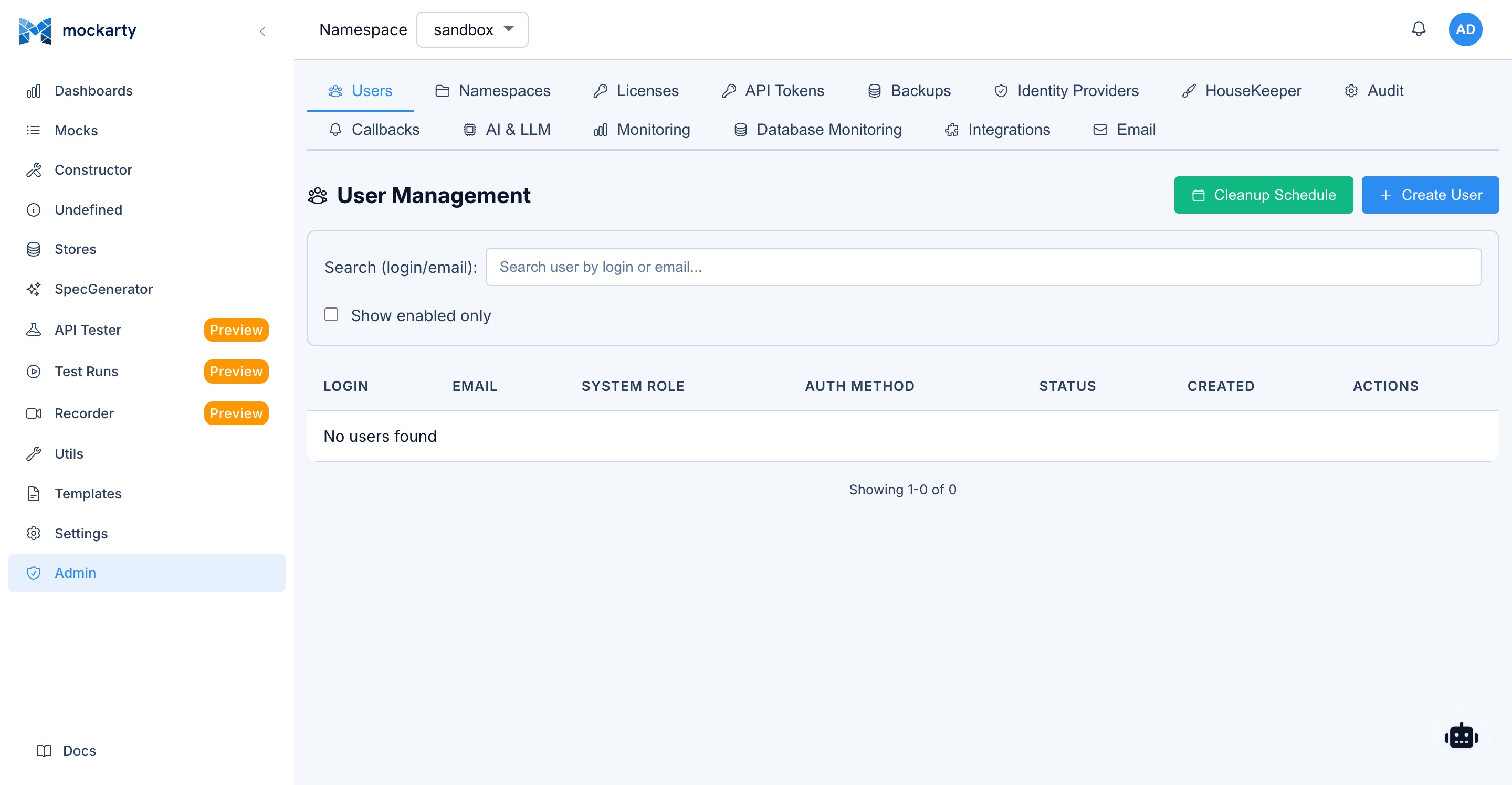
- Navigate to Admin Panel > Users.
- Click Create User.
- Fill in the required fields:
- Username — Unique login name.
- Email — Email address (used for notifications and password resets).
- Password — Initial password (user can change it later).
- System Role — Select from Admin, Support, Auditor, or User (see System Roles).
- Click Create.
Inviting Users
Instead of choosing a password for someone, invite them and let them set it up themselves.
Changing the interface language while the invitation dialog is open updates its labels without clearing the email, selected roles or workspace.
- Navigate to Admin Panel > Users and click Invite.
- Enter the person’s email and the System Role they get. Optionally pick a Workspace (namespace) and their role in it — Member, Viewer or Owner.
- Click Send invite. When email delivery is configured, the invite is emailed right away. The dialog also shows the invite link — copy it and pass it on yourself if your installation does not send email.
The person opens the link, sees who invited them and with which roles, chooses a login and a password, and is signed in. Each link works once and expires after three days. Only unexpired links that have not been accepted or revoked appear under Pending invites below the user table (up to 200, newest first); Revoke makes a link stop working.
If the invite list cannot be read, its count is shown as unknown. Select Retry to read it again; an error does not mean there are no invitations.
Revoking requires explicit confirmation. Cancelling keeps the link active; repeated clicks while confirmation or revocation is pending do not send another request.
If workspace choices cannot be loaded, use Retry or explicitly invite without a workspace. If creation cannot be confirmed, including after a timeout or server error, check Pending invites before sending again; the invitation may already have been created. The application does not automatically resend the request.
Setting Passwords and Emails
- To reset a user’s password: Admin Panel > Users > (select user) > Reset Password.
- To change a user’s email: Admin Panel > Users > (select user) > Edit > Email.
- Password reset links can be sent via email if email notifications are configured.
Disabling / Enabling Accounts
Disabled accounts cannot log in, but their data and namespace assignments are preserved.
- Navigate to Admin Panel > Users.
- Find the user in the list.
- Click the toggle switch next to their name to disable or enable the account.
Deleting Users
- Navigate to Admin Panel > Users.
- Find the user in the list.
- Click Delete.
- Confirm the deletion.
Note: Deleting a user removes their account and all namespace role assignments. Mocks and other resources created by the user are preserved.
User Self-Registration
When OAuth or LDAP is enabled, users can register themselves by logging in through the external identity provider. A Mockarty account is created automatically with the User system role. The administrator can then assign namespace roles as needed.
System Roles
Mockarty has four system-level roles that determine what a user can access across the entire platform.
Role Descriptions
Admin
Full system access. Admins can manage all users, all namespaces, system settings, audit logs, backups, email configuration, LLM profiles, telemetry, and database health. This role should be limited to a small number of trusted people.
Support
Full access to namespace resources (mocks, stores, API tests, fuzzing, recorder, collections) across all namespaces. In the Admin Panel, Support users can view user accounts, reset passwords, and view audit logs, but cannot create or delete users, change system settings, or access sensitive configuration. Support users cannot create or delete namespaces.
Auditor
Read-only access to audit logs and system metrics. Auditors cannot modify any resources and cannot export audit logs. In the sidebar, they see: Dashboard, Mocks (view only), Test Runs, Recorder (view only), Fuzzing (view only), Utils, Settings (view only), and Admin Panel (audit logs view only).
User
Standard user account. Permissions are determined entirely by namespace role assignments (see Namespace Roles). Users have no access to the Admin Panel.
Permissions Matrix
| Capability | Admin | Support | Auditor | User |
|---|---|---|---|---|
| View Dashboard | Yes | Yes | Yes | Yes |
| Manage own profile | Yes | Yes | Yes | Yes |
| Access Admin Panel | Yes | Partial | Partial | No |
| Create / delete users | Yes | No | No | No |
| View user list | Yes | Yes | No | No |
| Reset user passwords | Yes | Yes | No | No |
| Disable / enable accounts | Yes | No | No | No |
| Manage system settings | Yes | No | No | No |
| Create / delete namespaces | Yes | No | No | No |
| View audit logs | Yes | Yes | Yes | No |
| Export audit logs | Yes | Yes | No | No |
| Manage backups | Yes | No | No | No |
| Configure email settings | Yes | No | No | No |
| Manage LLM profiles | Yes | No | No | No |
| View telemetry / metrics | Yes | No | Yes | No |
| Database health | Yes | No | No | No |
| Manage API tokens | Yes | No | No | No |
| View mocks (all namespaces) | Yes | Yes | Yes | No |
| Work with namespace resources | Yes | Yes | No | By role |
Namespace Management
What Is a Namespace
A namespace is an isolated workspace within Mockarty. Each namespace contains its own:
- Mocks and routes
- Global, Chain, and Mock stores
- API test collections and environments
- Test run results
- Recorder sessions
- Fuzzing configurations
- API tokens
Namespaces provide separation between teams, services, or environments. Resources in one namespace are invisible to users of another namespace (unless they have roles in both).
Creating Namespaces
Via Admin Panel:
- Navigate to Admin Panel > Namespaces.
- Click Create Namespace.
- Enter a name and optional description.
- Click Create.
Via Settings page:
- Navigate to Settings > Namespaces (visible to Admin users).
- Click Create Namespace.
- Enter a name and optional description.
- Click Create.
Naming Conventions and Best Practices
Choose a naming convention that fits your organization:
| Strategy | Example namespaces | Best for |
|---|---|---|
| Per team | backend-team, mobile-team, qa-team |
Small organizations |
| Per service | payment-service, user-service, orders |
Microservice architectures |
| Per environment | dev, staging, qa, demo |
Environment-based workflows |
| Combined | payments-dev, payments-staging |
Large organizations |
Tips:
- Use lowercase names with hyphens (e.g.,
user-service). - Keep names short but descriptive.
- Avoid generic names like
testortempfor permanent namespaces. - Document your naming convention so all teams follow it consistently.
Default Namespace
The sandbox namespace is created automatically on first launch. It cannot be deleted. All users have access to the default namespace unless explicitly removed.
Deleting / Restoring Namespaces
- Navigate to Admin Panel > Namespaces.
- Find the namespace and click Delete.
- Confirm the deletion.
Closing a namespace deactivates its resources. Use Restore in the namespace list to reopen it.
Permanent deletion through the recycle bin or the administrator API cannot be undone. It also queues removal of stored Test Case Management files and test-plan artifacts; cleanup resumes after a server restart if the storage backend is temporarily unavailable. A namespace containing files under legal hold or an active retention period cannot be permanently deleted.
After permanent deletion, creating another namespace with the same name may be temporarily refused while physical cleanup is pending. Retry after storage access has recovered. A new namespace does not inherit the deleted workspace’s files or permissions.
The administrator API uses DELETE /api/v1/admin/namespaces/{namespace}?hard=true; the support role uses the corresponding /api/v1/support/namespaces/{namespace} route. A refused deletion returns 409 when files are held or retained, or the namespace changed during the operation. A database failure returns 500. Successful deletion returns 200; stored-file cleanup may continue afterward.
Namespace Roles
Within each namespace, users can have one of three roles that control what they can do with namespace resources.
Role Descriptions
Owner
Full control over the namespace. Owners can manage namespace settings, add or remove users, and perform all operations on resources (mocks, stores, collections, tests). Namespace Owners cannot delete the namespace — only users with the Admin or Support system role can delete namespaces.
User
Can create, edit, and delete mocks, stores, collections, and run tests. Users cannot manage namespace settings or add/remove users.
Viewer
Read-only access to all namespace resources. Viewers can browse mocks, view test results, and see store values, but cannot create, edit, or delete anything.
Namespace Capabilities Matrix
| Capability | Owner | User | Viewer |
|---|---|---|---|
| View mocks | Yes | Yes | Yes |
| Create / edit / delete mocks | Yes | Yes | No |
| Import mocks (OpenAPI, HAR, etc.) | Yes | Yes | No |
| View stores | Yes | Yes | Yes |
| Create / edit / delete stores | Yes | Yes | No |
| View API test collections | Yes | Yes | Yes |
| Create / edit / delete collections | Yes | Yes | No |
| Run tests | Yes | Yes | No |
| View test results | Yes | Yes | Yes |
| Use API Tester | Yes | Yes | No |
| View Recorder sessions | Yes | Yes | Yes |
| Start / stop Recorder | Yes | Yes | No |
| Configure Fuzzing | Yes | Yes | No |
| View Fuzzing results | Yes | Yes | Yes |
| Manage namespace API tokens | Yes | No | No |
| Add / remove namespace users | Yes | No | No |
| Change namespace settings | Yes | No | No |
| Delete namespace | No | No | No |
| Use Agent Chat | Yes | Yes | Yes |
Assigning Users to Namespaces
Adding a User to a Namespace
- Switch to the target namespace using the namespace selector in the sidebar.
- Navigate to Settings > Users.
- Click Add User.
- Select the user account from the dropdown list.
- Choose a role: Owner, User, or Viewer.
- Click Add.
Client namespaces inherit roles
Integrations that bring their own products (for example an acceptance bus) create one namespace per product, named c-<client>-p-<project>. You do not have to add a user to each of them: a role granted in the parent client namespace c-<client> applies to every c-<client>-p-* namespace, with the same role. A direct membership in a product namespace still takes precedence when it exists.
Example: grant the integration’s service account Viewer in c-acme, and it can read c-acme-p-web, c-acme-p-checkout and every product namespace the integration creates later, without a further grant.
Changing a User’s Namespace Role
- Navigate to Settings > Users within the target namespace.
- Find the user in the list.
- Click the role dropdown next to their name.
- Select the new role.
- The change takes effect immediately.
Removing a User from a Namespace
- Navigate to Settings > Users within the target namespace.
- Find the user in the list.
- Click Remove.
- Confirm the action.
Note: Removing a user from a namespace does not delete their account. They simply lose access to that namespace’s resources.
Email Notifications Setup
Email notifications enable password resets, 2FA code delivery, invite links, and test run notifications.
Enabling Email
Email settings are configured through the Admin Panel UI (no restart required):
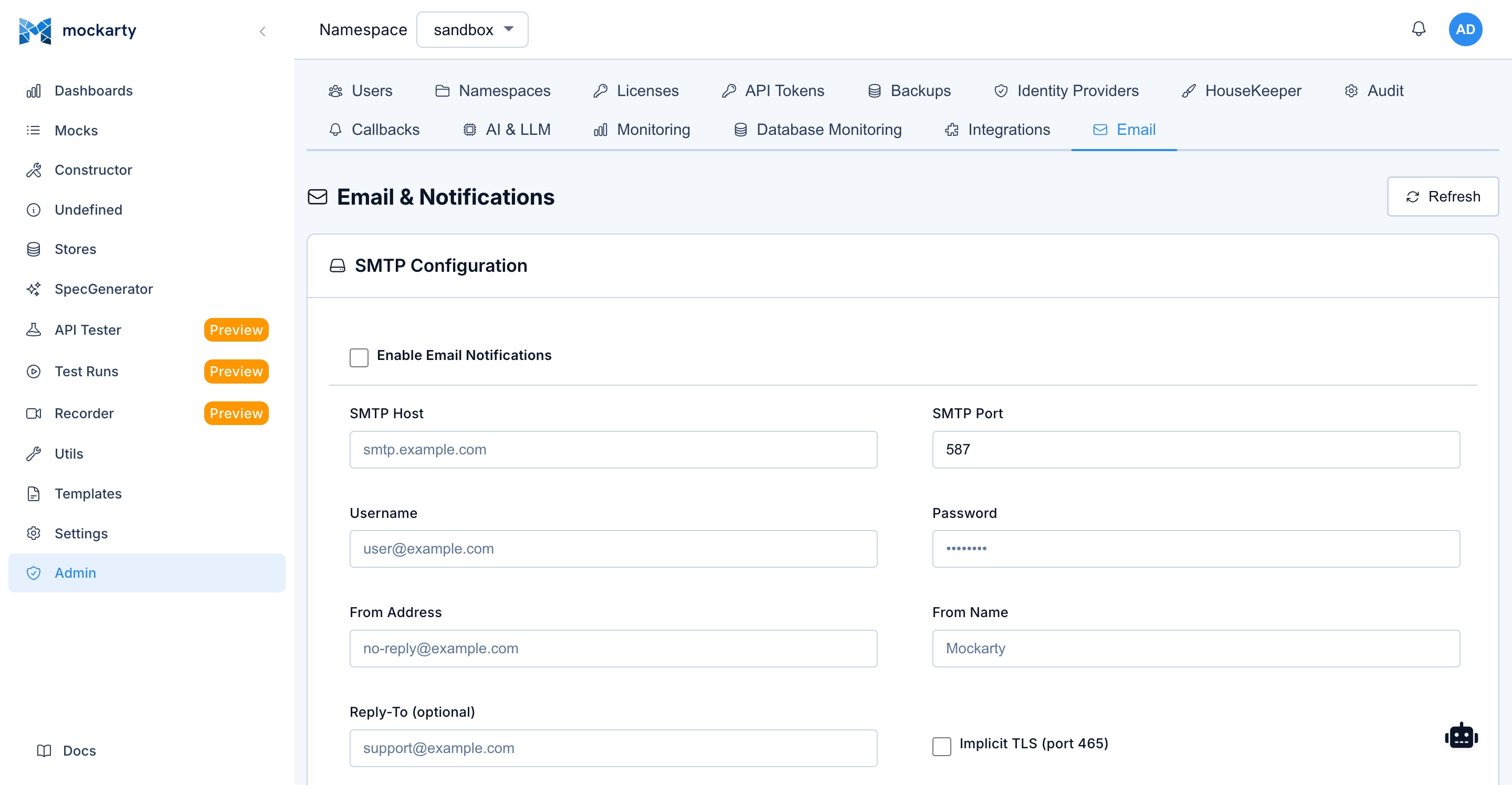
- Navigate to Admin Panel > Email Settings.
- Fill in the SMTP connection details:
- SMTP Host — your SMTP server (e.g.,
smtp.gmail.com) - SMTP Port — typically
587for STARTTLS or465for Implicit TLS - Username / Password — SMTP authentication credentials
- From Address — the sender email address shown to recipients
- From Name — the sender display name (e.g.,
Mockarty) - Reply-To — optional reply-to address
- SMTP Host — your SMTP server (e.g.,
- Toggle Enabled and click Save.
Alternative: environment variables. SMTP settings can also be provided via environment variables at startup (
EMAIL_ENABLED,SMTP_HOST,SMTP_PORT,SMTP_USERNAME,SMTP_PASSWORD,EMAIL_FROM,EMAIL_FROM_NAME,EMAIL_REPLY_TO,SMTP_USE_IMPLICIT_TLS). See the Installation & Deployment Guide for the full reference. UI settings take precedence over environment variables after the first save.
Testing Email Configuration
- Navigate to Admin Panel > Email Settings.
- Click Send Test Email.
- Enter a recipient email address.
- Click Send.
- Verify the test email arrives in the recipient’s inbox.
Custom Email Templates
Mockarty uses built-in HTML templates for all email notifications. You can customize them:
- Navigate to Admin Panel > Email tab, then switch to the Templates sub-tab.
- Select the template to customize (e.g., “Password Reset”, “2FA Code”, “Welcome”, “Invite”, “Email Verify”).
- Edit the subject line, HTML template, and plain text template. Available variables are listed on the page.
- Click Save.
- Use Preview to see how the email will look.
- Use Reset to Default to restore the built-in template.
What Gets Sent
| Event | Email content |
|---|---|
| Password reset request | Link to reset password (expires in 1 hour) |
| 2FA code (email method) | 6-digit verification code (expires in 20 minutes) |
| User invite | Link to join Mockarty with pre-assigned role |
| Email verification | Link to verify email address |
| Test run completion | Summary of test results with pass/fail counts |
Backup and Restore
Mockarty has a built-in backup system that uses pg_dump / pg_restore for PostgreSQL and a consistent database snapshot for SQLite to create and restore database backups. Backups are managed through the Admin Panel or API. These backups hold the database; for a whole-node disaster-recovery backup see Backup and Disaster Recovery.
Optional least-privilege PostgreSQL mode
By default, Mockarty keeps its backward-compatible startup behaviour and applies pending migrations with DB_DSN. A hardened installation needs a dedicated Mockarty database, a schema-owner maintenance credential, a serving role, and—when delivery-policy management is enabled—a separate non-owner authority role. Use this cutover sequence:
- Set a stable
CHAOS_ENCRYPTION_KEYbefore changing database credentials. This keeps previously stored chaos credentials readable after the DSN changes. - Provision the runtime and authority roles as
NOSUPERUSER NOBYPASSRLS NOCREATEDB NOCREATEROLE NOINHERIT NOREPLICATION, with no memberships and no owned database objects. Do not grant them parameter-management, replication, DDL, or default privileges. - In the first one-shot maintenance pass, leave
DB_AUTHORITY_ROLEunset, setDB_DSNto the future runtime DSN,DB_RUNTIME_ROLEto the serving role name, andDB_MIGRATION_DSNto the schema-owner DSN. Run./mockarty --migrate upwithout--migrate-steps. - As the database administrator, remove effective
PUBLICaccess from the dedicated database and every non-system application schema and object: databaseCONNECT/TEMP, schema creation, tables, sequences, functions, types, procedural languages, parameters, foreign-data objects, tablespaces, and large objects. Keep onlyUSAGEon thepublicschema. Configure the migration owner’s database-wide default privileges so future functions do not grantEXECUTEand future types do not grantUSAGEtoPUBLIC. Grant databaseCONNECTexplicitly to the runtime and authority roles. Do not use this strict profile in a database shared with another application. - Repeat
./mockarty --migrate upwith the same owner credential and addDB_AUTHORITY_ROLE. Even when no migration is pending, this maintenance command invokes both owner-only grant binders and fails closed if the dedicated-database posture is incomplete. - Remove
DB_MIGRATION_DSNcompletely from the serving environment. Start the serving process with the runtimeDB_DSN,DB_RUNTIME_ROLE, and stableCHAOS_ENCRYPTION_KEY. To enable delivery-policy management, provide the authority credential through bothDB_AUTHORITY_DSNandDB_AUTHORITY_ROLE; its DSN must set the sessionsearch_pathexactly topg_catalog,public,pg_temp.
For the production Compose file, put the runtime connection in MOCKARTY_RUNTIME_DB_DSN; the bundled POSTGRES_USER remains the database owner and must not be reused as DB_RUNTIME_ROLE. Provision the runtime role first with your PostgreSQL administration workflow. Strict mode is therefore an explicit operator cutover, not an automatic role-creation feature.
The serving process fails closed if either configured role can own or create schema objects, has role membership, replication or parameter authority, if PUBLIC, default or critical grants drift, if credentials are shared between runtime, authority, and migration duties, or if an owner connection masquerades through SET ROLE. Leave both authority variables empty to keep management unavailable without disabling runtime policy enforcement. DB_MIGRATION_DSN is deliberately rejected by a serving process and must never be stored in a serving Pod, Compose service, or systemd environment.
SQLite has no PostgreSQL role separation. Its single local process/database owner is therefore part of the trusted local boundary; do not set PostgreSQL authority variables in SQLite mode. Legacy PostgreSQL mode preserves the same owner-trust compatibility through the existing connection.
The PostgreSQL migration owner is also a trusted maintenance authority: it can change schema objects and triggers by definition. The strict guarantee protects the normal serving role from those capabilities; it does not claim protection against a compromised migration owner.
Automatic Backups
Mockarty runs scheduled backups automatically. The default schedule is daily at 2:00 AM (configurable via cron expression). In distributed deployments, backups run only on the leader node to avoid duplicates.
Configuring Backup
- Navigate to Admin Panel > Backup.
- Click Create Backup Config (or edit the default config).
- Configure:
- Schedule — Cron expression (e.g.,
0 0 2 * * *for daily at 2 AM). - Retention — Number of days to keep old backups (0 = unlimited).
- Compression — Enable compression for smaller backup files.
- Format —
custom(recommended, supportspg_restore),plain(SQL text),tar, ordirectory. - Include schema / Include data — Choose what to include.
- Schedule — Cron expression (e.g.,
- Toggle Enabled and click Save.
Manual Backup
Via Admin Panel:
- Navigate to Admin Panel > Backup.
- Click Create Backup.
- Wait for the backup to complete.
- Click Download to save the backup file.
Via API:
# Create a backup
curl -X POST http://localhost:5770/api/v1/admin/backups/create \
  -H "Authorization: Bearer $TOKEN" \
  -H "Content-Type: application/json" \
  -d '{"config_id": "your-config-id"}'

# Download the backup
curl http://localhost:5770/api/v1/admin/backups/download?file_path=backup_file.dump \
  -H "Authorization: Bearer $TOKEN" \
  -o backup.dump
Restoring from Backup
In the default mode, restore is available as described below. In strict PostgreSQL mode (DB_RUNTIME_ROLE is set), restore endpoints are intentionally not registered because the serving role cannot replace schema or database contents. Stop traffic and perform restore as an explicit maintenance operation with the owner credential, verify the restored schema, rerun the complete migration chain, and only then restart the runtime-role process. Do not add the owner credential to the running server to make the button work.
Via Admin Panel:
- Navigate to Admin Panel > Backup.
- Click Restore.
- Upload the backup file.
- Confirm the restore operation.
- Wait for the process to complete. The license cache will be reloaded automatically.
Via API:
# Restore from uploaded file
curl -X POST http://localhost:5770/api/v1/admin/backups/restore-from-file \
  -H "Authorization: Bearer $TOKEN" \
  -F "file=@backup.dump"
Warning: Restoring a backup replaces all current data. This operation cannot be undone.
What Is Included in a Backup
- Complete database (all mocks, stores, users, namespaces, test results, audit logs, configurations)
- Backup format depends on your settings (
customformat is recommended for fastest restore)
Docker and Kubernetes
The official Mockarty Docker image includes PostgreSQL 18 client tools (pg_dump, pg_restore, psql), so backups work out of the box in Docker and Kubernetes environments for PostgreSQL servers up to version 18.
Mount a persistent volume for the backup storage directory:
docker run -v /host/path/data:/app/data mockarty:latest
SQLite Backups
For SQLite deployments, Mockarty takes a consistent snapshot of the database — safe while people keep working. The same Admin Panel interface is used — no additional tools are required.
A running node cannot replace the SQLite file it works from, so a SQLite backup is restored offline: download the backup file, stop Mockarty, run mockarty --restore <backup file> with the same settings the server uses, then start Mockarty again. The previous database is kept next to it.
For a complete disaster-recovery backup — database, attachments and report files, with a check of the encryption keys on restore — see Backup and Disaster Recovery.
Support Bundle
When something works wrong and you ask support for help, download the support bundle: Admin Panel → Settings (System Status & Logs) → “Download support bundle”. The button is visible to administrators only.
The archive contains:
| File | Contents |
|---|---|
version.txt |
Product version |
config.json |
Configuration facts that contain no secrets: database and cache type, cluster mode, ports, enabled integrations |
database.json |
Database type, current migration version, connectivity check and this node’s SQL pool snapshot (max_open_connections, open_connections, in_use_connections, idle_connections, wait_count, wait_duration_ms) |
health.json |
Process health: load, memory, database reachability; explicitly says unavailable when the database handle is missing |
cache-cluster.json |
Cache backend and cluster posture |
recent-errors.log |
Up to 200 latest error messages from this node, capped at 8 KiB each; very large messages are omitted, and passwords, tokens and keys are masked |
manifest.json |
When the bundle was generated |
The archive never contains passwords, tokens, API keys or database connection strings. Every download is recorded in the audit log.
Pool values describe only the node that generated the archive. For a cluster, download one bundle from each affected node and compare it with the node-specific metrics in the platform overview dashboard. A pool maximum of 0 means no configured connection limit, so it cannot be used as a utilization denominator. The overview also shows cache mutation errors and the bounded audit-outbox sample; saturation is not an exact backlog count. A sample is hidden after leadership changes, failed sampling, or 90 seconds without an update; check node clocks if all samples disappear.
The same archive is available over the API:
curl -H "Authorization: Bearer <ADMIN_TOKEN>" \
  -o support-bundle.zip \
  http://localhost:5770/api/v1/admin/support-bundle
Cleanup Policies
Cleanup policies control how long historical data is retained. Configuring these prevents the database from growing indefinitely.
Configuring Cleanup
Navigate to Admin Panel > Cleanup or Settings > Cleanup within a namespace.
Available Policies
| Policy | Description | Default |
|---|---|---|
| Request logs retention | How long to keep recorded request/response logs | 30 days |
| Undefined requests retention | How long to keep logs of unmatched requests | 14 days |
| Test report retention | How long to keep test run reports | 90 days |
| Expired mock handling | What to do with mocks that have passed their TTL | Archive |
Expired mock handling options:
- Archive — Mark expired mocks as inactive. They stop matching requests but remain visible in the UI for reference.
- Auto-delete — Permanently remove expired mocks after a configurable grace period.
- Do nothing — Leave expired mocks as-is (not recommended for production).
Audit Logs
Audit logs provide a detailed record of all significant actions performed in the system.
What Is Logged
- Authentication events — User logins (success and failure), logouts, 2FA challenges.
- Mock operations — Create, update, delete, import, export.
- Namespace changes — Create, delete, user role assignments.
- Admin actions — User management, system settings changes, backup/restore.
- API token usage — Token creation, deletion, and usage patterns.
- Store operations — Global store modifications.
Viewing Audit Logs
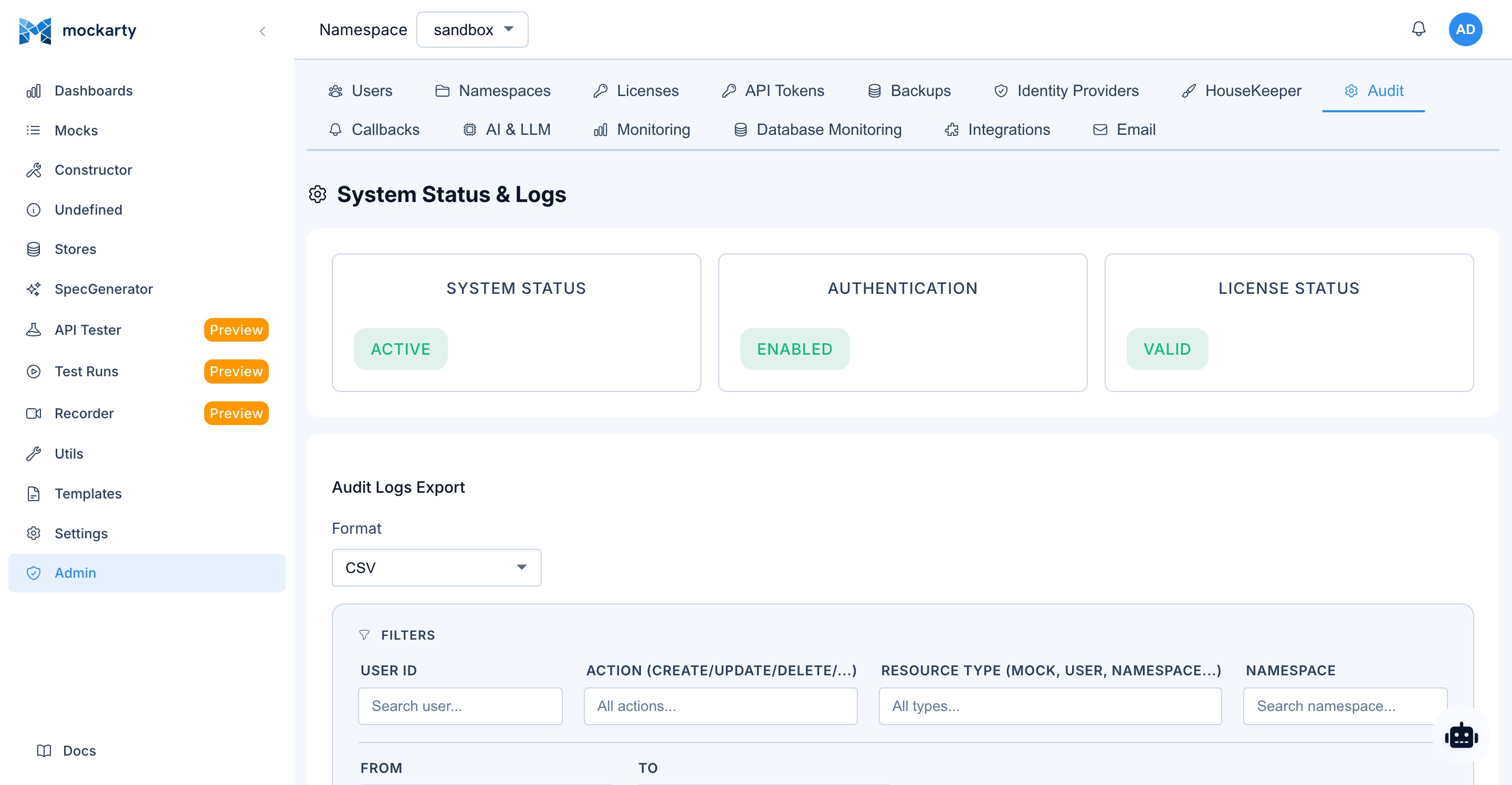
- Navigate to Admin Panel > Audit Logs.
- Browse the chronological list of events.
Filtering
Use the filter controls at the top of the page:
- User — Filter by specific user account.
- Event type — Filter by action type (login, mock.create, namespace.delete, etc.).
- Date range — Specify start and end dates.
- Namespace — Filter by namespace (for namespace-scoped events).
Exporting Audit Logs
- Apply desired filters.
- Click Export.
- Choose format:
- CSV — Comma-separated values, suitable for spreadsheet analysis.
- JSON — Structured data, suitable for programmatic processing.
- The file downloads to your browser.
LLM / AI Assistant Configuration
Mockarty includes an AI assistant (Agent Chat) that helps users create mocks, troubleshoot issues, and explore the system using natural language.
Enabling the AI Assistant
Set the following environment variable:
ENABLE_LLM=true
MCP Server
If you want to expose Mockarty tools via MCP (Model Context Protocol) for external AI agents, enable the built-in MCP server:
ENABLE_MCP=true
| Environment Variable | Description | Default |
|---|---|---|
ENABLE_MCP |
Enable MCP server | false |
MCP_PORT |
MCP server port | 5772 |
Agent Concurrency
The AI agent subsystem (ADK) controls how many agent tasks can run simultaneously and how long sessions last:
| Environment Variable | Description | Default |
|---|---|---|
ADK_ENABLED |
Enable the ADK agent subsystem | true |
ADK_MAX_CONCURRENT_TASKS |
Max concurrent AI agent tasks | 3 |
ADK_SESSION_TTL_HOURS |
Agent session lifetime in hours | 24 |
ADK_MAX_TOOL_ITERATIONS |
Max tool call iterations per request | 50 |
MOCKARTY_AGENT_LLM_CALL_TIMEOUT_SEC |
Hard limit for one LLM provider attempt, including a stream. Valid range: 30–540 seconds |
180 |
MOCKARTY_AGENT_LLM_STALL_TIMEOUT_SEC |
Maximum wait without a stream token. Valid range: 5–120 seconds and must be less than the call timeout |
90 |
MOCKARTY_LLM_CONTEXT_WINDOW |
Context window (tokens) the agent assumes for models it does not know. Lower it only if you run a small local model; long agent runs keep their history up to this size | 262144 |
A2A_ENABLED |
Enable A2A (Agent-to-Agent) protocol | true |
Set these variables before starting the admin node and restart the node after a change. If either value is malformed, outside its range, or the stall timeout is not shorter than the call timeout, Mockarty uses both safe defaults (180 and 90). A caller deadline that expires sooner still takes precedence.
Default Configuration
When enabled without additional configuration, Mockarty connects to a local Ollama instance:
| Setting | Default value |
|---|---|
| Provider | Ollama |
| URL | http://localhost:11434 |
| Model | qwen3:0.6b |
Local Ollama (for Developers)
Ollama lets you run open-source LLMs locally. This is useful for development and testing when you do not want to use a cloud LLM provider.
Install Ollama:
# macOS
brew install ollama

# Linux
curl -fsSL https://ollama.com/install.sh | sh
Start Ollama and pull a model:
# Start the Ollama server
ollama serve &

# Pull a model (choose size based on available RAM)
ollama pull qwen3:0.6b   # ~1 GB RAM — smallest, fast
ollama pull qwen3:1.7b   # ~2 GB RAM — larger optional model
ollama pull qwen3:4b     # ~3.5 GB RAM — better quality
Configure Mockarty to use Ollama:
Set ENABLE_LLM=true and create an Ollama profile in Admin Panel > LLM Profiles with:
- Provider: Ollama
- URL:
http://localhost:11434 - Model: the model you pulled (e.g.,
qwen3:1.7b)
Alternatively, pass the Ollama URL and model as environment variables at startup — they serve as defaults if no LLM profile is configured:
ENABLE_LLM=true OLLAMA_URL=http://localhost:11434 OLLAMA_MODEL=qwen3:1.7b ./mockarty
Note: For production deployments, configure LLM providers through the Admin Panel UI. Environment variables
OLLAMA_URLandOLLAMA_MODELare convenience defaults and are overridden by the active LLM profile.
Configuring LLM Profiles
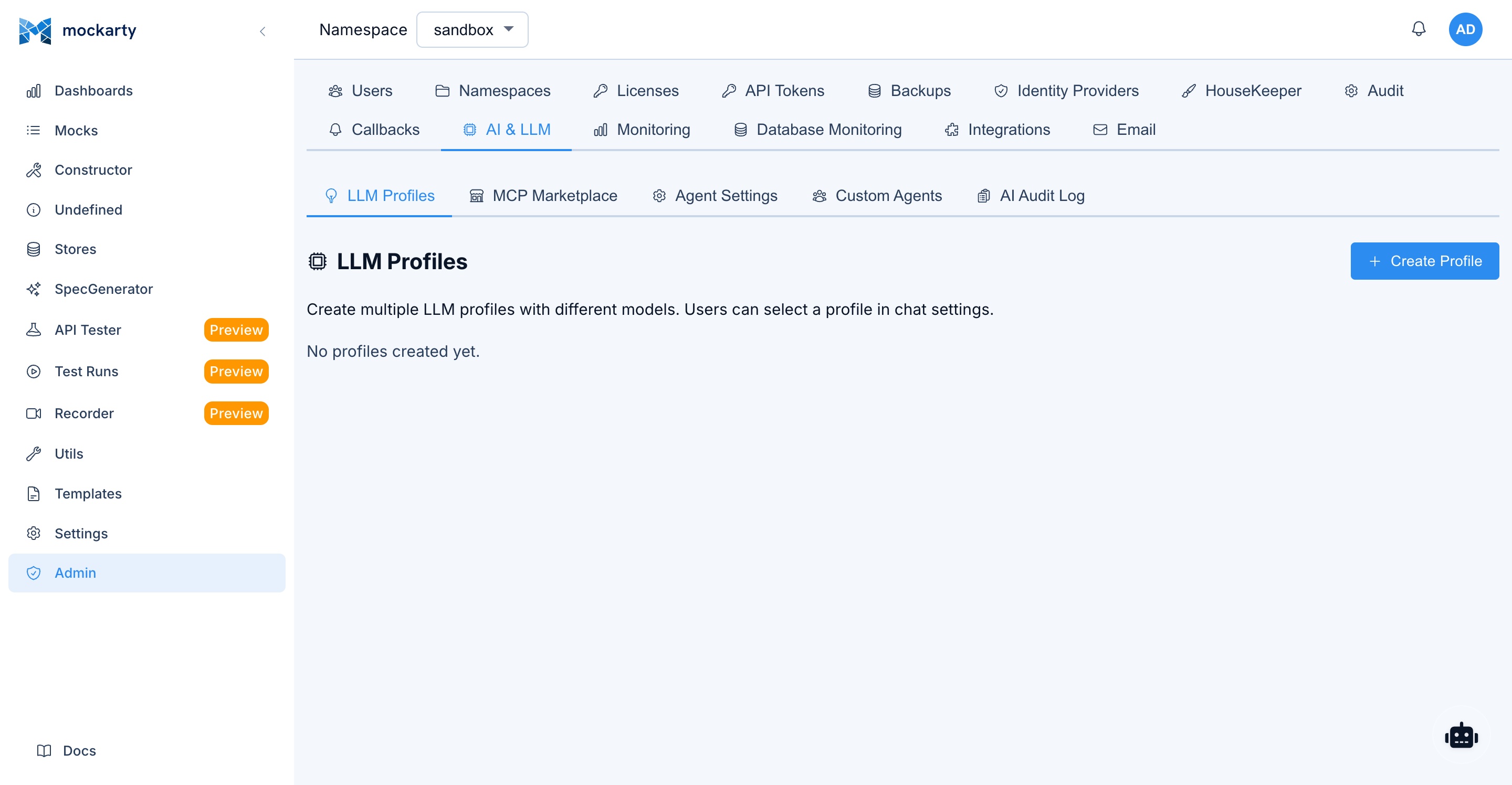
You can configure multiple LLM profiles via the Admin Panel:
- Navigate to Admin Panel > LLM Profiles.
- Click Create Profile.
- Fill in:
- Name — Display name for this profile.
- Provider — OpenAI, Anthropic (Claude), OpenRouter, Google (Gemini), Mistral, Groq, Ollama (local), or Custom (any OpenAI-compatible endpoint).
- URL — API endpoint URL.
- API Key — Authentication key (if required by provider).
- Model — Model identifier.
- Click Save.
- Set one profile as Default for all users.
AI and Workflow Consumption
Open Admin → AI & LLM → Consumption to review LLM calls, durable agent
tool dispatches, and terminal runner time by profile, namespace, user, agent,
product, mission, component, outcome, or module. Provider cost and customer cost
are shown separately for each currency. Events for which no effective price
exists remain visible and are counted as Unpriced events; Mockarty does not
invent a zero cost or combine different currencies.
The price book stores immutable, effective-dated versions. Enter the provider,
model, three-letter currency, effective date, and input/output/cache prices per
one million tokens. Use model * for a provider-wide fallback. To correct a
rate, append another version with the correct effective date—the historical
version and the price snapshot already attached to usage events are not edited.
The same form prices physical workflow resources. Select Tool calls and use
provider mockarty-agent, then enter a tool name such as run_api_test (or *
as a fallback). Select Runner seconds and use provider mockarty-runner, then
enter the runner task type (or *). Enter provider cost and customer price per
call or runner second. The UI fixes the matching unit automatically, so a tool
price cannot accidentally be saved as seconds.
Provider prices are entered in ordinary currency units (for example, 0.15
USD per one million tokens). Prices support six decimal places; check the
displayed amount and currency before saving a new version.
Storage and Traffic Metering
Beyond tokens, tool calls and runner time, Mockarty meters two physical
resources per workspace:
- Storage byte-seconds — once an hour, the size of every workspace’s stored
files (attachments, artifacts, recordings) is sampled and recorded as
byte-seconds: one byte kept for one hour equals 3600 byte-seconds. In a
cluster, exactly one node takes the sample, so nothing is counted twice. - Egress bytes — outgoing traffic served by the admin node is aggregated
in one-minute windows. Theresourcecolumn identifies the source:proxy
for response bytes a proxying mock streamed to its clients,blob-download
for file downloads. In a cluster each admin node reports its own bytes, and
the statement’s node column shows which node served them. Traffic served by
dedicated resolver nodes is not metered.
Both appear in the Consumption panel totals and in the
mockarty economics statement export (event_kind storage_byte_seconds /
egress_bytes, unit byte_seconds / bytes). To price them, pick
Storage byte-seconds or Egress bytes in the price-book form, keep
provider mockarty, and set the resource — blobs for storage; proxy,
blob-download, or * for egress. Unpriced events remain visible and are
never billed as zero.
Metering is on by default and is lightweight (nanoseconds per request). To
switch it off entirely — for example, on an instance where resource
accounting is not wanted — set the environment variable
MOCKARTY_RESOURCE_METERING=off and restart.
Commercial Terms
The Commercial terms card on the same Consumption tab sets what you
charge on top of the provider cost of every metered LLM call:
- Markup, % — added to the provider cost (can exceed 100 %).
- Platform fee per call — a fixed amount per call, in its own currency. It is
charged only on calls priced in that currency. - Discount, % — taken off the subtotal.
- Tax, % — added to the discounted subtotal.
Customer cost = provider cost + markup + fee − discount + tax. When a workspace
uses its own provider key, the provider cost is not yours, so it and the markup
count as zero; the fee and tax still apply.
Leave Namespace empty to set the terms for the whole installation; enter a
namespace to override them for that namespace. Nothing is set by default: every
call is billed at provider cost, and the Consumption panel says so. New terms
apply to calls from the moment you save; lines already billed never change. Each
change is recorded in the audit log.
The four components appear as separate columns of the statement export, on the
Consumption totals, and — for administrators — on each mission’s economics card.
An agent reads and sets the terms with llm_commercial_terms_get and
llm_commercial_terms_set.
Pre-call Budgets and Reconciliation
In the same Consumption tab, create a budget for a workspace, product, or
mission. Mockarty estimates and atomically reserves the call cost before
contacting the provider. A call is rejected before spend when it would cross
the hard limit, exceed included plus prepaid quota without overage permission,
or has no effective price while Block calls without a price is enabled.
The same budgets admit LLM calls and supported paid physical effects before
provider hand-off, including agent tools, runner work, external transcription,
and remote security-runner calls. Storage byte-seconds and egress bytes are
measured after actual consumption, so they are accounted losslessly but are not
pre-reserved from an estimate.
After the provider returns, the reservation is settled against authoritative
token usage. The view separates included, prepaid, and overage amounts and
shows open/expired reservations plus ledger mismatches. It also shows the
current daily run rate and a 30-day projection. A zero hard limit means that
only the included/prepaid overage rule applies; it does not mean zero spend.
A budget also tells you when it is reached. Two events fire, each once per
budget period: LLM budget — soft limit crossed when a reservation first
pushes the committed spend past the soft limit (calls continue), and LLM
budget — hard limit stopped a call when the hard limit or the allowance
without overage refuses a call (every further call is refused until the
budget is raised or the period ends). Both appear in the bell, can be bound to
a personal channel, delivered to a team channel subscription (Settings →
Namespace Callbacks → Team channels, group System) or sent to a webhook;
the message names the budget, the amounts and the period, and opens the budget
controls. A repeated refusal does not repeat the message.
Members of a namespace — and the agents working in it — can see what their
area may still spend without the administrator page: the MCP tool
llm_budget_headroom (or GET /api/v1/namespaces/{namespace}/llm-budget,
optionally ?missionId=<id>) lists the namespace’s active budgets with how much
each still admits before a paid call is refused and whether the area is already
exhausted. An autonomous agent checks it before expensive work and stops at the
limit instead of learning about it from a refusal.
A dispatched physical effect whose final provider response was lost appears in
Unknown outcomes. An administrator can select Reconcile, choose the
authoritative evidence source, and enter a unique provider effect or invoice-line
reference. Choose Effect occurred and enter the exact quantity to settle the
reserved cost, or choose No effect occurred only when the evidence proves
that the provider did not perform the paid action. The evidence link and the
settlement or release are committed together and cannot be replaced by a
conflicting decision. If an invoice reports more than the admitted quantity,
Mockarty records the full actual amount and marks the cap overrun instead of
hiding provider cost.
Use mockarty economics statement to export reproducible composite ledger
lines. Alongside LLM token events, the statement includes durable tool
dispatches (tool_call / calls) and completed runner time
(runner_seconds / seconds), storage (storage_byte_seconds /
byte_seconds), and egress (egress_bytes / bytes). The resource column
identifies the concrete resource; the older model column remains populated for compatibility.
Use event_kind, quantity, and unit when aggregating unlike resources.
A full
customer refund is appended with mockarty economics refund --event-id ... --reason ...; it never edits the original event or erases provider COGS.
Repeating the same refund is idempotent. CSV fields are neutralised against
spreadsheet formulas, and the export is bounded to 50,000 rows per request.
Client-Side LLM
Users can also connect their own LLM provider directly from the browser, without routing API calls through the Mockarty server. This is useful when:
- Users have their own API keys for OpenAI, Claude, or other providers
- You want to avoid LLM traffic passing through the Mockarty server
- Different users need different LLM providers
When client-side mode is active, LLM API calls are made directly from the browser to the provider, while tool execution (mock creation, store updates, etc.) still happens server-side.
To use client-side LLM, users select a custom profile in the Agent Chat settings with their own API key and provider URL.
Per-Namespace Rate Limits
To prevent excessive LLM usage, configure rate limits per namespace:
- Navigate to Admin Panel > LLM Profiles.
- Under Rate Limits, set:
- Requests per minute per namespace.
- Requests per day per namespace.
- Click Save.
Agent Chat
When the AI assistant is enabled, a floating chat button appears on every page of the Web UI. Users can:
- Ask questions about how to use Mockarty.
- Request mock creation using natural language descriptions.
- Get help with JsonPath expressions, Faker functions, and conditions.
- Troubleshoot mock matching issues.
Auto-Approve Mode
By default, the Agent Chat requires manual approval for each tool call (Accept/Decline buttons). You can enable auto-approve mode to automatically execute tool calls without confirmation:
- Open the Agent Chat.
- Find the Auto Approve dropdown at the top of the chat panel.
- Switch from Manual to Auto Approve.
This setting is stored locally in the browser and persists across sessions. Use auto-approve when you trust the AI agent to execute operations without review — for example, during rapid mock prototyping in a sandbox namespace.
Caution: In production namespaces, consider keeping manual approval enabled to review each tool call before execution.
OpenTelemetry: traces and metrics
Admin → Monitoring. Point Mockarty at your OTel collector once
(endpoint, gRPC or HTTP, optional headers) and turn on what you want it to send.
- Traces — request spans from the mock-resolution path (so you can follow a
request through the stub that answered it), plus spans for webhook deliveries
and LLM calls (provider, model, token counts — never prompt or response
content). - Also push metrics (OTLP) — sends the same series
/metricsexposes, once a
minute, over the same connection.
Metric push exists for one situation: a network where nothing may scrape this
node (egress-only contours, a customer VPC with a single outbound path). If
your collector already scrapes /metrics with its Prometheus receiver, leave it
off — you would be sending the same numbers twice.
The pushed series are exactly the ones on /metrics, unchanged: metrics are read
from the same registry rather than instrumented a second time, so nothing can
drift between the scrape and the push. Push runs whether or not the node is
serving traffic — an idle node is precisely when you want to see it is alive.
Turning telemetry off stops both signals.
Background sweeps are metrics too. Every scheduled cleanup (the retention
sweeps configured under Admin → Data retention) reports itself on
/metrics, so a sweep that stopped running is visible without reading logs:
mockarty_background_sweep_runs_total{sweep=<setting type>,outcome=completed|panicked}
— one increment per run (panickedcounts a panic the sweep itself did not
recover from); a series that stops moving is a sweep that stopped running.mockarty_background_sweep_duration_seconds{sweep=<setting type>}— how long
each run took.
The sweep label is the retention setting’s type, the same name the Data
retention page shows. The project-memory maintenance tick (ingest, indexing,
compaction) reports under the same family as sweep="project_memory_runtime";
a tick that returned an error is counted separately in
mockarty_project_memory_tick_failures_total, so a maintenance cycle that
keeps failing is a rising counter, not a series that quietly stops. A write
admitted while its project is already past the soft memory budget increments
mockarty_project_memory_degraded_admissions_total (the hard ceiling still
refuses): a rising value is the warning that refusals are next.
The runner fleet is measured on the same page. Every task the node hands to
a runner leaves its wait and its run time on /metrics, and the queue depth is
published every 15 seconds, so “the fleet is too small” or “one task type is
slow” is a number rather than a feeling:
mockarty_runner_demand_pending{capability=<task type>}— tasks queued for a
capability and not yet taken by a runner;mockarty_runner_demand_busyand
mockarty_runner_demand_capacityare the in-flight count and the total
concurrent slots the runners advertising that capability offer.mockarty_runner_task_queue_wait_seconds{task_type=<task type>}— how long a
task waited from creation until a runner started it.mockarty_runner_task_duration_seconds{task_type=<task type>,outcome=completed|failed}
— how long the runner then took, from start to the reported result.mockarty_runner_tasks_completed_total{task_type=<task type>,outcome=completed|failed}
— one increment per task a runner finished: a result reported, or a run
lost mid-way (counted asfailed). Tasks cancelled by a user are not counted.
Both latencies are measured from the task’s own timestamps on the node, not
from what the runner reports about itself. A task that never started (a
timeout while still queued) is counted but contributes no latency, so a wait
that was never served cannot pass for a fast run.
UI replays (browser and mobile) report the same way. When a UI test run
finishes, the node records its verdict and every replayed action:
mockarty_ui_runs_total{platform=web|android|ios,engine=<engine>,outcome=passed|failed|broken|skipped}
— one increment per finished replay.mockarty_ui_run_steps_total{platform,engine,status=passed|failed|broken|skipped}
— one increment per replayed action.mockarty_ui_run_step_duration_seconds{platform,engine}— how long each
action took; a step the runner reported without a time is counted but not
timed.
engine is the browser engine (chromium, firefox, webkit, lightpanda,
cdp) or the mobile driver (adb, maestro). Values the node does not
recognise are folded into other so a runner cannot grow the metric page with
free-text labels.
Security Best Practices
Follow these recommendations to keep your Mockarty installation secure.
Immediate Actions After Installation
-
Change the default admin password. The
admin/admincredentials are publicly documented. Change the password before exposing the instance to any network. -
Enable 2FA for admin accounts. Two-factor authentication adds a critical layer of protection for privileged accounts.
Network and Transport Security
-
Use HTTPS. Set up TLS certificates (auto-generated or custom) to encrypt all traffic. Set
COOKIE_SECURE=true(this is the default) to ensure session cookies are only sent over HTTPS. -
Keep SSRF protection enabled. The
ALLOW_PROXY_TO_PRIVATE_IPSsetting defaults tofalse, which prevents proxy/testing modules from reaching internal network services. Do not change this unless you understand the risks. When Mockarty runs in the same cluster as the services it tests, preferMOCKARTY_TARGET_ALLOWLISTover the blunt flag: it permits only the ranges/hostnames you list (comma/space-separated CIDRs like10.0.0.0/8and host suffixes like.svc.cluster.local), keeping every other private address blocked. Cloud-metadata and link-local addresses stay blocked regardless of either setting. -
Restrict network access. Use firewalls or network policies to limit who can reach the Mockarty ports:
Port Protocol Purpose Expose to 5770 HTTP Web UI, REST API, mock traffic Users / teams 5771 HTTPS Encrypted Web UI, REST API, mock traffic Users / teams (recommended) 5772 HTTP/SSE MCP server (only if ENABLE_MCP=true)AI agents / trusted clients 5773 gRPC Coordinator (resolver/runner registration) Internal: resolver and runner nodes only
Access Control
-
Use namespace isolation. Assign each team its own namespace with appropriate roles. This prevents accidental interference between teams.
-
Follow the principle of least privilege. Assign the lowest role that meets each user’s needs. Most users should have the User system role with the namespace User or Viewer role.
-
Rotate API tokens regularly. API tokens provide programmatic access. Rotate them periodically and revoke tokens that are no longer needed.
-
Review audit logs. Regularly check audit logs for unexpected activity, especially failed login attempts and admin actions.
Operational Security
-
Keep Mockarty updated. Apply updates promptly to receive security fixes.
-
Back up regularly. Configure automatic backups in Admin Panel > Backup. Periodically verify that backups can be restored.
-
Monitor system health. Use the health check endpoints (
/health/livefor liveness,/health/readyfor readiness) to monitor the system’s status. -
Enable contract testing. Use contract testing to detect mock drift and breaking changes. This ensures your mocks stay in sync with API specifications and prevents test environments from silently diverging from production behavior.
-
Test resilience with chaos engineering. Use chaos engineering to validate that your systems handle failures gracefully when Mockarty-dependent services experience faults (PRO license required).
Rate Limiting
Rate Limiting: API rate limits are configured through the database. Default limits: 10 requests/second, 60/minute, 1000/hour per scope (user/namespace/global), with burst of 20. Rate limit configuration can be managed via the admin API.
Environment Variable Summary
Security hardening (recommended production values):
| Variable | Recommended | Purpose |
|---|---|---|
COOKIE_SECURE |
true (default) |
HTTPS-only session cookies |
ALLOW_PROXY_TO_PRIVATE_IPS |
false (default) |
Prevent SSRF via proxy/webhook outbound calls (blunt override — opens all private ranges) |
MOCKARTY_AQC_MATERIAL_BROKER_URL |
empty | Full operator-controlled POST endpoint that redeems request- and namespace-bound original-material handles for AQC visual review. The broker must permit idempotent reads for the same active request and reject cross-request use. Empty disables redemption. |
MOCKARTY_AQC_MATERIAL_BROKER_TOKEN |
empty | Optional Bearer service token for that broker. Supply it through a secret store, never a ConfigMap or request payload. |
MOCKARTY_AQC_MATERIAL_BROKER_ROUTES |
empty | JSON array of exact multi-bus reader routes: transport, url, and optional token_env. Transport names come from operator bus configuration; unknown buses fail closed. Store only the token environment-variable name in JSON and inject its value from a Secret. |
MOCKARTY_TARGET_ALLOWLIST |
empty (default) | Scoped SSRF exception: comma/space-separated CIDRs + host suffixes (e.g. 10.0.0.0/8,.svc.cluster.local) allowed as targets without opening every private range |
MOCKARTY_TARGET_CA_BUNDLE |
empty (default) | Extra certificate authority to trust when testing a product served over HTTPS with an internal or self-signed certificate. Accepts either a path to a PEM file or the PEM text itself. Verification stays on — you are adding a trusted authority, not removing the check |
MOCKARTY_TLS_SKIP_VERIFY |
false (default) |
Last resort when no certificate authority is available: skips TLS verification for requests to the product under test. Removes protection against interception, so use it only on a trusted test network. If a CA bundle is also set, the bundle wins and verification stays on |
MCP_TLS_INSECURE_SKIP_VERIFY |
false (default) |
Verify TLS certificates for MCP client calls |
HTTPS_ENABLED |
true (default) |
Enable HTTPS listener on port 5771 |
Set these on your runners too. Test suites execute on the runner, not on the
admin node, soMOCKARTY_TARGET_CA_BUNDLE,MOCKARTY_TLS_SKIP_VERIFYand
MOCKARTY_TARGET_ALLOWLISTmust be present in the runner’s environment as well.
A certificate trusted only by the admin will still fail on the runner, and the
result looks like an unreachable product rather than a certificate problem.
Reading external quality checks (AQC): These reports show what was checked and what could not be checked. A missing result is not a passing result.
- AQC
a11y_scoreuses a fraction from0to1:0.92means 92%. The accessibility audit shown to a person still uses a score out of 100. - Browser performance measurements describe a page load, not a load test. Missing measurements are not zero-duration successes; load testing still requires its own declared targets and permission.
- A responsive visual assessment requires a captured frame at the verified viewport and an available vision model. Missing frames or model support are reported as not evaluated.
- With product writes disabled, observing links and focus-related DOM properties does not prove that clicking or keyboard navigation worked. Read-only observation requires a compatible browser runner; older runners report the missing check without gaining permission to activate controls.
- Scenarios retained in test management may be manual. Their presence in the catalogue is not evidence that they ran; an automated regression needs executable steps.
HTTP / HTTPS listener:
| Variable | Default | Description |
|---|---|---|
HTTP_PORT |
5770 |
Main HTTP API/UI port |
HTTP_BIND_ADDR |
0.0.0.0 |
HTTP listens on all interfaces by default. Set 127.0.0.1 for access from this host only; use a firewall or reverse proxy when exposing the service. |
HTTPS_ENABLED |
true |
Enable HTTPS listener |
HTTPS_PORT |
5771 |
HTTPS port |
HTTPS_BIND_ADDR |
"" |
Interface to bind HTTPS listener to. Empty = same as HTTP_BIND_ADDR |
HTTPS_CERT_FILE |
"" |
Path to TLS certificate. If empty, Mockarty auto-generates a self-signed cert under HTTPS_TLS_DIR |
HTTPS_KEY_FILE |
"" |
Path to TLS private key |
HTTPS_TLS_DIR |
.mockarty/tls |
Directory for auto-generated self-signed certs |
HTTP_REQUEST_BODY_SIZE_LIMIT_MB |
5 |
Maximum request body size (MB). Increase for large mock imports |
MOCKARTY_HTTP_MATCH_MODE |
off |
HTTP matcher rollout mode: off, shadow, or on. shadow compares the compiled index while the legacy matcher still serves responses; on serves responses from the compiled index on a single node. A cluster can start in off or shadow; shadow requires cross-node mock invalidation. Cluster on is rejected until coordinated cutover is available. |
MOCKARTY_HTTP_MATCH_SAMPLE_EVERY |
100 |
In shadow mode, compare every Nth request. Must be greater than zero. |
HTTP matcher rollout. The environment variable sets the startup default. An administrator
can change one namespace to shadow or off without restarting. Read the evidence before
changing how requests are served.
- Start with
shadow, or enable it for one namespace. Every Nth request is evaluated by both matchers and each disagreement is
recorded; responses still come from the legacy matcher. - Read what was recorded (
$TOKENis an admin API token):
curl -H "Authorization: Bearer $TOKEN" \
  http://localhost:5770/api/v1/admin/http-matcher/status
Every namespace reports its mode, the snapshot revision and its findings: winner_mismatch
(the compiled index would answer with a different mock), no_candidates (the index holds no
route for that request), selection_error or evaluation_error. No findings means no
disagreement was recorded in the sampled requests; it does not prove that every route agrees.
A node that does not run the
compiled matcher answers wired: false — a different statement from a matcher that runs and
has nothing to report.
To change one namespace, send its latest modeAuthority.records[].revision as
expectedRevision. Use 0 for the first change:
curl -X PUT -H "Authorization: Bearer $TOKEN" -H "Content-Type: application/json" \
  -d '{"mode":"shadow","expectedRevision":0}' \
  http://localhost:5770/api/v1/admin/http-matcher/modes/my-namespace
Read the status again after the change. A 409 means the revision has changed; read the
current revision before retrying. A 202 means the change was saved but propagation
was not confirmed; inspect the response before another change. When
modeAuthority.available is false, that node serves requests through the
legacy matcher until it can read the current mode.
- On a single node, switch to
onafter reviewing sampled findings. From then on the compiled
index serves the response, and a request it cannot answer is served by the legacy matcher and
recorded as a finding. Review the sampled winners before changing the serving mode. - To roll back one namespace, use the same endpoint with
modeset tooffand the latest
revision, or pickofffor that namespace in the admin panel card described below. A change
to the startup default still requires a restart.
Changing and watching the rollout in the admin panel
The same state is visible without the API, and the mode can be changed there too. Open
Admin Panel > Settings and find the HTTP Matcher card: it shows the current mode across
your namespaces, the latest snapshot revision, the total number of recorded findings, and a
per-namespace table (the ten namespaces with the most findings; Show all reveals the rest).
The card refreshes every 30 seconds. On a node where the compiled matcher is not running the
card shows Not wired — the same meaning as wired: false in the API response above.
Each row ends with a mode selector. Choosing a mode applies it to that namespace using the
revision shown in the same row, so a change somebody else made in the meantime is refused and
the card reloads with the current value instead of overwriting their change. Switching into or
out of on changes which matcher answers live requests, so it asks for confirmation first;
off and shadow both answer from the legacy matcher, so that switch applies straight away.
A change that is saved but not yet confirmed by every node is reported as such — read the mode
again before changing it.
A namespace appears in that table only once the matcher holds a snapshot for it, so on a fresh
node the table is empty. The line under it sets the mode for a namespace by name: type the
namespace, pick the mode and apply. It sends the revision the table shows for that namespace, or
the first-set revision when it is not listed — a namespace that already has a mode answers with
the same conflict as any other stale revision rather than being overwritten, and the table then
shows it with its real revision.
In a cluster, the runtime endpoint accepts shadow and off only. It rejects a runtime
change to on with 409, and startup with MOCKARTY_HTTP_MATCH_MODE=on fails, until
coordinated cutover is available.
Database:
| Variable | Default | Description |
|---|---|---|
DB_USE |
pg |
Database driver: pg (PostgreSQL, recommended for production), sqlite (single-file, dev/desktop), mysql (experimental) |
DB_DSN |
— | Database connection string (required for pg/mysql) |
DB_ENABLE_AUDIT |
true |
Enable audit log table (required for compliance — leave true in production) |
DB_ENABLE_VERSIONING |
true |
Enable mock version history |
DB_MAX_OPEN_CONNS |
25 |
Size of the main PostgreSQL pool (mock matching, admin queries). In a cluster, total connections ≈ nodes × this value — keep it under the PostgreSQL max_connections budget. |
BOOTSTRAP_DB_MAX_OPEN_CONNS |
auto (4 per CPU, between 16 and 30) | Size of the admin/bootstrap PostgreSQL pool (license status, schedulers, notifications). “CPU” is the container’s CPU limit; override in multi-node clusters to stay under the PostgreSQL max_connections budget — see Capacity Planning. |
Cache:
| Variable | Default | Description |
|---|---|---|
USE_CACHE |
true |
Enable cache layer for mock resolution |
CACHE_TYPE |
inmemory |
Cache backend: inmemory (in-memory, single-node) or redis (multi-node) |
CACHE_REDIS_POOL_SIZE |
auto (max(20, 10 × CPU)) |
Redis connection pool size. Raise for >100 K concurrent users; lower when Redis maxclients is the bottleneck. |
CACHE_REDIS_MIN_IDLE_CONNS |
auto (max(4, CPU)) |
Minimum warm Redis connections. Trades idle-resource cost for lower first-request latency after quiet periods. |
MOCKARTY_SECRETS_CACHE_TTL_SECONDS |
60 |
TTL for the in-process secret value cache used by TCM steps that resolve {{secret.X}}. Avoids saturating upstream secret stores (Vault, AWS SM, GCP SM, Azure KV) under high-concurrency test plan runs. Set to -1 to disable caching entirely. Rotation / update / delete events from secrets invalidate immediately across the cluster via PG NOTIFY. |
MOCKARTY_SECRETS_CACHE_MAX_ENTRIES |
4096 |
LRU cap for the secret value cache. Past this, the oldest entries are evicted. Raise for deployments with many distinct namespaces × secret keys; lower to bound RAM. |
MOCKARTY_PREVIEW_ALLOW_PRIVATE_HOSTS |
(unset, refuse) | Set to 1 (or true) to allow the TCM preview-step-request endpoint to dispatch HTTP requests to loopback / RFC1918 / link-local / cloud-metadata addresses. Default is OFF because a preview that targets internal services is the classic SSRF vector. Enable ONLY in single-host dev environments where the upstream is intentionally on 127.0.0.1. |
PDF report engine (Test Plan run export, optional):
The Test Plan run export endpoint can produce PDF files when an external rendering engine is available. Mockarty looks for the wkhtmltopdf binary on startup and uses it automatically — there is no env var to set in the common case. When the binary is not installed, the endpoint returns 501 Not Implemented with a JSON envelope explaining how to install it.
| Variable | Default | Description |
|---|---|---|
MOCKARTY_PDF_ENGINE |
auto |
Which renderer to use for /test-plan-runs/:id/export?format=pdf. Values: auto (try wkhtmltopdf on PATH; fall back to disabled stub if missing — recommended); none / stub (PDF deliberately disabled — endpoint returns 501); wkhtmltopdf (explicit — same as auto but logs a warning instead of an info note when the binary is missing); chromium (Chromium-quality CSS / emoji / CJK fonts, but requires the Chromium-enabled Mockarty build variant — see below). |
MOCKARTY_PDF_WKHTMLTOPDF_BIN |
wkhtmltopdf |
Path to the wkhtmltopdf binary. Pass an absolute path (e.g. /usr/local/bin/wkhtmltopdf) or a PATH-resolvable name. If the binary cannot be located at startup, Mockarty logs a notice and falls back to PDF disabled (no startup failure). |
MOCKARTY_PDF_CHROMIUM_BIN |
chromium-headless |
Path to the Chromium / Chrome binary. The selector falls back through chromium-headless → chromium → google-chrome, so common distribution names work without override. Only consulted when MOCKARTY_PDF_ENGINE=chromium AND you are running the Chromium-enabled Mockarty build. |
MOCKARTY_PDF_MAX_BYTES |
26214400 (25 MiB) |
Maximum PDF output size. If the renderer produces more than this, the request returns 413 Request Entity Too Large with code pdf_too_large. Raise for plans with many embedded screenshots; lower to protect admin-node RAM. |
MOCKARTY_PDF_TIMEOUT_SECONDS |
60 |
Hard timeout for one PDF render. If exceeded, the request returns 504 Gateway Timeout with code pdf_timeout. Raise for very large plans, lower if exporters hang behind a stuck binary. |
Chromium-enabled build. The default release binary is distroless-friendly and ships only the
wkhtmltopdfpath. Chromium-quality PDFs require the Chromium-enabled Mockarty build variant — request it from your Mockarty vendor — and a Chromium binary available on PATH (or viaMOCKARTY_PDF_CHROMIUM_BIN). For most operators thewkhtmltopdfengine is the simpler choice — install it via your distribution’s package manager and you are done.
Installing wkhtmltopdf:
The renderer is a single static binary published by wkhtmltopdf.org. Pick the command that matches your platform:
- Debian / Ubuntu —
sudo apt-get update && sudo apt-get install -y wkhtmltopdf - Alpine —
apk add --no-cache wkhtmltopdf(also needsttf-dejavuif you embed non-ASCII text) - macOS —
brew install --cask wkhtmltopdf(brew install wkhtmltopdfworks on older Homebrew installs) - CentOS / Rocky / RHEL — download the matching RPM from the official release page and install with
rpm -i …. The distro-packaged version is often older than 0.12.6 and trips on flex CSS. - Windows — download the
.exeinstaller from the official release page, then pointMOCKARTY_PDF_WKHTMLTOPDF_BINat it.
After installing, restart Mockarty. The startup log will print test-plan PDF engine selected engine=wkhtmltopdf when detection succeeds. The PDF download button in the test-plan run report will work immediately — no env var required.
Troubleshooting: when the export still returns 501 after installing the binary, double-check it is on the admin-node user’s $PATH (which wkhtmltopdf) and that the binary is executable (wkhtmltopdf --version). If you installed it under a non-standard path, set MOCKARTY_PDF_WKHTMLTOPDF_BIN=/full/path/to/wkhtmltopdf and restart. Set MOCKARTY_DEBUG=1 to write the failing HTML payload to /tmp/mockarty-pdf-*.html for local re-rendering.
Cluster mode (multi-node deployments):
| Variable | Default | Description |
|---|---|---|
CLUSTER_MODE |
false |
Enable leader election via PostgreSQL advisory locks. Set to true when running more than one admin node. When false, each node acts as its own leader (singleton jobs would duplicate) |
NODE_ID |
auto | Unique node identifier. Auto-generated if empty. Set explicitly only when you need stable node identity in logs/metrics |
MOCKARTY_CLUSTER_ADVERTISE_HOST |
auto | The address other nodes use to reach this node, for work that has to run on the node holding a live connection (a phone attached to the device grid, a runner’s control stream, a call routed through the server). Defaults to POD_IP, then this machine’s private address. The Helm chart sets it to the pod IP |
Multi-node rule.
CLUSTER_MODE=truerequires PostgreSQL (DB_USE=pg). SQLite does not support the advisory locks used for leader election.
Event bus (async event processing):
| Variable | Default | Description |
|---|---|---|
EVENT_BUS_QUEUE_SIZE |
1000 |
In-memory queue depth for async events |
EVENT_BUS_RETRY_MAX |
3 |
Maximum retries per event |
EVENT_BUS_WORKER_COUNT |
2 |
Number of background workers draining the queue |
Analytics (opt-in, anonymous):
| Variable | Default | Description |
|---|---|---|
ANALYTICS_ENABLED |
false |
Opt-in anonymous usage metrics. Collects aggregate counts only — no PII, no mock content, no user IDs |
ANALYTICS_LEVEL |
full |
full — all metrics; minimal — resource counts only |
ANALYTICS_REPORT_HOUR |
1 |
UTC hour (0–23) for the daily aggregation |
ANALYTICS_DATA_DIR |
"" |
Directory for air-gapped export files (default: ./data) |
Test Plans (live logs and durable archive):
The Test Plans engine writes every item log line through a sink that fans out to two destinations: the primary store (the test_plan_item_logs table — used for replay in the UI) and an optional secondary archive (a local file or an S3 bucket — used for long-term retention or external SIEM ingestion). When secondary writes are unavailable the primary path keeps working — logs are never lost just because S3 is briefly down.
| Variable | Default | Description |
|---|---|---|
TESTPLAN_LOGSINK_SECONDARY |
"" (off) |
Secondary archive backend. Set to file to mirror logs into a directory, or s3 to mirror into an S3-compatible object store. Empty disables the secondary entirely. |
TESTPLAN_LOGSINK_FILE_BASE |
"" |
Required when TESTPLAN_LOGSINK_SECONDARY=file. Absolute path to the directory where one log file per run is appended. The directory must be writable by the Mockarty process. |
TESTPLAN_LOGSINK_S3_BUCKET |
"" |
Required when TESTPLAN_LOGSINK_SECONDARY=s3. Name of the S3 bucket. AWS credentials are read from the standard environment / IRSA chain. |
TESTPLAN_LOGSINK_S3_PREFIX |
"" |
Optional key prefix prepended to every uploaded object (e.g. mockarty/prod/). Useful for tenant or environment scoping inside a shared bucket. |
Air-gapped tip. Leave
TESTPLAN_LOGSINK_SECONDARYempty in air-gapped installations. The primary database sink still keeps every log line and the live UI tail keeps working.
General:
| Variable | Default | Description |
|---|---|---|
ENV |
development |
Environment name (development or production). Affects log format and default behaviors |
LOG_LEVEL |
info |
debug, info, warn, error |
Licensing transition window (module split):
When a module is split out of an existing licence key, the older key keeps
satisfying the new module for a transition window, so upgrading a running
installation never takes a module away from its users. The current transition
covers the Processing & Communications module (processing),
which the Test Case Management key (tcm) still satisfies.
| Variable | Default | Description |
|---|---|---|
MOCKARTY_PROCESSING_TCM_FALLBACK |
true |
While on, an active tcm licence or per-user grant also satisfies processing. Set it to 0/false/off/no to require the processing key itself. |
The value is read on every licence check, so licence-derived surfaces (route
gate, MCP tool filter, sub-agent gate) follow a change immediately. Per-user
grant views are cached for 30 seconds and pick the change up on the next
refresh or on a restart.
Closing the window safely. Read the evidence from the admin node’s
/metrics before flipping the switch:
mockarty_license_transition_shim_reliant_licenses{feature="processing",parent="tcm"}
— how many active licences carrytcmand notprocessing, i.e. how
many licences on this instance depend on the transition. The value
is refreshed on every licence reload.mockarty_license_transition_shim_satisfied_total{feature="processing",parent="tcm",surface=...}
— how many checks succeeded only because of the window, split by
surface(licence_gate,licence_seats,licence_list,grant_view).
A zero gauge together with a flat counter, observed over a window long enough
to cover your users’ working hours, is the evidence that no tenant depends on
the window any more. In a multi-node cluster every node publishes its own
licence snapshot, so read these series per node (the constant node_id label
identifies them) rather than summing them — adding them up would count the same
customer once per node. Closing the window never affects stored data: content
created while the window was open stays readable, and only editing and running
require the processing key.
Kubernetes Administration
When running Mockarty on Kubernetes, the admin node can manage the cluster lifecycle directly through the Admin API and CLI. The operator watches a MockartyCluster Custom Resource and reconciles resolvers, runners, and integrations automatically.
K8s Management Environment Variables
| Variable | Default | Description |
|---|---|---|
K8S_MANAGEMENT |
auto |
auto — detect if running in-cluster; true — force enable; false — disable |
K8S_NAMESPACE |
(empty) | Namespace where the MockartyCluster CR lives. Empty means use the namespace from the in-cluster ServiceAccount |
K8S_CLUSTER_NAME |
mockarty |
Name of the MockartyCluster Custom Resource |
K8S_KUBECONFIG |
(empty) | Path to kubeconfig file. Empty means use the in-cluster ServiceAccount |
K8S_MAX_RUNNERS_PER_NS |
5 |
Maximum number of runner pods per namespace (resource quota) |
K8S_MAX_RESOLVERS_PER_NS |
3 |
Maximum number of resolver pods per namespace (resource quota) |
Admin API Endpoints
These endpoints exist only when Kubernetes management is active — that is,
when Mockarty runs inside a cluster (K8S_MANAGEMENT=auto detects it) or you
force it with K8S_MANAGEMENT=true. On an ordinary install they are not
registered at all and answer 404; that is expected, not a fault.
To check without guessing, ask the node itself:
curl http://localhost:5770/api/v1/k8s/enabled \
  -H "X-API-Key: $MOCKARTY_API_TOKEN"
# {"enabled":true,"namespace":"mockarty"}
All Kubernetes endpoints require authentication and are scoped to the admin node.
| Method | Endpoint | Description |
|---|---|---|
GET |
/api/v1/k8s/status |
Returns cluster status: pods, versions, health, resource usage |
POST |
/api/v1/k8s/scale |
Scale a component (resolver/runner) to a desired replica count |
POST |
/api/v1/k8s/upgrade |
Upgrade component images to a target version |
POST |
/api/v1/k8s/restart |
Perform a rolling restart of a component |
GET |
/api/v1/k8s/pods/:name/logs |
Stream logs from a specific pod (supports follow and tailLines query params) |
POST |
/api/v1/k8s/integrations |
Create a new namespace integration |
DELETE |
/api/v1/k8s/integrations/:name |
Remove a namespace integration by name |
GET |
/api/v1/k8s/integrations |
List all configured integrations |
Scale example:
curl -X POST http://localhost:5770/api/v1/k8s/scale \
  -H "Authorization: Bearer $TOKEN" \
  -H "Content-Type: application/json" \
  -d '{"component": "resolver", "replicas": 5}'
Upgrade example:
curl -X POST http://localhost:5770/api/v1/k8s/upgrade \
  -H "Authorization: Bearer $TOKEN" \
  -H "Content-Type: application/json" \
  -d '{"component": "runner", "version": "1.3.0"}'
RBAC
- Cluster operations (
scale,upgrade,restart,status,logs) are restricted to users with the Admin or Support role. - Namespace integrations (
/api/v1/k8s/integrations) are available to Namespace Owners for their own namespaces, and to Admins for any namespace.
CLI Shortcuts
The CLI provides shorthand commands that call the Admin API under the hood:
# View cluster status
mockarty-cli cluster status

# Scale a component
mockarty-cli cluster scale resolver --replicas 5

# Upgrade cluster image tag (upgrades all components at once)
mockarty-cli cluster upgrade --tag 1.3.0

# Rolling restart
mockarty-cli cluster restart resolver

# Stream pod logs
mockarty-cli cluster logs <pod-name> --follow --tail 100
Audit Log Export & SIEM Integration
Mockarty keeps an immutable audit log of every authentication event, configuration change, and administrative action. The log can be exported from the Admin Panel or via the REST API in four formats, picked to match the ingestion pipelines of major SIEM platforms.
Authentication vocabulary. The following verbs are emitted automatically by the authentication subsystem and land in the exported stream without any extra configuration:
| Verb | Fires on |
|---|---|
failed_login |
Invalid credentials, locked account |
account_lockout |
Transition into locked state (emitted exactly once per lockout) |
oauth_login |
Successful OAuth / SSO sign-in |
oauth_login_failed |
OAuth exchange / user-info / auth failure |
ldap_login |
Successful LDAP / AD bind |
ldap_login_failed |
LDAP bind failure |
totp_enabled |
First successful TOTP verify (state transition) |
totp_disabled |
Self-service 2FA disable |
totp_verify_failed |
Invalid TOTP code (enable, disable, step-up) |
recovery_codes_generated |
Backup-code set regenerated |
password_changed |
Password rotation or initial setup |
session_regenerated |
Session promoted after 2FA step-up |
audit_logs_exported |
Audit trail exported (csv / json / syslog / cef). Metadata carries the format, byte count, and effective filters so the SOC can reconstruct exactly what left the system. |
audit_legal_hold_applied |
Retention freeze placed on the audit trail (SOX §802 / 719-П §6.4). Metadata carries the window (from_ms, to_ms), optional namespace, and the filter summary supplied by the operator. |
audit_legal_hold_released |
Active legal hold lifted; the previously-held rows fall back under the normal retention policy. Metadata carries the same window plus released_by and released_ms. |
| Format | Content-Type | Typical use |
|---|---|---|
csv |
text/csv |
Spreadsheet review, manual compliance audits |
json |
application/json |
Structured archive, downstream ETL |
syslog |
text/plain (RFC 5424) |
Forward to syslog-ng, rsyslog, or any SIEM collector |
cef |
text/plain (CEF 0) |
ArcSight, QRadar, Splunk, MaxPatrol SIEM, KUMA, RuSIEM |
Every row written during an HTTP request also carries correlation_id in its metadata: the request’s X-Request-Id value (or the id Mockarty generated when the caller sent none). It is the same value the log lines of that request carry, so an audit entry and the logs of the call that produced it can be joined directly instead of being matched by timestamp. Rows written outside a request — a scheduler, a sweep, a runner — carry no correlation id rather than an invented one.
REST API
# CSV dump for the last 24 hours (milliseconds since epoch)
curl -H "Authorization: Bearer $TOKEN" \
     "$MOCKARTY_URL/api/v1/admin/audit/export?format=csv&from=$(date -u -d '1 day ago' +%s000)" \
     > audit.csv

# Syslog RFC 5424 — pipe directly into a SIEM collector
curl -H "Authorization: Bearer $TOKEN" \
     "$MOCKARTY_URL/api/v1/admin/audit/export?format=syslog" \
     | nc -u siem-collector.example.com 514

# ArcSight CEF for ingestion into an existing SIEM parser
curl -H "Authorization: Bearer $TOKEN" \
     "$MOCKARTY_URL/api/v1/admin/audit/export?format=cef" \
     > audit.cef
Supported filters: user_id, action, resource_type, resource_id, namespace, from, to, limit.
CLI
# Hourly syslog dump for SIEM ingest
mockarty-cli audit export \
    --format syslog \
    --from $(date -u -d '1 hour ago' +%s000) \
    --to   $(date -u +%s000) \
    > audit-$(date +%s).log

# CEF to file
mockarty-cli audit export --format cef --output audit.cef

# Filter by user
mockarty-cli audit export --format json --user-id u-42 --action login
Wire formats
- Syslog (RFC 5424) — one record per line, facility 13 (security/authorization). Structured-data block
[audit@<PEN> key="value" ...]carries the full record. The default private-enterprise number is a placeholder; the value is set at build time for production deployments. - CEF 0 —
CEF:0|Mockarty|Mockarty|<version>|<action>|<name>|<severity>|<ext>. Extensions use the CEF dictionary (suser,src,act,rt,requestMethod,requestUrl,externalId, plus customcs1/cs2/cs3with labels for namespace/resource).
Both SIEM formats escape reserved characters (|, =, \, ", ], newlines) to guarantee one record per line and safe ingestion into any RFC- or CEF-compliant parser.
RBAC: audit export requires the
adminorsupportrole. Thesupportrole can export but not alter records.
Audit log retention
Audit log retention is driven by the scheduled audit_log_cleanup job in Admin Panel → Cleanup Policies. The default retention is configurable per deployment; beyond that value rows are hard-deleted to keep the table size bounded.
For regulated deployments (banks under 719-П ЦБ РФ §6.4, government systems under ФСТЭК приказ №17 п.4.2) Mockarty accepts a compliance floor expressed as an environment variable. When set, the cleaner silently raises any shorter retention configured via the UI up to the floor — an operator cannot accidentally shorten retention below a legally mandated minimum.
| Variable | Default | Example | Description |
|---|---|---|---|
MOCKARTY_AUDIT_RETENTION_MIN_DAYS |
(unset) | 1095 |
Minimum audit retention in days. Any UI value below the floor is clamped to it. |
Typical values: 1095 for 719-П ЦБ РФ (3 years), 1825 for extended ФСТЭК policies (5 years). Leave unset for non-regulated deployments.
The floor is enforced on every cleanup tick and logged at WARN level whenever it raises the effective retention.
Evidence legal holds
A legal hold is a retention-blocking freeze placed on evidence while a regulatory inquiry, incident investigation, or litigation is in progress. The existing /admin/audit/legal-holds operator API protects audit rows and matching autonomous-mission evidence: mission timeline/payload rows, terminal Autotester/Coder history, coder jobs and intake records. It does not select a mission ID; the documented time window and optional namespace are the complete hold scope.
For completed Coder missions, the retention age and hold window use the completion time. A later update to the mission does not restart its retention period.
Legal holds satisfy three concurrent requirements:
- SOX §802 / 18 USC §1519 — destroying records under an active preservation notice is a criminal offence in the United States.
- 719-П ЦБ РФ §6.4 — bank operators must be able to freeze audit trails on demand for ЦБ inspections.
- ФСТЭК приказ №17 п.4.2 — audit integrity during security-incident investigations.
Each hold is a range — from a start timestamp to an optional end timestamp (open-ended holds are allowed) — and can be scoped to a single namespace or applied globally. Placing or releasing a hold is itself audited via the audit_legal_hold_applied and audit_legal_hold_released verbs.
Retention cleanup is bounded so it does not monopolize the database. Every completed audit-log cleanup batch is itself recorded as resource type audit_log_cleanup under the stable actor system:retention; if the central audit writer is temporarily unavailable, that record remains durably queued and is retried without repeating the deletion.
REST API
# Place a hold covering the last 7 days for namespace "prod"
curl -X POST -H "Authorization: Bearer $TOKEN" -H "Content-Type: application/json" \
     -d '{
       "reason": "INC-42 preservation",
       "from_time": "2026-04-12T00:00:00Z",
       "to_time":   "2026-04-19T23:59:59Z",
       "namespace": "prod",
       "filter_summary": {"ticket": "INC-42"}
     }' \
     "$MOCKARTY_URL/api/v1/admin/audit/legal-holds"

# List all holds (status: active|released, limit 1..1000)
curl -H "Authorization: Bearer $TOKEN" \
     "$MOCKARTY_URL/api/v1/admin/audit/legal-holds?status=active"

# Release a hold (idempotent — repeat calls return 200 with the released row)
curl -X DELETE -H "Authorization: Bearer $TOKEN" \
     "$MOCKARTY_URL/api/v1/admin/audit/legal-holds/<hold-id>"
Behaviour
- Every evidence cleanup tick verifies the hold store before its first delete and keeps a correlated hold guard in destructive statements. The active-hold partial index keeps the empty/default case bounded.
- Namespace-scoped holds protect only rows inside that namespace. A hold with
namespaceomitted covers every namespace. - An open-ended hold (
to_timeomitted) covers every row fromfrom_timeonward, with no upper bound. - Released holds are never deleted — they remain in the
audit_log_legal_holdstable as an evidentiary trail of what was held, when, and by whom. - RBAC:
adminonly for POST / DELETE.supportcan list holds (read-only SOC visibility) but cannot place or release them.
Safety
If the hold store cannot be read at cleanup time, audit and mission-evidence cleaners abort the current tick before deletion rather than assume that no hold exists. The scheduler retries on its next interval.
Compliance build: pure-Go SQLite
Release binaries embed a pure-Go SQLite engine — they link no native (libc) code, which is what makes them safe for distroless / scratch images and air-gapped audits. The Software Bill of Materials (SBOM) published with every release lets auditors confirm the full dependency set of the binary they run.
Encrypting personal data in storage
If your deployment requires protection for stored personal data, enable this feature before startup. It is off when the keys are unset. Keep the keys in your secrets manager and configure the same values on every admin node. The feature protects user email, name and audit user-agent data; new records use the configured key. Records saved before you enabled encryption need the conversion step below.
| Variable | Default | What to set |
|---|---|---|
MOCKARTY_PII_ENCRYPTION_KEY |
Unset | Base64-encoded 32-byte key. Enables encryption. |
MOCKARTY_PII_HMAC_PEPPER |
Unset | A separate base64-encoded secret of at least 32 bytes, required to keep email and name lookup working. |
MOCKARTY_PII_ENCRYPTION_KEY_PREVIOUS |
Unset | Previous keys during rotation; see Key Rotation. |
MOCKARTY_PII_DECRYPT_CACHE_ENTRIES |
10000 |
Optional cache size; disabled turns the cache off. |
The encryption key also protects supported stored credentials. If it is unset, the admin node warns on startup that those values are stored in readable form. Turning encryption on later does not rewrite old data automatically.
Generate two different keys on a trusted workstation, and save them as separate secrets:
openssl rand -base64 32  # encryption key
openssl rand -base64 32  # lookup secret
To convert previously stored personal data, first run a dry run, then process each supported target. Use the same database settings as the admin node and check the summary after each command:
./mockarty --pii-backfill audit_logs --pii-backfill-dry-run
./mockarty --pii-backfill audit_logs --pii-backfill-batch 1000
./mockarty --pii-backfill users --pii-backfill-dry-run
./mockarty --pii-backfill users --pii-backfill-batch 500
The users step requires both keys. You may repeat a backfill after interruption; already converted records are skipped. For a key change, follow Key Rotation instead of replacing the current key on a running installation.
Upgrading mission history
When upgrading an installation that has older Autotester missions, move their history before selecting the newer journal-only mode. Run these commands with the same database settings as the admin node.
- Update every admin node first. Keep the installation in its current mode while older nodes are still running.
- Check progress with
./mockarty --mission-journal-status. - Run
./mockarty --mission-journal-backfill --mission-journal-backfill-batch 128repeatedly, checking status after each run, untilbackfillCompleteistrue. You can resume after an interruption. - Check that mission timelines open normally and that
mockarty_mission_journal_projection_totalhas no increasingmismatchorread_erroroutcomes. Only then switch to the journal as the main source:
./mockarty --mission-journal-mode journal_primary_fallback --mission-journal-request-id mission-history-primary-1
If mission history is incomplete or a journal error appears, return to observation mode while investigating:
./mockarty --mission-journal-mode dual_read_observe --mission-journal-request-id mission-history-observe-1
Use a new request ID for each distinct mode change. Reuse the same ID only when retrying an uncertain attempt. The modes journal_only and journal_sealed remove compatibility paths; select them only after you have confirmed all history and tested a rollback plan for your installation. Check --mission-journal-status again after each change.
KeyStore Backend: software or HSM (PKCS#11)
For gov-sector deployments (ФСТЭК приказ №17 п.21, УЗ-2 and above) and bank-sector deployments (ЦБ РФ 719-П §5.1), storing long-lived AES / HMAC keys as environment variables is insufficient — the regulator requires the key material to live on certified hardware (FIPS 140-2 Level 2+ or ФСТЭК КС2/КС3). Mockarty abstracts key sourcing behind a single KeyStore interface with two interchangeable backends.
| Variable | Default | Values | Description |
|---|---|---|---|
MOCKARTY_KEYSTORE |
software |
software | pkcs11 |
Selects the key-material backend. Unset = software (historical env-var flow). |
MOCKARTY_PKCS11_LIB |
(unset) | /usr/lib/softhsm/libsofthsm2.so |
Absolute path to the HSM vendor’s PKCS#11 shared object. Required for pkcs11. |
MOCKARTY_PKCS11_SLOT |
(unset) | 0 |
Slot number of the token that holds the KEK. Required for pkcs11. |
MOCKARTY_PKCS11_PIN |
(unset) | 1234 |
User PIN. Prefer MOCKARTY_PKCS11_PIN_FILE in production (env vars leak into ps). |
MOCKARTY_PKCS11_PIN_FILE |
(unset) | /run/secrets/hsm-pin |
Path to a file containing the PIN. Takes precedence over MOCKARTY_PKCS11_PIN. |
MOCKARTY_PKCS11_KEK_LABEL |
(unset) | mockarty-pii-kek |
CKA_LABEL of the symmetric key-encryption key on the HSM. |
MOCKARTY_PKCS11_WRAPPED_PII_KEY |
(unset) | base64 ciphertext | AES-256 DEK wrapped under the KEK. Unwrapped once at boot. |
MOCKARTY_PKCS11_WRAPPED_PEPPER |
(unset) | base64 ciphertext | HMAC pepper wrapped under the KEK. |
MOCKARTY_PKCS11_UNWRAP_MECHANISM |
aes-cbc-pad |
aes-cbc-pad | aes-gcm |
Wrapping mechanism used when the wrapped ciphertext was produced. |
How it works. The key-encryption key (KEK) never leaves the HSM. At startup, Mockarty authenticates to the PKCS#11 token and uses the KEK to unwrap the data-encryption key — the unwrapped material is kept only in process memory and zeroed on graceful shutdown. Revoking HSM access (rotate the PIN, revoke the user, power-cycle the token) is sufficient to lock every running and future Mockarty instance out of the encrypted data.
PKCS#11-enabled build. The default Mockarty binary is CGO-free (distroless-compatible) and does not link any PKCS#11 library. HSM integration requires the PKCS#11-enabled Mockarty build variant — request it from your Mockarty vendor, specifying your HSM model so the correct vendor PKCS#11 library is linked.
Selecting MOCKARTY_KEYSTORE=pkcs11 on a binary that does not include the backend fails fast at startup with keystore: PKCS#11 backend is not compiled in, so a misconfigured deployment never silently downgrades to software keys.
Key provisioning (example with SoftHSMv2 for staging — replace with your certified HSM in production):
# 1. Create a token and set a user PIN (done once per HSM / slot).
softhsm2-util --init-token --slot 0 --label mockarty --pin 1234 --so-pin 5678

# 2. Generate the KEK on the HSM. The key never leaves the token.
pkcs11-tool --module /usr/lib/softhsm/libsofthsm2.so --slot 0 --login --pin 1234 \
    --keygen --key-type AES:32 --label mockarty-pii-kek --usage-wrap --usage-decrypt

# 3. Generate a fresh DEK out-of-band, wrap it under the KEK, export base64:
openssl rand 32 > /tmp/dek.bin
pkcs11-tool --module /usr/lib/softhsm/libsofthsm2.so --slot 0 --login --pin 1234 \
    --encrypt --mechanism AES-CBC-PAD --iv $(printf '%.0s00' {1..16}) \
    --input-file /tmp/dek.bin --output-file /tmp/dek-wrapped.bin --label mockarty-pii-kek
base64 -w0 /tmp/dek-wrapped.bin    # → value for MOCKARTY_PKCS11_WRAPPED_PII_KEY

# 4. Same flow for the HMAC pepper (32 random bytes wrapped under the same KEK).
# 5. Delete the plaintext DEK and pepper from the operator's workstation.
shred -u /tmp/dek.bin
Health reporting. The /health endpoint includes a keystore section with the active backend kind (software or pkcs11), the pkcs11_compiled_in flag, and the result of the PKCS#11 session probe (C_GetSessionInfo). A dropped HSM session surfaces as an unhealthy pod; the operator rotates the deployment to re-authenticate.
Compliance mapping. ФСТЭК приказ №17 п.21 (УЗ-2+ hardware key protection), ЦБ РФ 719-П §5.1 (payment-infrastructure HSM requirement), 152-ФЗ УЗ-3 (separation of key custodian from data custodian — the HSM is the custodian of the KEK, Mockarty is the custodian of the data).
Human-Decision Journal
Every approval a person makes through Mockarty’s gated surfaces is also written to ONE cross-surface journal, so an administrator can answer “who approved what” without walking each module’s own history. Journaled surfaces: autonomous mission approve/reject, coder mission deploy approval, contract change-request approve/reject, contract registry review approve/reject, held fuzz-run approve/deny, generic review votes (approve / request changes / reject), companion device pairing approve/deny, UI visual baseline approval, security scan approval decisions, and quality verdict overrides (POST /api/v1/quality/verdicts/{taskId}/override).
The journal is write-through but best-effort: each surface records the decision right after its own persistence succeeds, and a journal failure never blocks the approval itself — the surface’s own record and the audit log stay authoritative.
Read the journal (administrator token or admin session):
curl -H "Authorization: Bearer $MOCKARTY_TOKEN" \
  "http://127.0.0.1:5770/api/v1/admin/human-decisions?namespace=sandbox&limit=50"
Optional filters: surface, decision, subjectKind, subjectId, namespace (omit for all namespaces), limit (default 50, max 500) and offset. The response carries decisions (newest first), total (the number of entries matching the same filters), limit and offset.
Each entry:
{
  "id": "5f0c6d2e-1b8a-4c1e-9a1d-2f6f1c0e7a11",
  "namespace": "sandbox",
  "surface": "mission",
  "decision": "approve",
  "subjectKind": "mission",
  "subjectId": "9d3a1e40-7c2b-4f6e-8b1a-3e5d7c9f2a10",
  "reason": "scope reviewed, safe to run",
  "actorUserId": "7c1b2a3d-4e5f-4a6b-8c7d-9e0f1a2b3c4d",
  "actorEmail": "qa-lead@example.com",
  "decidedAt": "2026-09-19T01:02:03Z"
}
Surfaces: mission, coder_mission, contract_cr, contract_registry, fuzz_held_run, review, companion_pair, visual_baseline, security_scan, aqc_override. Decisions: approve, reject, request_changes, deny, expire (a security scan approval the approver let lapse); for aqc_override the decision is the verdict outcome the person set — pass, fail or could_not_verify.
Notes:
- The journal is append-only and read over REST only — it has no page in the web UI.
actorEmailis stored under the same at-rest protection as the audit log’suser_emailwhen PII encryption is configured (see Field-level PII encryption at-rest).- The journal contains approvals recorded after this feature was enabled. Earlier approvals remain in their original surfaces and the audit log.
See Also
- Quick Start Guide — Set up Mockarty and create your first mock
- Installation & Deployment — Docker deployment, environment variables, and TLS configuration
- Integrations Guide — Set up resolver nodes, runner agents, and webhooks
- Connection Authority — Publish and revoke credential-free external connection revisions
- Contract Testing — Validate mocks against OpenAPI specs and detect mock drift
- Chaos Engineering — Fault injection experiments for resilience testing (PRO)
- UI User Guide — Comprehensive guide to the Web UI
- API Reference — Full REST API documentation for programmatic access